How to Create an AI Group Photo from Separate Photos with Meitu
By Meitu Featured Editing Team · Updated September 24, 2026
You can create an AI group photo from separate photos using Meitu’s AI Group Photo feature. Open the tool, choose a template, tap Generate Now, and select the photos requested by that template. Tap Confirm to start generation, then review the result and tap Save.
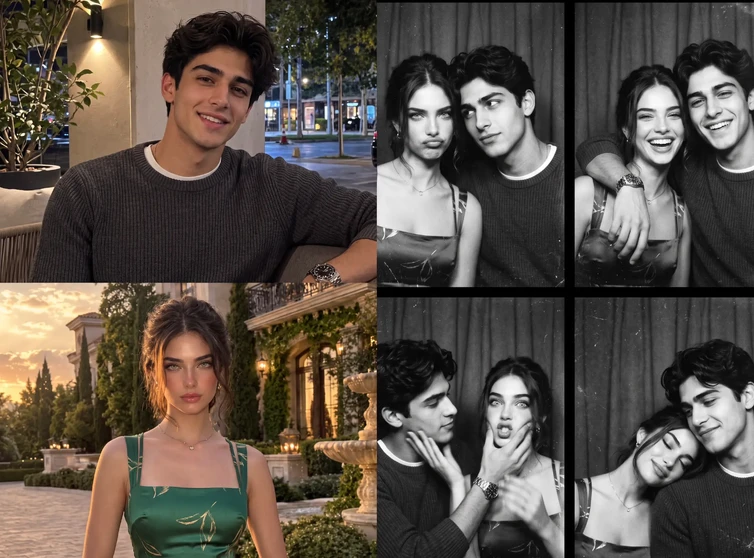
This guide demonstrates a two-person template that turns two individual photos into a black-and-white, four-panel photo-booth-style image.
Table of Contents
- Bring separate portraits into one picture
- Before you start
- How to create an AI group photo in Meitu
- What to check in your generated photo
- FAQs
Bring Separate Portraits into One Picture
You have photos of each other, but none together in the style you want. Perhaps you and a friend live in different cities, or you want to try a photo-booth look without arranging another shoot.
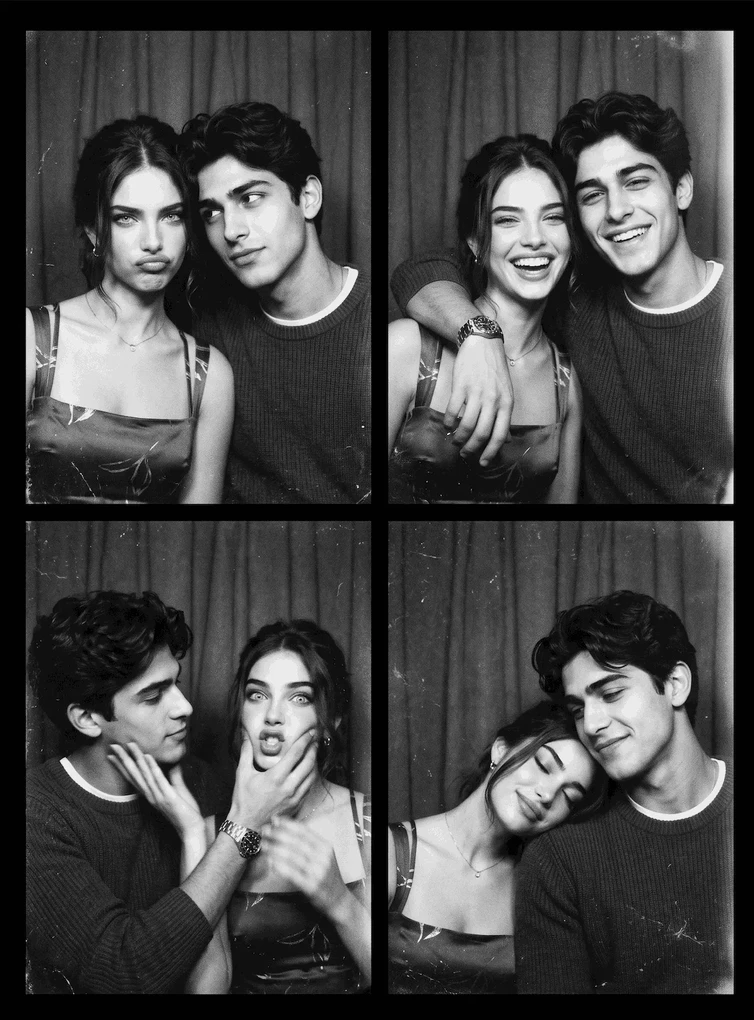
Meitu’s AI Group Photo lets you use separate images as inputs for a shared, template-based picture. In this example, two individual portraits become a four-panel composition featuring both people together, with different expressions and poses across the panels.
The template gives the result its visual direction. Here, the black-and-white treatment and curtain backdrop create a photo-booth feel. The finished image is an AI-created interpretation of the source portraits, so reviewing each person’s appearance is part of the process
Before You Start
Prepare a separate photo of each person for the two-photo template demonstrated here. Choose images where the face is easy to see, with reasonably sharp detail and minimal obstruction from hands, hair, or accessories.
You do not need an existing photo of both people together. The example uses two photos taken separately.
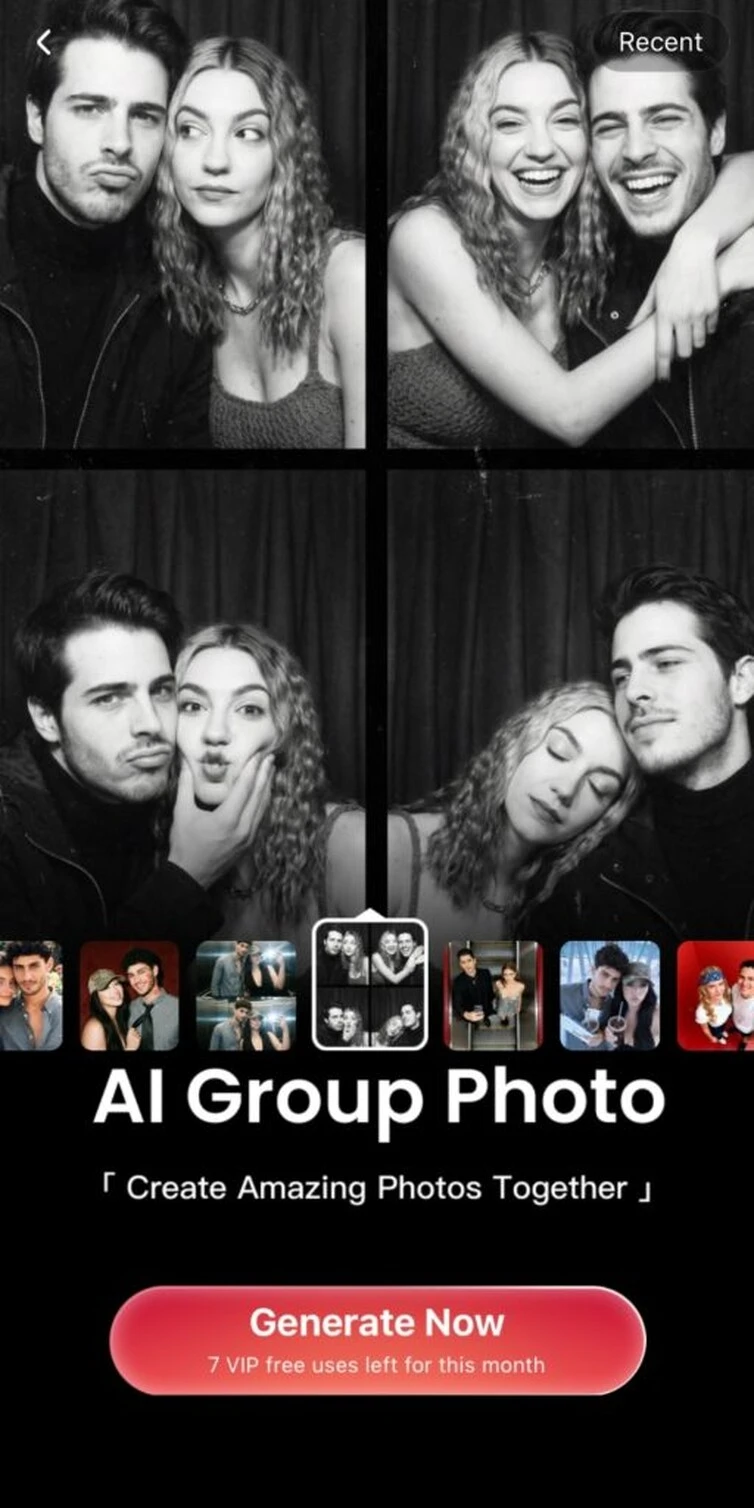
Check the template preview before generating. It helps you decide whether its layout and style suit the picture you want to create. Also review any price or usage allowance shown in your app; the allowance visible in this demonstration belongs to that account and should not be treated as a universal free-use offer.
How to Create an AI Group Photo in Meitu
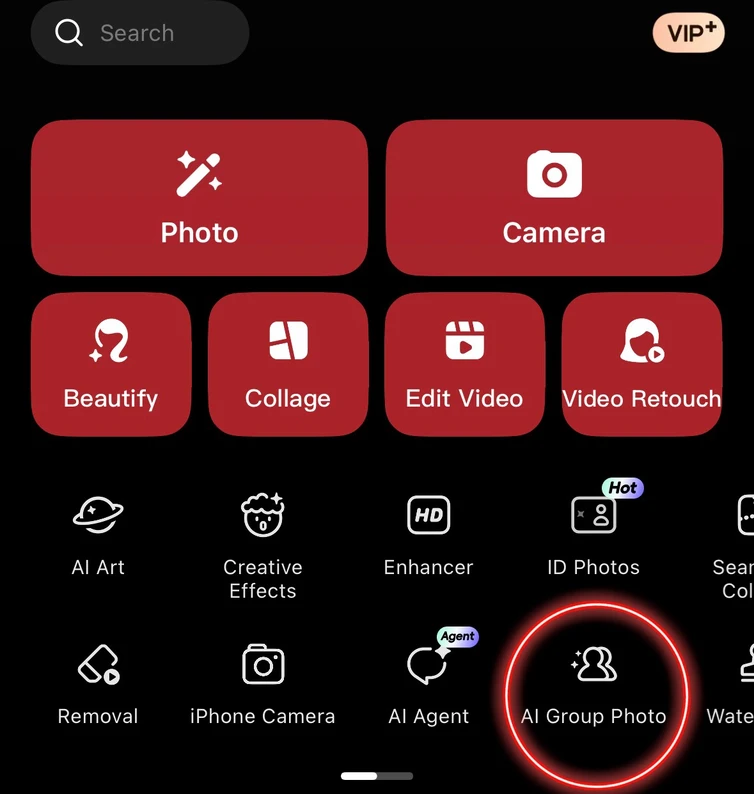
Step 1: Open AI Group Photo
On Meitu’s home screen, tap AI Group Photo to open the feature.
This walkthrough uses the English-language mobile interface. The tool’s placement may differ between app versions.
Step 2: Choose a template
Browse the template thumbnails and select a style you like. Look at the large preview to see the composition before continuing.
For this tutorial, select the black-and-white, four-panel photo-booth-style template. Then tap Gene
Step 3: Select two photos
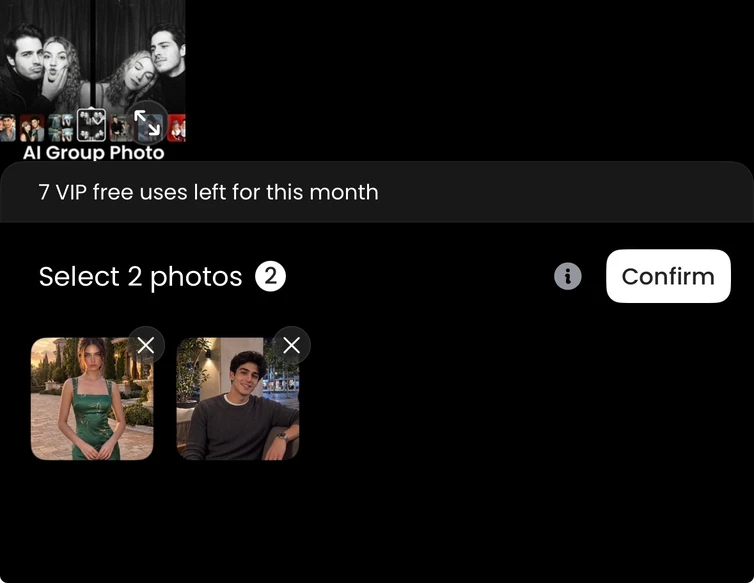
The photo picker opens with the instruction Select 2 photos.
Choose one photo of each person. Check the two selected thumbnails at the bottom of the screen to make sure you have the intended images. To replace a selection, tap the × on its thumbnail and choose another photo.
When both photos are selected, tap Confirm.
Step 4: Wait for generation
Meitu processes the selected photos and generates the image.
Follow the status shown on the processing screen. The demonstration displays an estimated wait time, but the actual duration can vary; use the estimate in your own session rather than expecting a fixed turnaround.
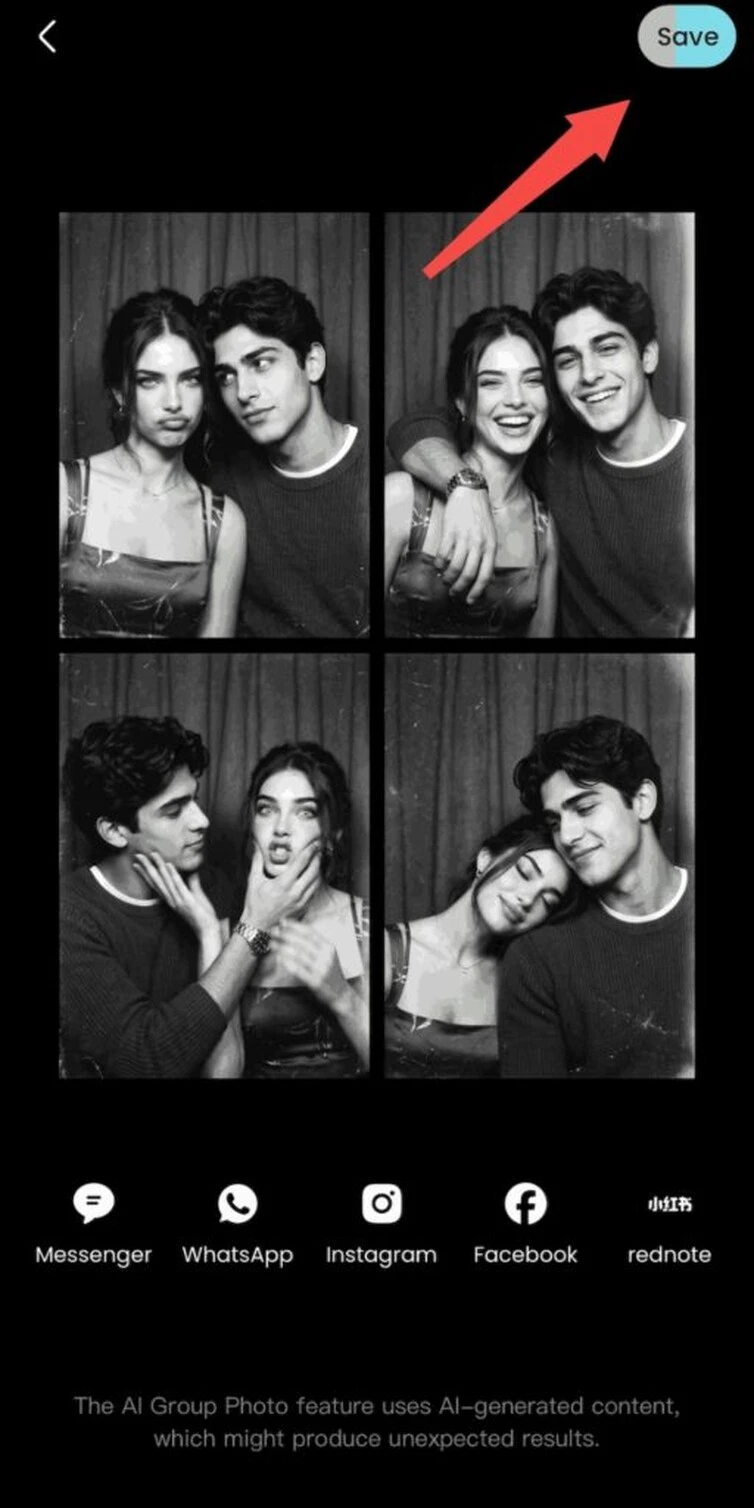
Step 5: Review the four-panel result
When generation finishes, the completed image appears on the results screen.
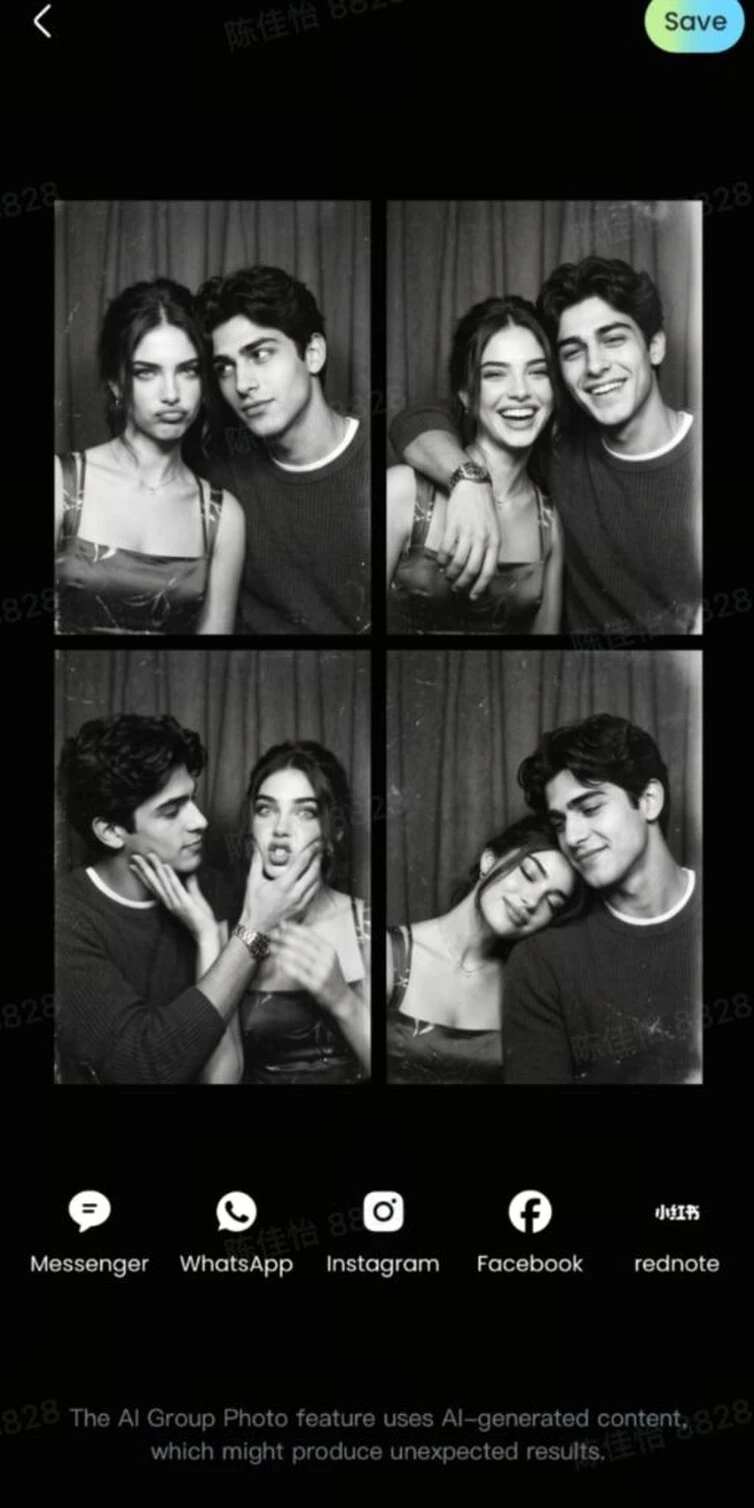
In this example, the output is one composition containing four panels. Look through all four, checking how both people appear and whether the expressions and poses work well together.
Step 6: Save your album
Tap Save in the upper-right corner. A Saved to album message confirms that the image has been saved.
For more detail on image adjustments, see how to use Meitu’s image enhancement tools.
What to Check in Your Generated Photo
A strong result should work both as a complete composition and as individual portraits. Before saving or sharing, take a closer look at three things.
Both people’s likeness. Compare the generated faces with the source photos. Look at the eyes, smile, and facial proportions, especially if someone’s expression changes between panels.
Hands and overlapping details. Check where a hand touches a shoulder, where faces sit close together, and where hair meets clothing. These details can affect how convincing the image looks.
Consistency across the panels. In a four-panel layout, inspect every panel rather than judging only the first. Make sure both people remain recognizable throughout the composition.
Download Meitu for iPhone | Get Meitu for Android
FAQs
Can I create a photo together without having an original group photo?
Yes. The workflow demonstrated here uses two separate individual photos to generate an image featuring both people together.
How many photos do I need?
The template in this tutorial requires two photos. Follow the selection requirement shown for the template you choose; this demonstration does not establish support for larger groups.
Can I choose the style before uploading photos?
Yes. In the demonstrated workflow, you select a template first, tap Generate Now, and then choose your photos.
Does Meitu generate four separate photos?
The template shown here produces one four-panel composition. The four scenes appear together in a single image on the results screen.
Will the result look exactly like the original photos?
Not necessarily. AI generation can change expressions, poses, clothing, and facial details. Compare both people with their original photos before deciding whether to use the result.
How long does generation take?
Check the estimate displayed after you confirm your photos. Processing time can vary, so the estimate should be treated as guidance rather than a guaranteed completion time.
Is AI Group Photo free to use?
Check the price or available uses displayed in your app. The recorded example shows a VIP usage allowance, which does not establish that generation is free for every account or template.
Where is the finished image saved?
Tap Save on the results screen to save the image to your photo album. In this walkthrough, Meitu displays Saved to album when saving is complete.
Create a New Picture Together
Choose two portraits, find a template you like, and let Meitu create a shared composition. For a photo-booth-style result, review each panel, check that both people look recognizable, and save the image you are happy to share.