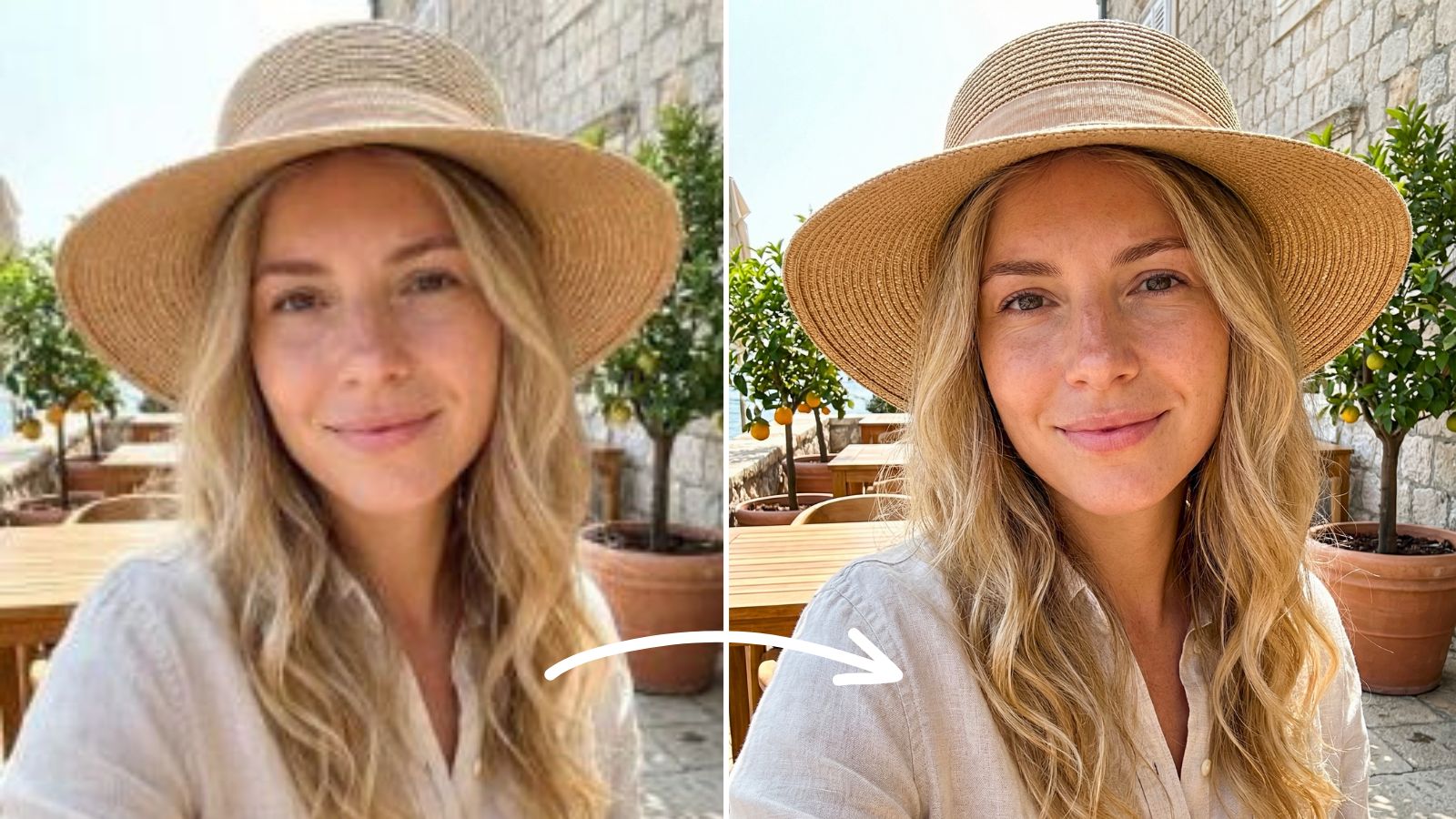
How to Whiten and Straighten Teeth in Photos with Meitu
By Meitu Featured Editing Team | Updated October 30, 2026

To whiten teeth in photos with Meitu, open a smiling portrait in the portrait editor and use the teeth whitening control. If you also want to adjust their appearance, preview a subtle teeth straightening option and compare it with your original smile. Confirm the edits, save the photo, and check that the result still looks natural.
You may like everything about a birthday photo or a vacation selfie except the way your teeth look under the lighting. A small, focused edit can brighten your smile while keeping the expression and atmosphere you wanted to capture.
Table of Contents
- Choose a Photo to Edit
- Before You Start
- How to Whiten and Straighten Teeth in Meitu
- Keep Your Smile Looking Natural
- FAQs
Choose a Photo to Edit
Choose a photo with an open smile and clearly visible teeth. A front-facing portrait or a gentle angle makes it easier to inspect the result. Start with the original camera file rather than a small screenshot or a heavily compressed copy.
Keep the source photo for comparison. If the mouth is blurred, very small, or covered by a hand, try another frame where you can see the teeth more clearly.
For a photo that also needs more clarity, see How to Fix Blurry Photos with Meitu. Check the mouth carefully after any enhancement before continuing with teeth edits.
Before You Start
Decide whether you want brighter teeth, a small alignment adjustment, or both. If you already like the shape of your smile, whitening alone may be enough. These tools change the appearance of teeth in the photo only.
Meitu is available for iOS and Android and offers in-app purchases. Tool names, placement, and access can vary by version and region. Check the options and any payment prompt shown in your app before applying an edit.
How to Whiten and Straighten Teeth in Meitu
Step 1 Open your photo and find the teeth tools
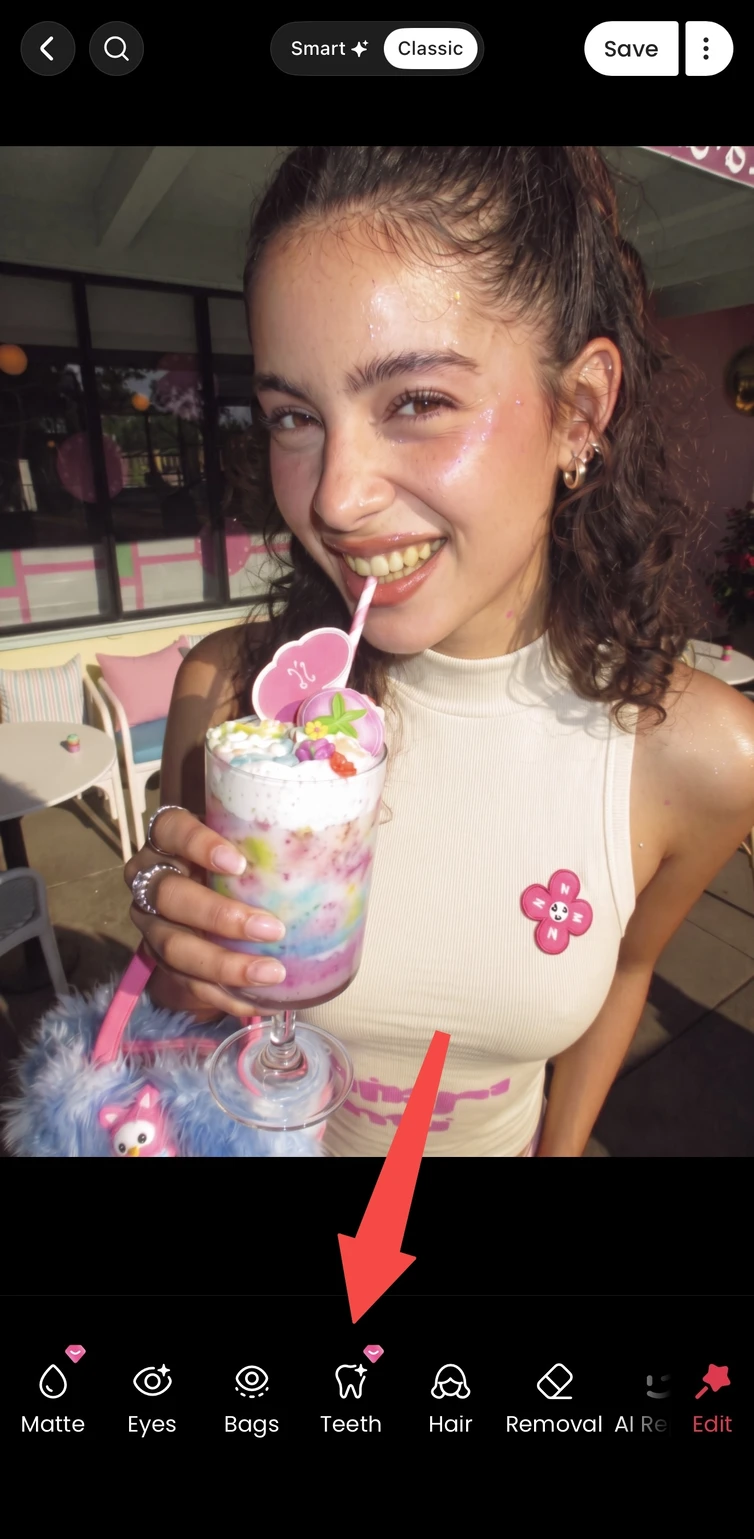
Open the portrait retouching area in Meitu and select your smiling photo. In the editing toolbar, open the teeth editing tool. Keep the full face visible while you locate the controls so you can judge the smile in context.
Step 2 Adjust the teeth whitening
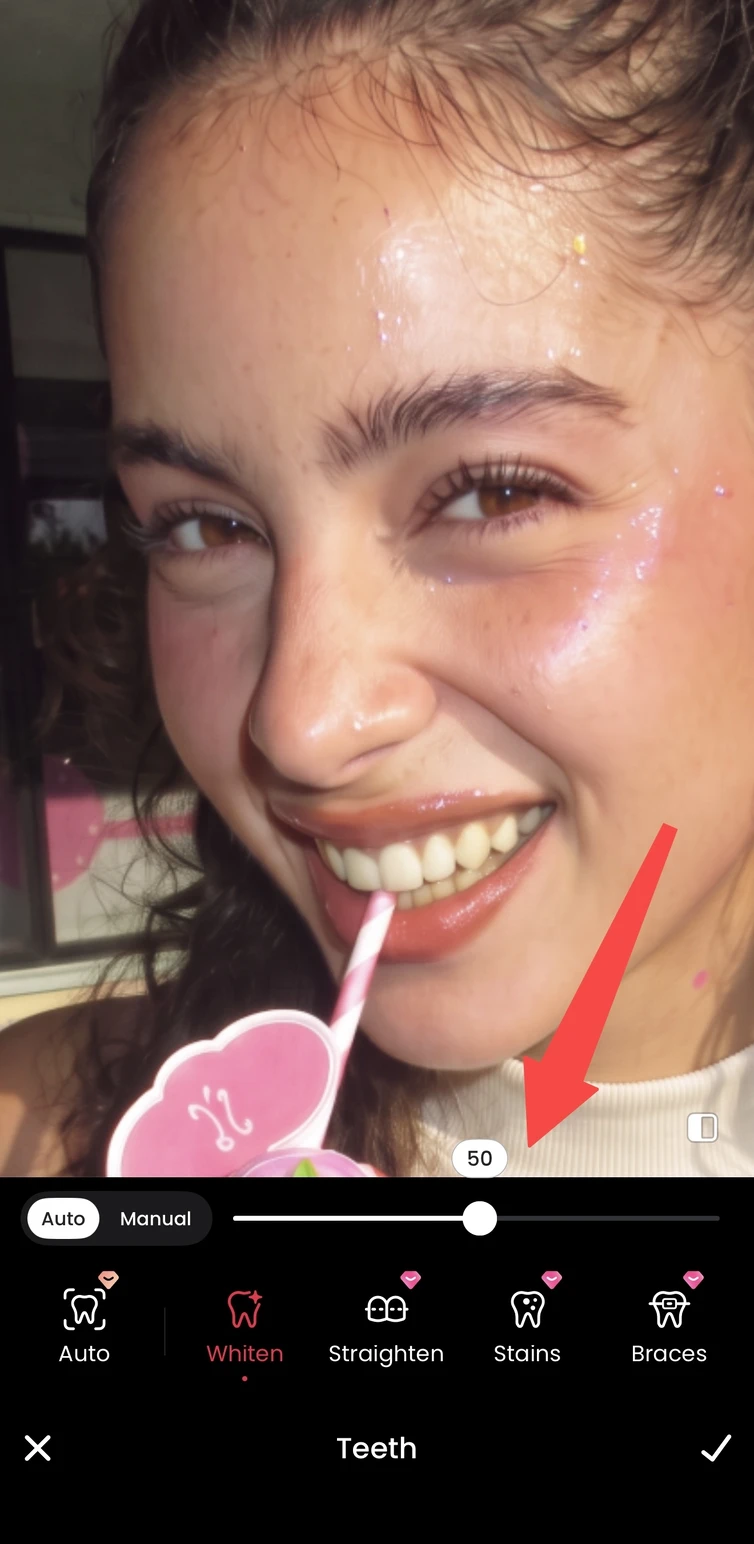
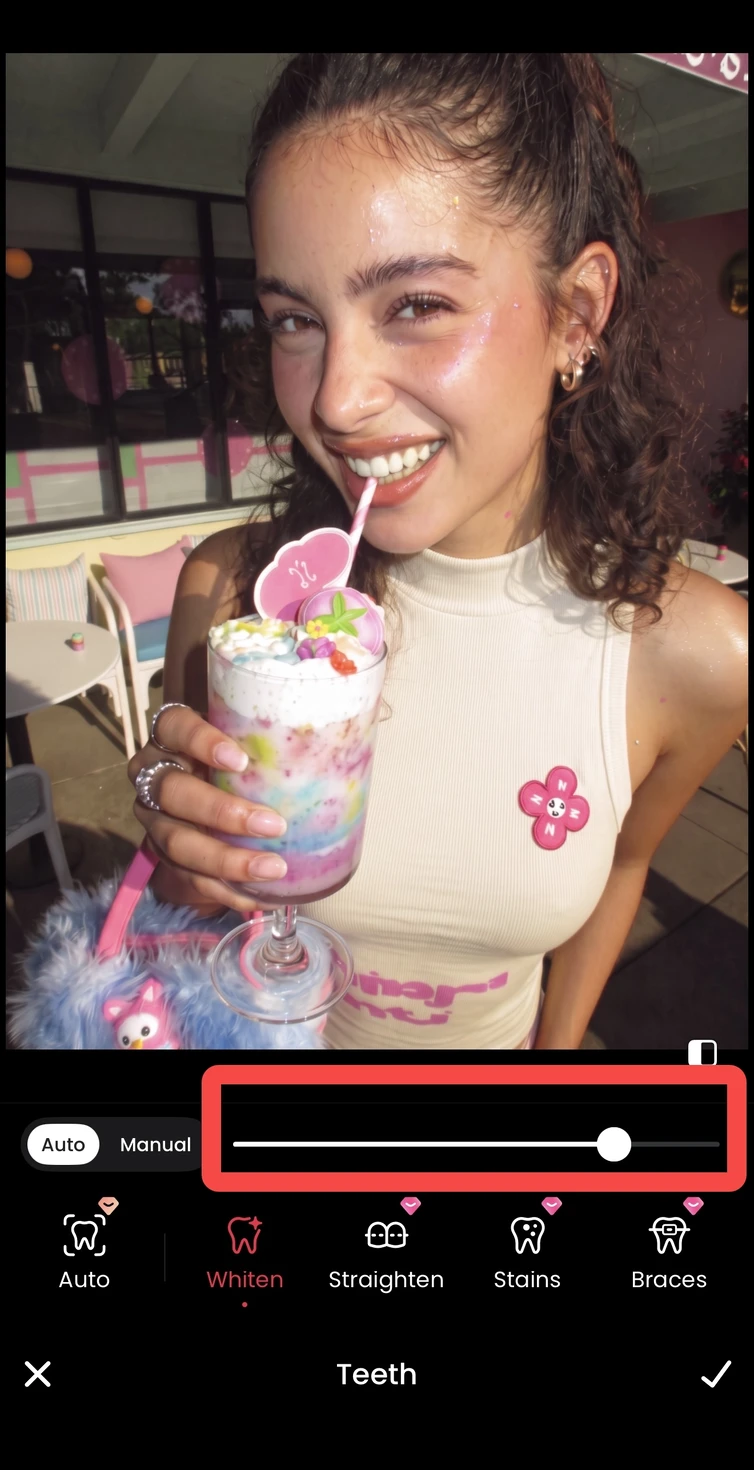
Select the whitening control and adjust the amount gradually. Watch the visible teeth as you make the change, stopping while their edges and natural shading remain clear. The right amount depends on the light in your original photo.
If your version offers a manual whitening brush, use it only over the visible teeth and choose a brush size that fits the area. Keep the adjustment away from the lips and gums. Reduce or undo it if the surrounding mouth becomes lighter.
Step 3 Try a subtle alignment adjustment
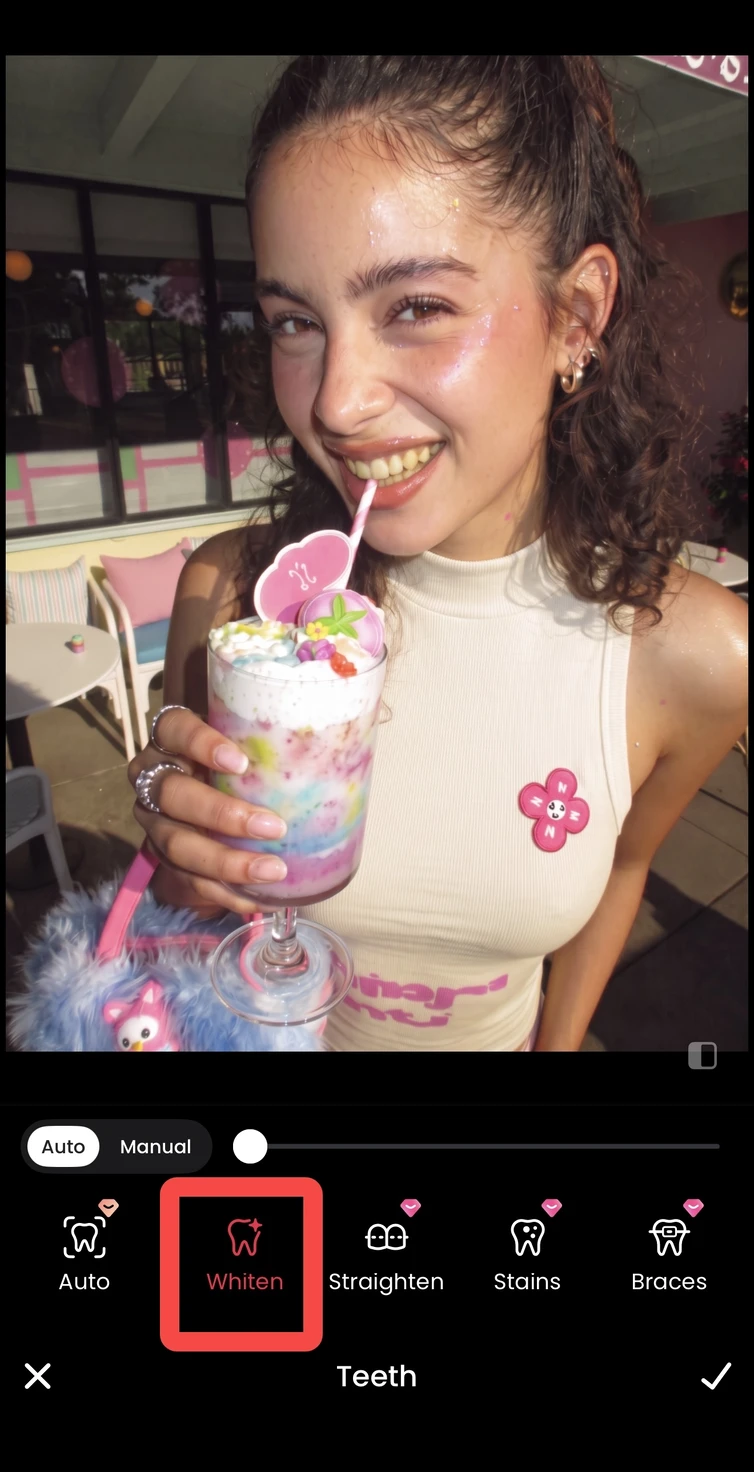
If you want a more even appearance, open the teeth straightening option and begin with a subtle setting. Compare the tooth shapes and the outline of your smile with the original. Keep the adjustment only if it fits the expression you started with.
You can skip this step when you only want to whiten your teeth. There is no need to change a smile you already like.
Step 4 Compare the whole smile
Use the available comparison control to review the original and edited photo. Check the mouth closely, then return to the full portrait. Look for tooth edges that have merged together, an overly bright patch, or a change around the lip line. Reduce the relevant edit if it draws more attention than your expression.
Step 5 Confirm and save your photo
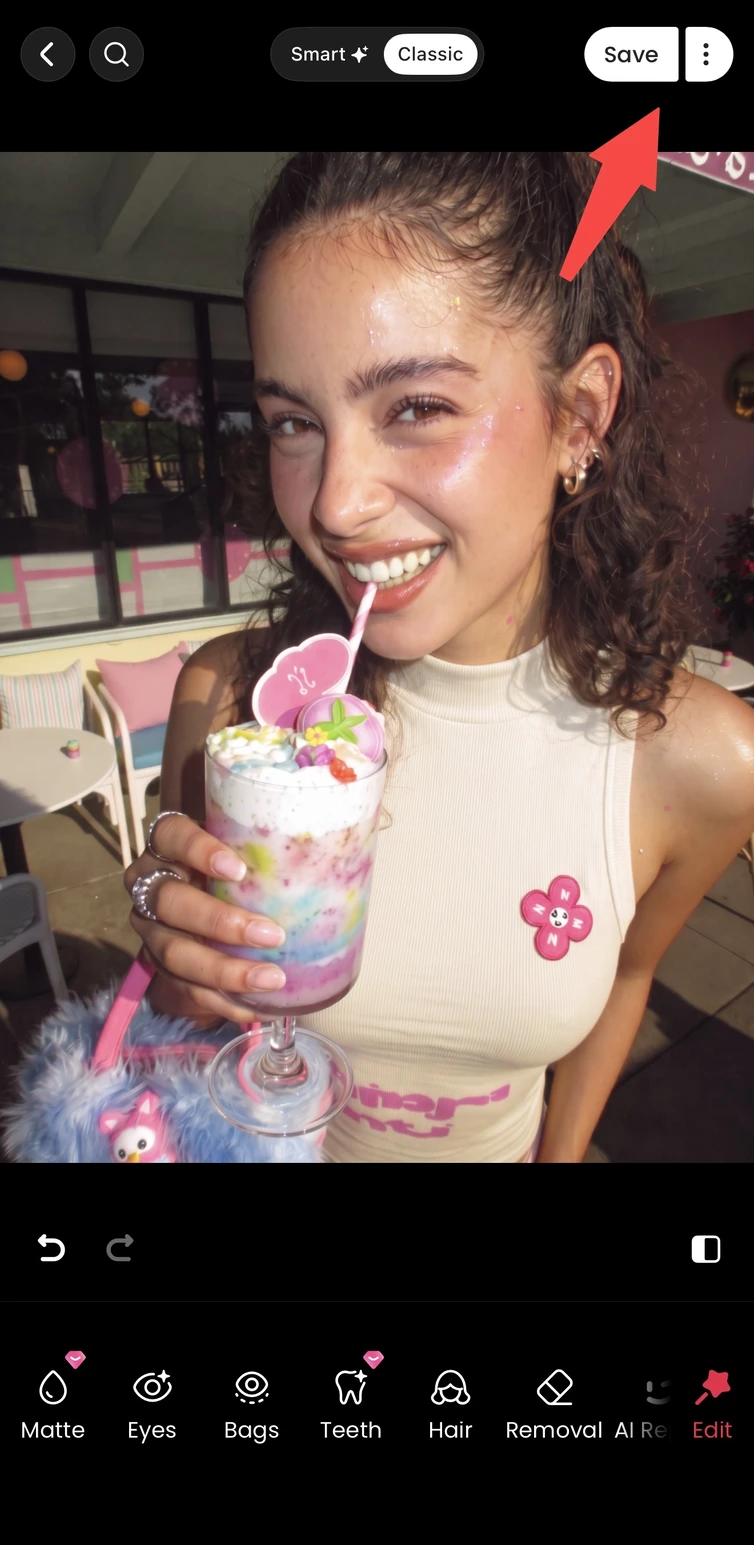
Confirm the teeth edits with the checkmark, return to the main editor, and tap Save. Open the exported image in your photo library and compare it with the original. Keep the original file so you can make a different edit later.
Review the photo at the size you plan to share. Use the exported image for your post or profile picture so the editing controls do not appear around it.
Keep Your Smile Looking Natural
- Keep visible detail in the teeth. Lower the whitening amount if they turn into a flat white area.
- Check the lips and gums. Their color and edges should remain consistent with the original.
- Judge the full portrait. A brighter smile should still fit the lighting on the rest of your face.
If the whole face is too dark, you can explore Meitu’s flash effect tutorial for a separate lighting edit. Recheck your teeth after changing the light.
FAQs
How do I whiten teeth in a photo with Meitu?
Open your photo in Meitu’s portrait editor and choose the teeth whitening control. Adjust the amount while watching the teeth and surrounding mouth, then confirm and save. Begin with a clear photo in which the teeth are visible.
Can I straighten teeth in a photo with Meitu?
Meitu provides teeth correction for adjusting their appearance in a photo. Preview a subtle alignment option and compare it with the original. Keep the result only if the tooth shapes and expression still look believable.
Can I whiten teeth without changing their shape?
Yes. Use the whitening control on its own and leave alignment adjustments off. Compare the result with your original to make sure the shape of your smile remains the same.
Why do my edited teeth look too white?
The whitening amount may be too strong for the photo’s lighting. Lower it until the teeth retain visible shading and separation. Check the full face as well as the close-up so the smile fits the rest of the portrait.
Why is the teeth edit not working well on my photo?
Check whether the teeth are clearly visible. A small, blurred, or partly covered mouth gives you less detail to work with. Try a sharper original or another frame with a clearer smile, then compare the new preview.
Is teeth whitening and straightening in Meitu free?
Meitu is free to download and offers in-app purchases. Access to particular tools or options can depend on your version and account. Review any premium badge, price, or subscription prompt shown in the app before confirming.
Edit a Smile in a Photo You Already Like
Start with a clear smile, make the adjustments you want, and compare the result before saving. Keep the version that feels right for your photo.
Download Meitu for iPhone | Download Meitu for Android
Find more photo editing tutorials in Meitu Academy.
For Meitu on iOS and Android. Features and access may vary by app version and region.