
How to Try New Hairstyles with Meitu Before a Haircut
By Meitu Featured Editing Team | Updated October 16, 2026
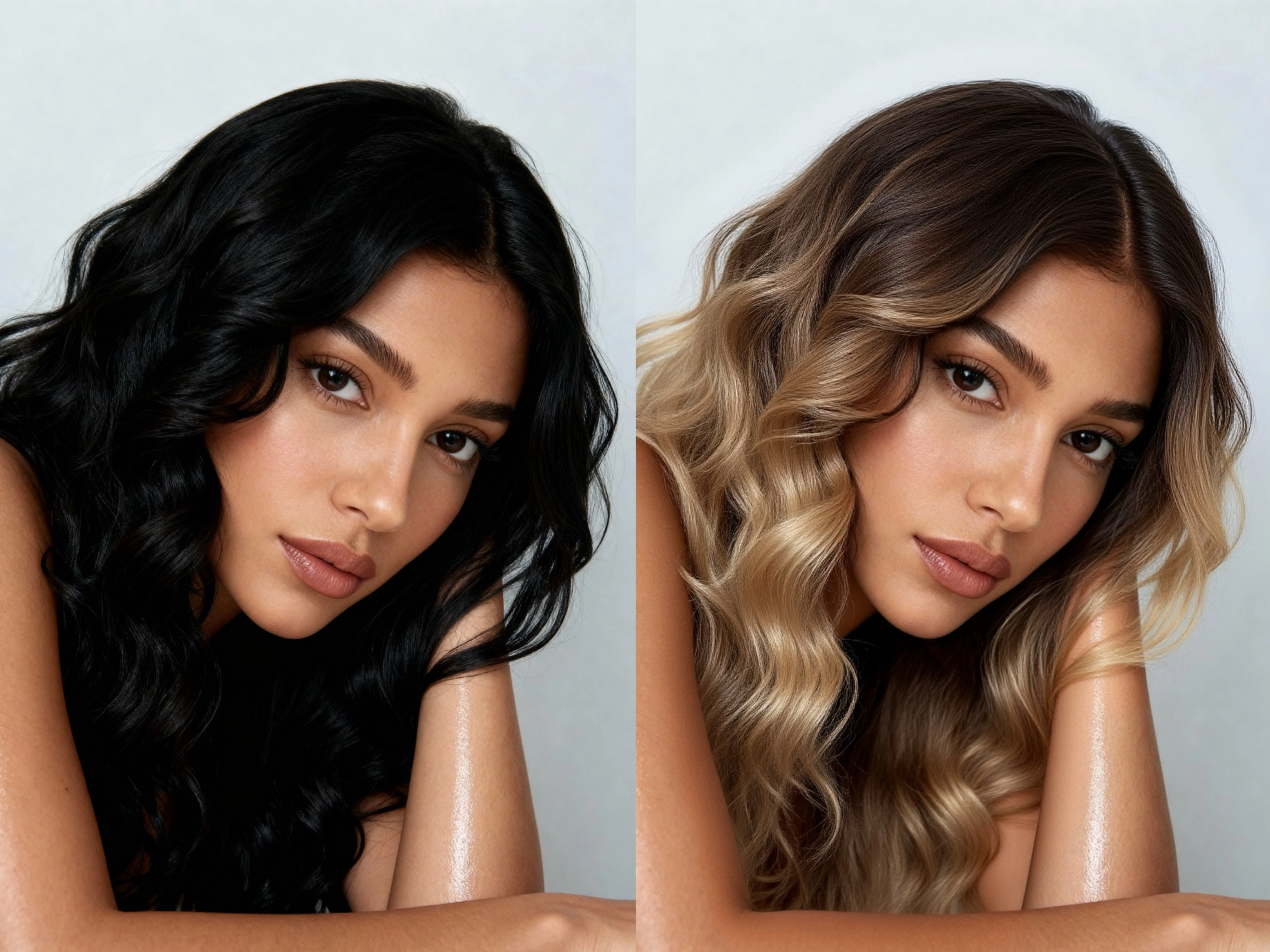
You can use Meitu’s hair editing tools to preview a new hairstyle on a photo before changing your
real hair. Open a clear portrait, find Hair in the portrait editing tools, and compare the styles available
in your version. Start with the shape, explore a different hair color if you want, then check the edges , and save your favorite result.
Table of Contents
- Preview a Haircut on Your Own Photo
- Choose a Photo to Edit
- How to Try a New Hairstyle in Meitu
- Compare Short Styles and Hair Colors#faqs
- Check Your Hairstyle Preview
- FAQs
Preview a Haircut on Your Own Photo
You have saved a few short-hair references, but it is hard to picture the change on yourself. A
cropped cut, a bob, and bangs can frame the same face in very different ways.
Use a photo of yourself to explore what you like before your next salon appointment. Meitu’s portrait
editing tools let you experiment with hairstyles and hair colors. A useful preview helps you describe
the length, shape, or shade you want to discuss with your stylist.
Choose a Photo to Edit
Choose a clear solo portrait taken near eye level, with even lighting and the top of your head fully
visible. Leave a little space around your hair and shoulders. Remove hats, keep your hands away
from your hair, and avoid a background that blends into it.
Use the original photo and keep the same crop while comparing styles. Strong color filters or face
reshaping can make it harder to judge the hair itself. Tool placement and available styles may differ
by language, region, and app version.
How to Try a New Hairstyle in Meitu
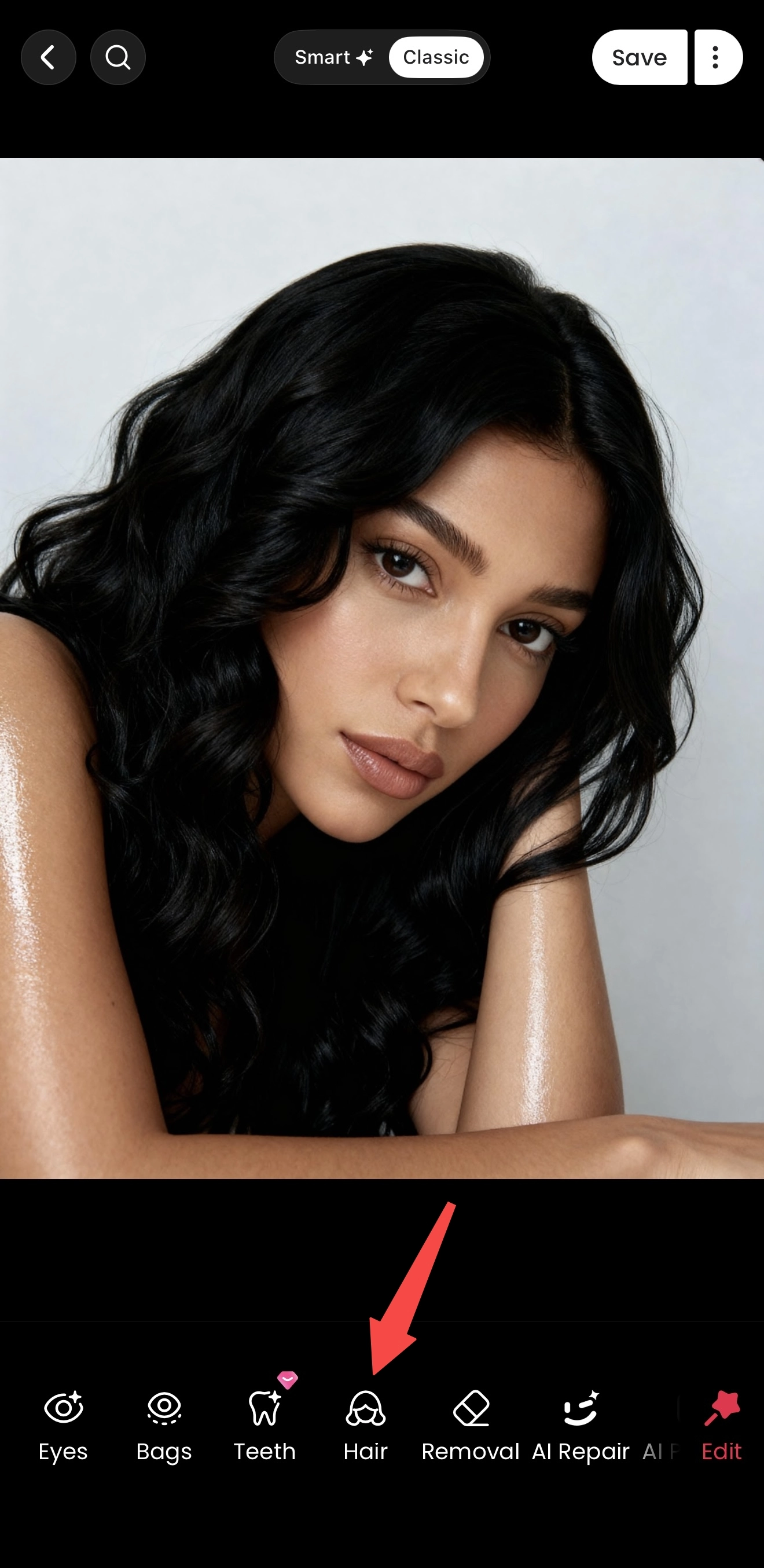
Step 1 Open your photo and find Hair
Open your portrait in Meitu’s photo editor and find Hair in the tool list. Browse the hairstyle options
available in your version. Begin with the change you most want to explore, such as a shorter outline
or bangs.
Step 2 Preview a hairstyle
Select a hairstyle and wait for the preview to finish. For a shorter look, compare where the ends fall
against your cheeks, jaw, and neck. Keep the face, lighting, and crop consistent so you can judge
how the new outline frames your features.
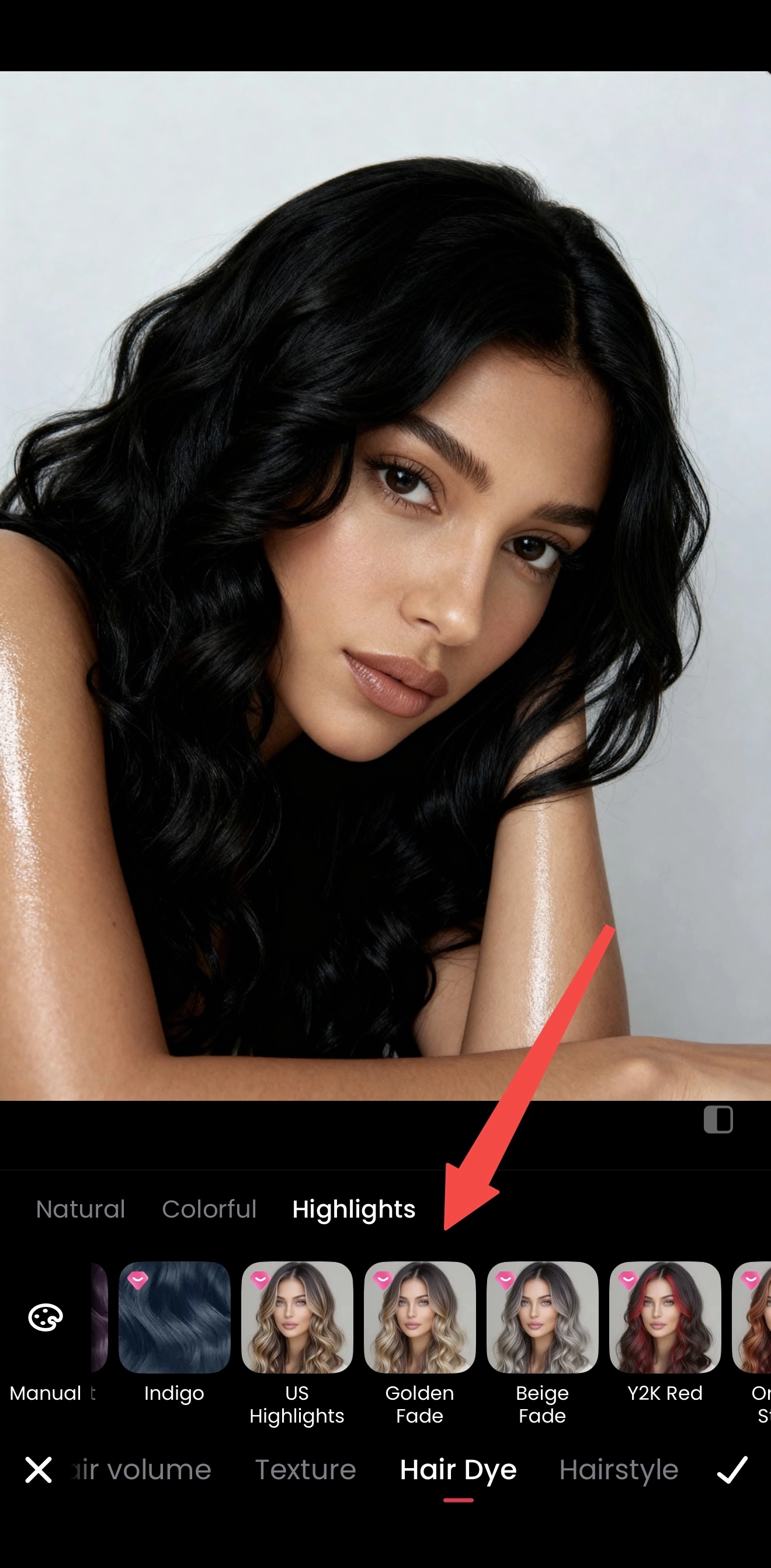
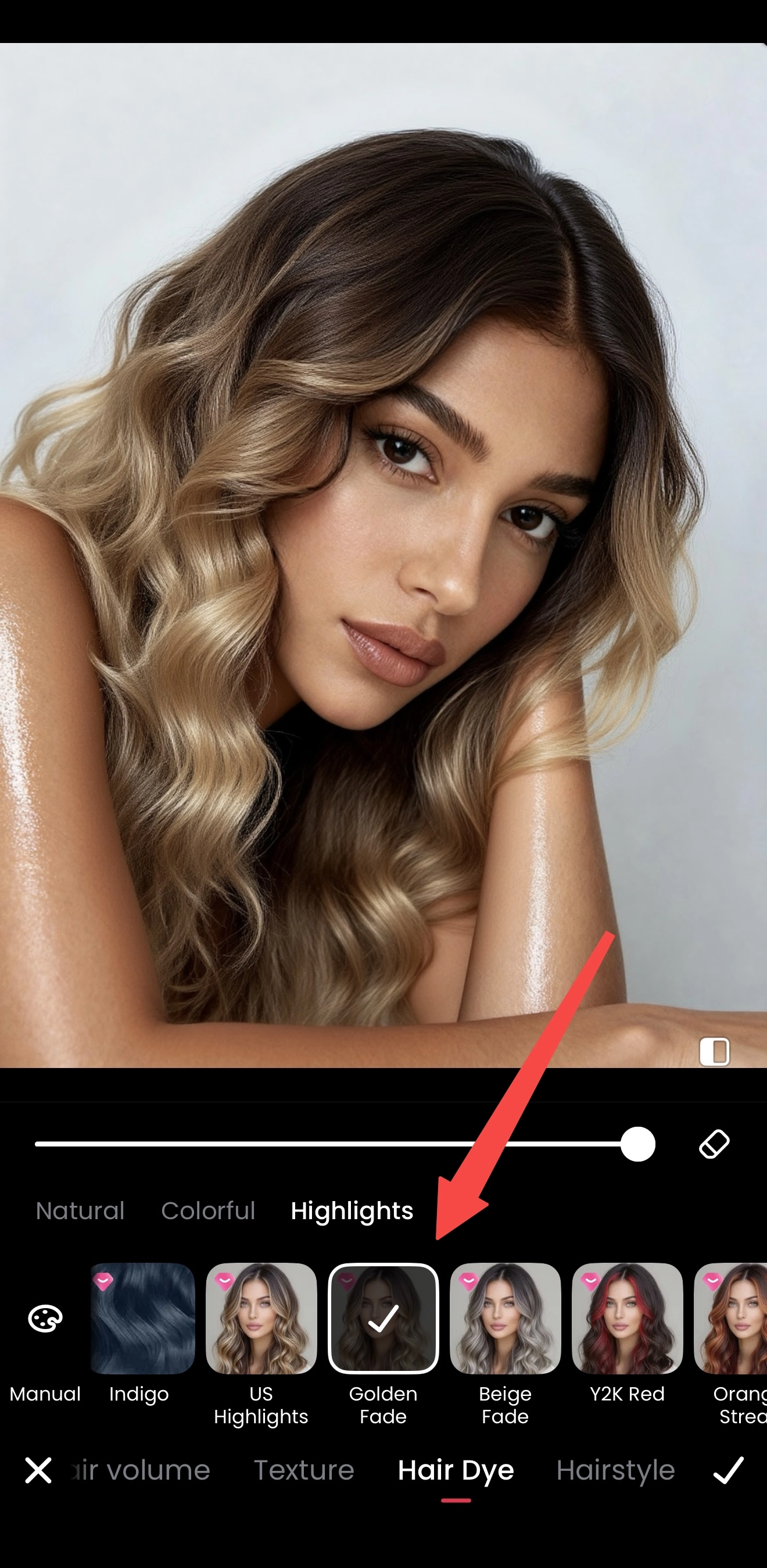
Step 3 Explore a hair color if you want
Use the hair color options to preview a different shade. Compare a color close to your own with a
second option you are curious about. Keep the hairstyle consistent during this comparison, and avoid
adding a strong filter that changes both your skin tone and the hair color.
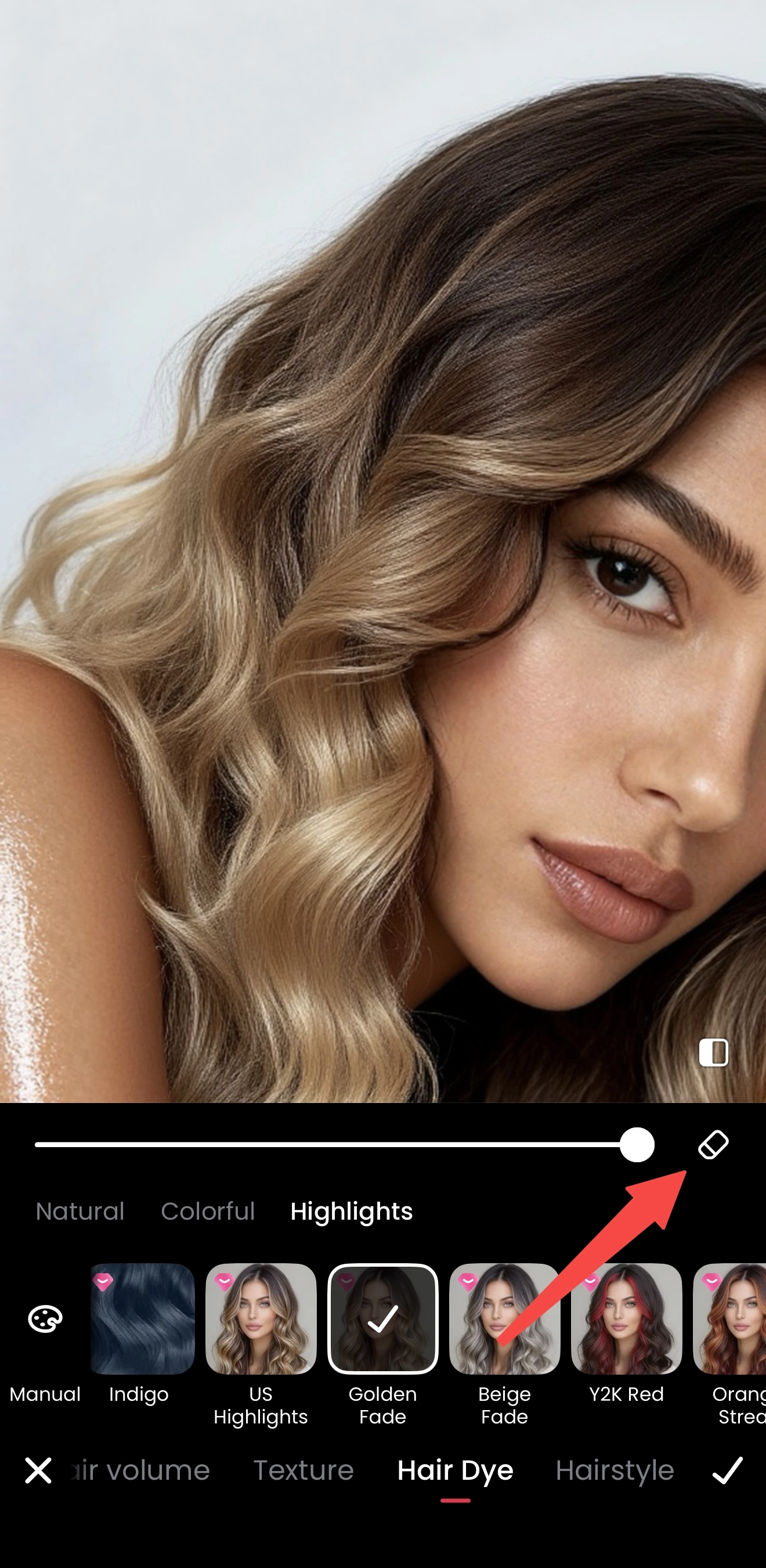
Step 4 Refine the edges
Look closely around your forehead, ears, glasses, and shoulders. If an eraser is available for the
selected effect, use it to remove unwanted spillover. When the new hair changes the shape of your
face or leaves obvious patches, try a different style or a clearer source photo.
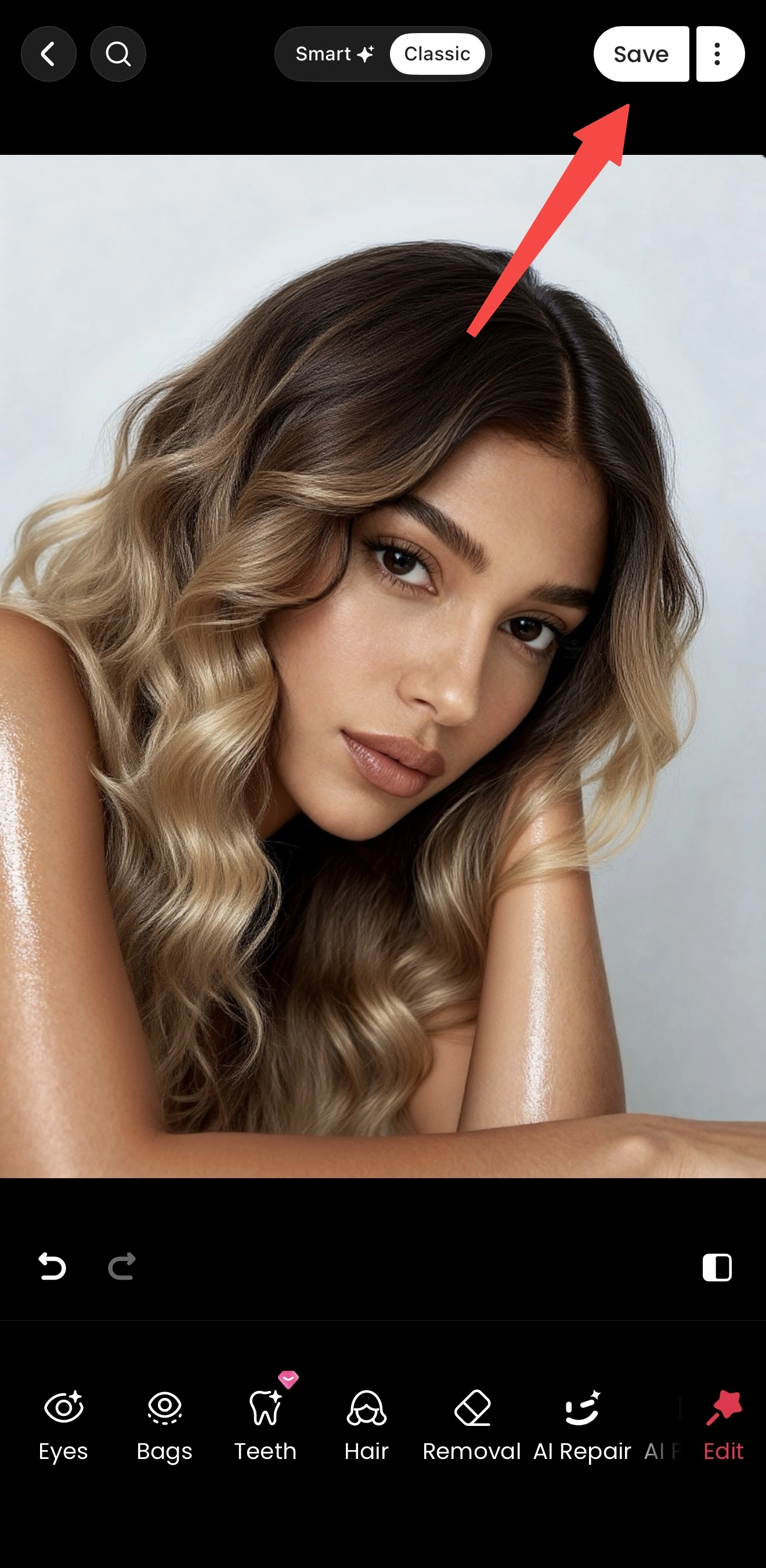
Step 5 Confirm and save
Confirm the hair edit, then tap Save. Open the saved image in your photo library and compare it with
the original. Keep separate copies of the options you like, using the same crop for each. Before an
appointment, choose one or two previews that best communicate your idea.
Compare Short Styles and Hair Colors
A shorter outline. Compare the amount of hair around your jaw and neck. A blunt outline can look
quite different from a softly curled one, even at a similar length. Look at the preview as a whole
before deciding which detail you prefer.
New bangs. Notice where the bangs sit in relation to your eyebrows and how much of your forehead
remains visible. If you wear glasses, check how the hair meets the frames. Bangs can be a useful
change to explore while keeping most of your length.
A new shade. Compare your selected colors under the same lighting. Look at both the darker roots
and the lighter areas rather than judging one patch of color. Choose the version you enjoy seeing
next to your natural skin tone.
Check Your Hairstyle Preview
Your face. Your eyes, smile, and facial proportions should remain recognizable. If you also change
makeup or retouch your skin, make those edits after choosing the hair so they do not affect the
comparison.
The hair and its surroundings. Check for a hard outline at the hairline, color on your ears, blurred
strands, or a distorted background. With a shorter style, pay particular attention to the areas around
your neck and shoulders that the original hair covered.
The full photo. View the result at normal size as well as close up. The hair should sit naturally with
the pose and lighting. If you are saving salon inspiration, keep a clean version with no decorative
stickers or strong filters.
For help with brightness and color, see Meitu’s image enhancement tutorial. For a costume photo,
explore our Halloween photo editing guide after choosing your hairstyle.
Try a New Look on a Photo You Already Have
Start with one clear portrait and a change you are curious about. Save the previews you like, then
use them to explain your idea or create a photo you enjoy sharing.
Download Meitu for iPhone | Download Meitu for Android
FAQs
Can I see what I would look like with short hair?
You can preview the shorter hairstyles available in your version of Meitu on an existing photo. Use
the same portrait for each option and compare the length around your cheeks, jaw, and neck. The
preview helps you explore a direction before deciding on a haircut.
Can I use Meitu as a pixie cut filter?
Check the hairstyle selection in your app for a cropped style that matches your idea. Available styles
vary, so a specific pixie preset may not be offered. A chin-length bob will give you a different preview
from a pixie, which is much shorter around the sides and back.
Can I change my hair color without changing the hairstyle?
Yes. Use the hair color options on your original portrait to explore a different shade while keeping the
existing shape. Compare the result with your original photo, paying attention to the hairline, ears, and
areas where hair overlaps clothing.
Why does the hairstyle preview look unnatural?
Hair hidden by a hand, a hat, or deep shadow can make the result harder to judge. Try a clear
portrait with visible hair edges and a simpler background. If one style still looks distorted, compare
another option instead of adding more effects to hide the problem.
Will my real haircut look exactly like the preview?
A photo preview is a visual reference. Your hair’s texture, density, growth pattern, and daily styling
will affect the real result. Bring the preview to your stylist and discuss the length, bangs, and
maintenance you want before making the change.
Is Meitu’s hair editor free to use?
Meitu is free to download and offers in-app purchases. Access to particular hairstyles, colors, or
editing options may depend on your version and account. Check the price or membership information
displayed in the app before applying an option or saving