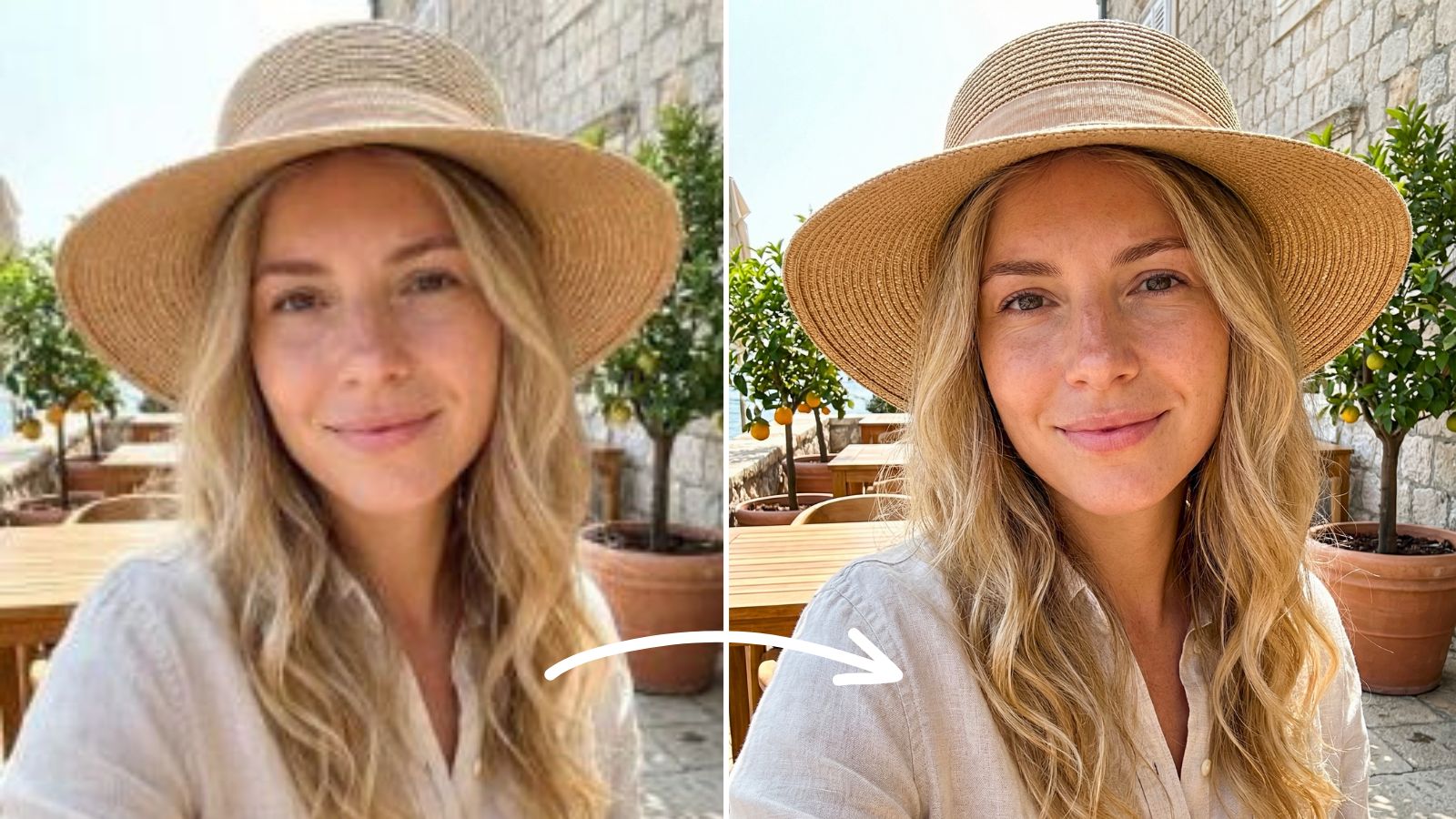
How to Try Halloween Makeup Looks with Meitu
By Meitu Featured Editing Team · Updated September 20, 2026
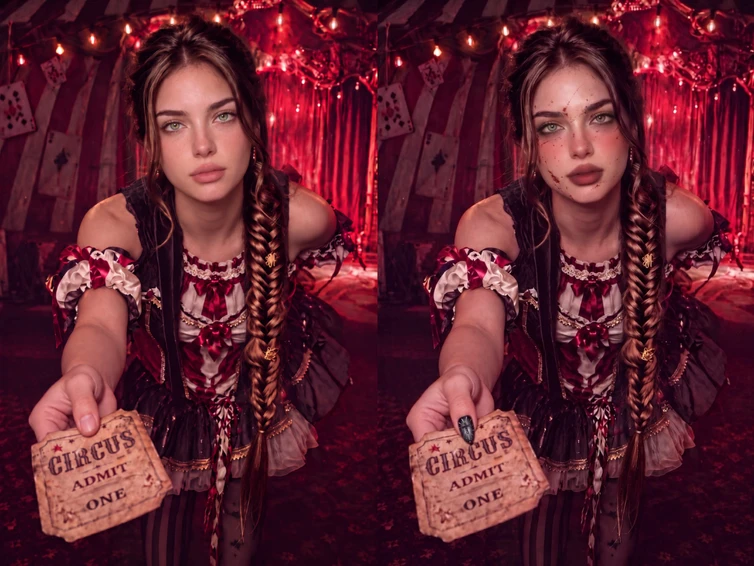
To try on a Halloween makeup look in Meitu, open your photo and tap Makeup in the bottom toolbar. Browse the Looks, Lipstick, Eyebrows, Eyes, Contour, Blush, Decorations, and Nails categories, tap any style to preview it, and tap the checkmark to apply it. In the version shown here you can also search halloween for themed one-tap looks. Then tap Save.
Halloween makeup ideas are everywhere, but knowing whether a look suits your face is harder. Meitu’s Makeup tools let you preview themed looks, lipstick shades, eye makeup, and even nail styles on your own photo before you sit down with the real products.
This tutorial shows how to build a Halloween look from a bare-face portrait — splash effect first, makeup next, nails last — with ideas for trending looks and tips for keeping the result believable.
Table of Contents
- Preview your Halloween look before you commit
- Choose a photo to edit
- How to try Halloween makeup in Meitu
- Halloween looks worth trying
- How to keep the look believable
- FAQs
Preview Your Halloween Look Before You Commit
You have the costume idea and a reference photo of the look you want — a glamorous vampire, an odd-eyed witch, or a gothic look with long dark nails. The question is whether the colors and shapes will work on your own face.
A virtual try-on is one way to test the direction without applying anything. You can search themed looks, swap lipstick shades, compare eye styles, and preview nail art — all on the same photo.
The goal is to find a balance: enough color and definition to read as the character, with enough of your own features showing through that the result still feels like you.
Choose a Photo to Edit
Start with a frontal, bare-face portrait, ensuring the image is clear, the lighting is even, and the facial contours are clearly visible. The hair should not cover the face, providing a clean working area for makeup tools; Overly filtered or blurred photos may lead to misleading previews.
Try to use the original photo as much as possible. This will allow for clearer tone comparison, checking the makeup balance, and evaluating the final effect.
How to Try Halloween Makeup in Meitu
Step 1: Open your photo and tap Makeup
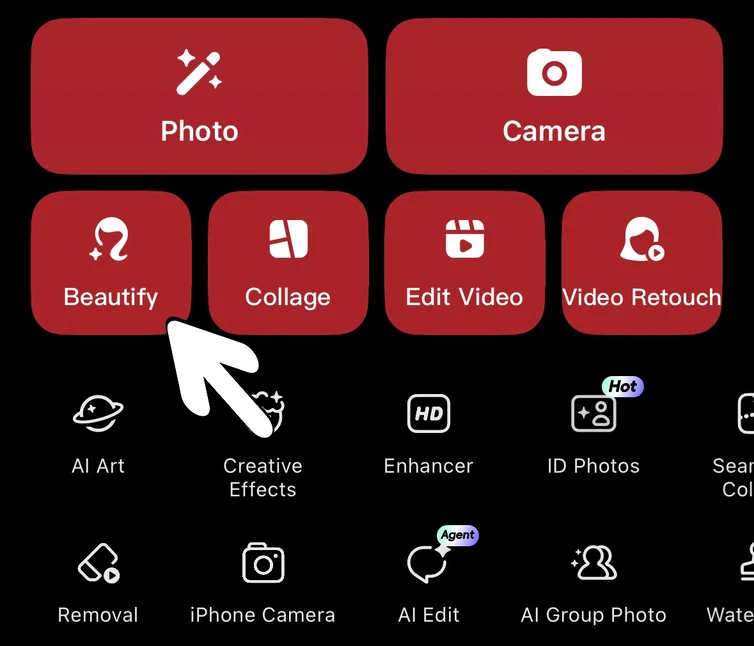
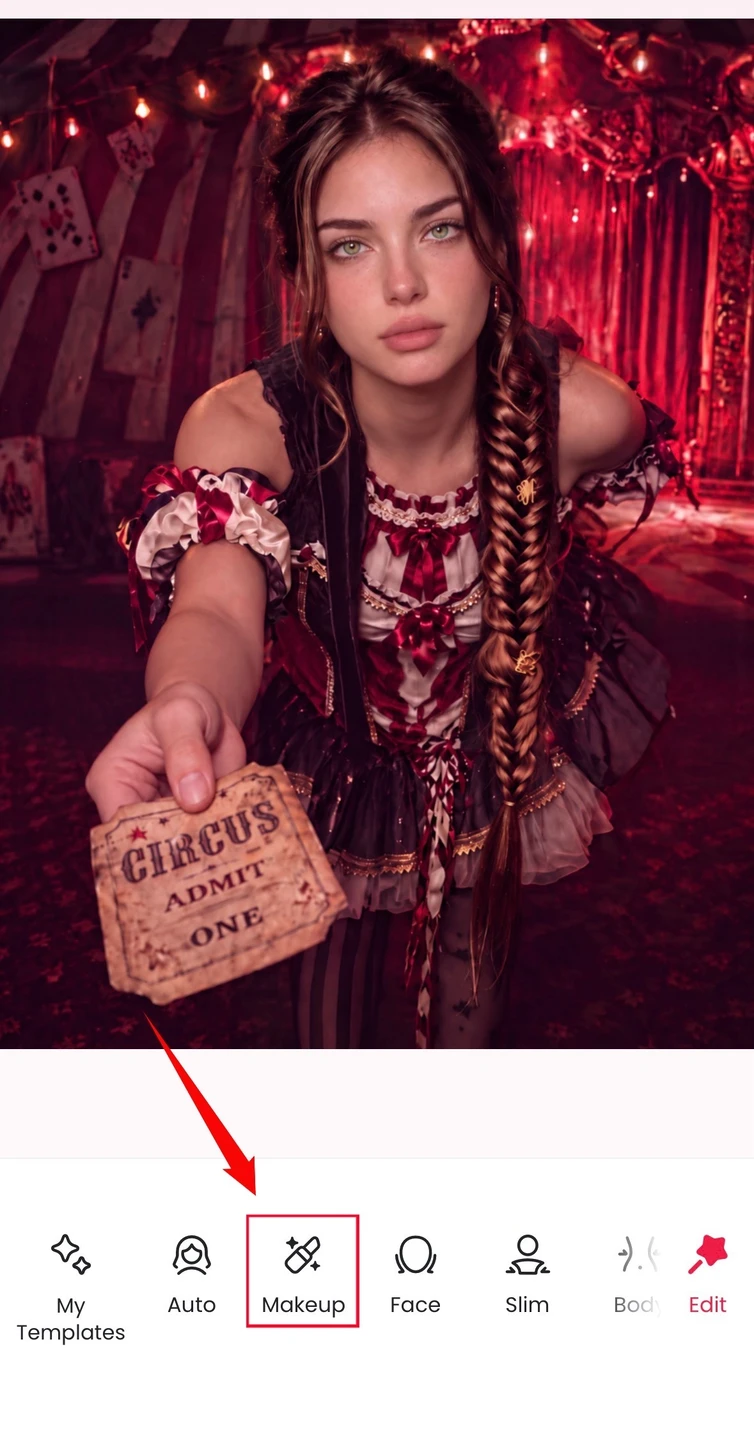
Open a photo from your library in Meitu. In the main editing screen, tap Makeup in the bottom toolbar, next to Auto, Face, and Edit.
For this walkthrough, we use a bare-face portrait with even lighting and no heavy filters.
Step 2: Browse the makeup categories
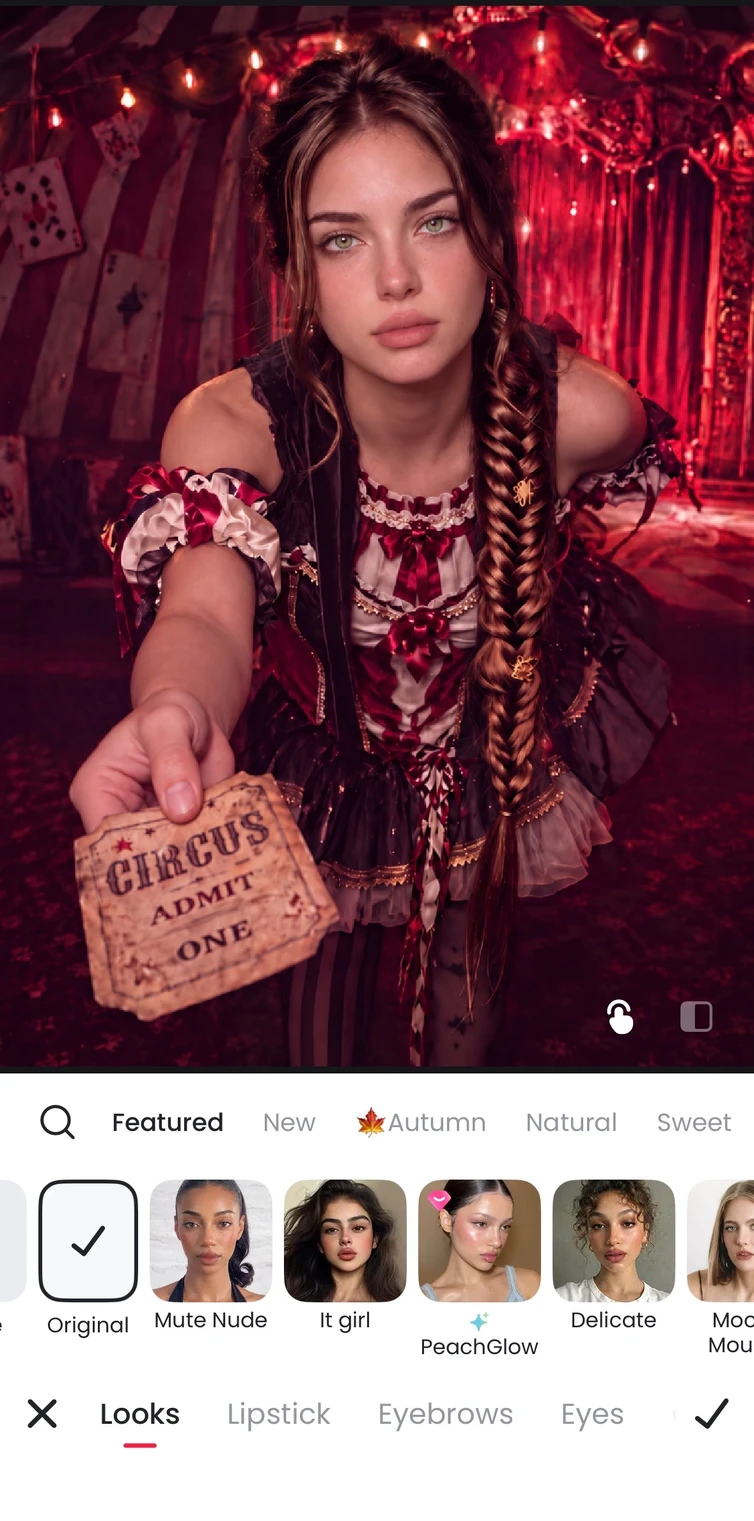
Inside Makeup, swipe left and right through the category row. In the version shown here it includes:
- Looks: full-face styles you can apply in one tap
- Lipstick: lip shades with color, texture, and blend options
- Eyebrows: brow shapes and colors
- Eyes: eyeshadow, eyelashes, eyeliner, and more
- Contour: contour, highlights, shadow, and blush
- Blush, Decorations, and Nails: blush styles, face decorations, and nail art
Tap the category that matches the part of the look you want to try first.
Step 3: Search “halloween” for themed looks
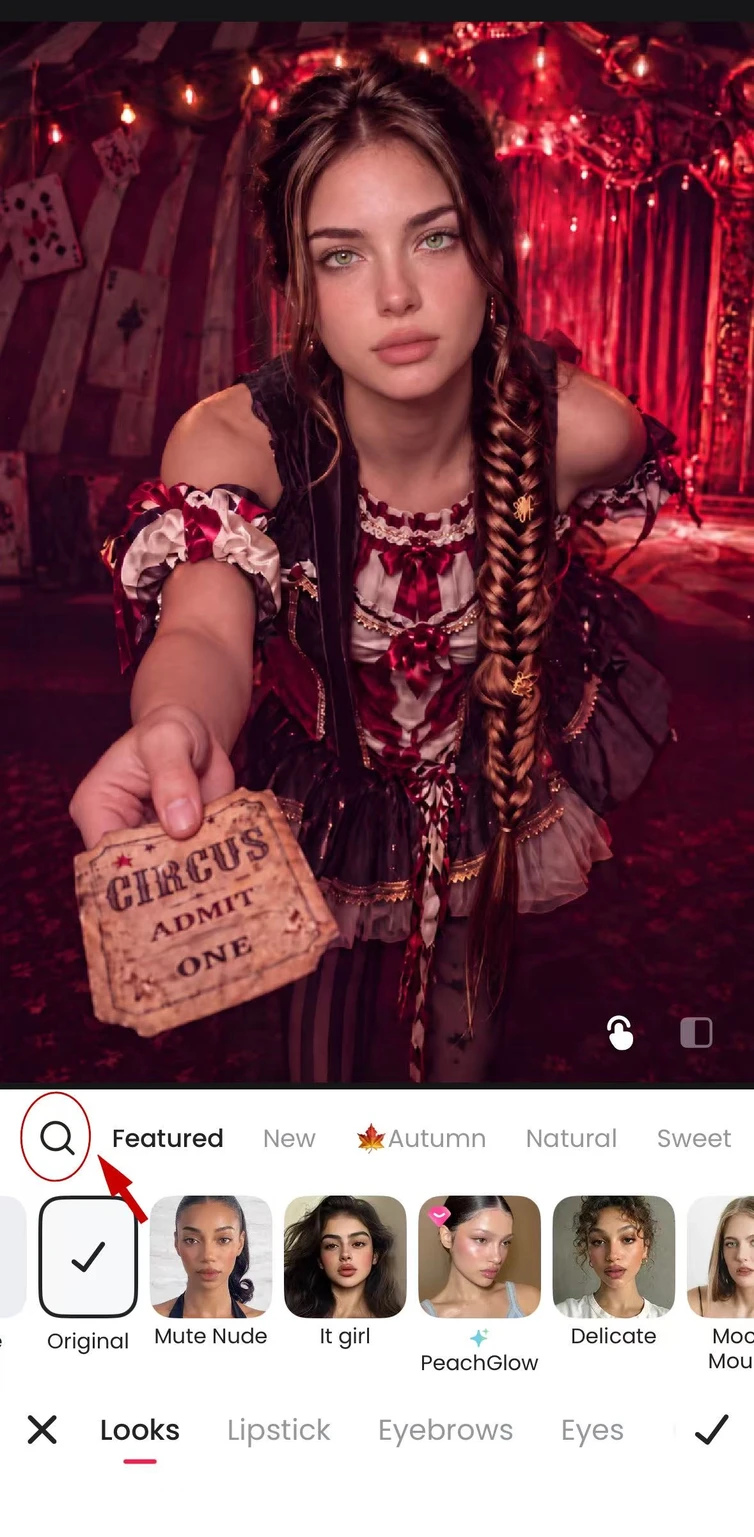
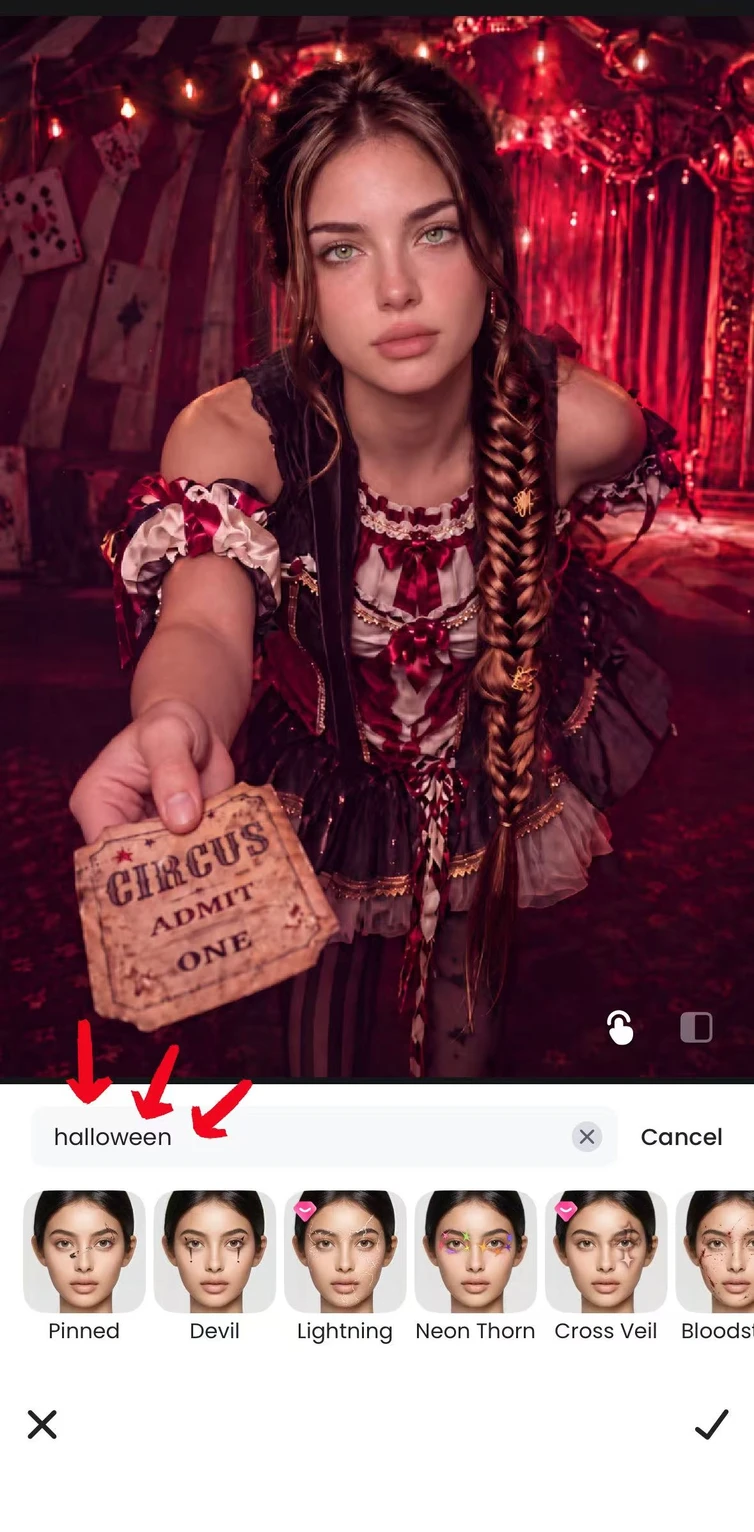
Tap the search field in the Makeup panel and type halloween. You will see themed looks such as Splash (a blood-splash effect), Bloodstain, Odd Witch, Devil, Dark Princess, Duchess, Gothic, and more.
Tap a look to preview it, adjust the intensity slider if you want a lighter or stronger effect, and tap the checkmark to apply. Processing takes a moment for some looks.
Step 4: Build the makeup part by part
After the base look, refine the makeup one category at a time. In Lipstick, for example, open the shade row and adjust Color, Texture, and Blend until the lips match the mood — deep reds and berries for vampires, matte dark tones for gothic looks. Add Eyes for smoky shadow and lashes, Eyebrows for shape, and Contour or Blush for definition.
You can return to any category and change a choice until the combination feels right.
Step 5: Finish with nails, then save
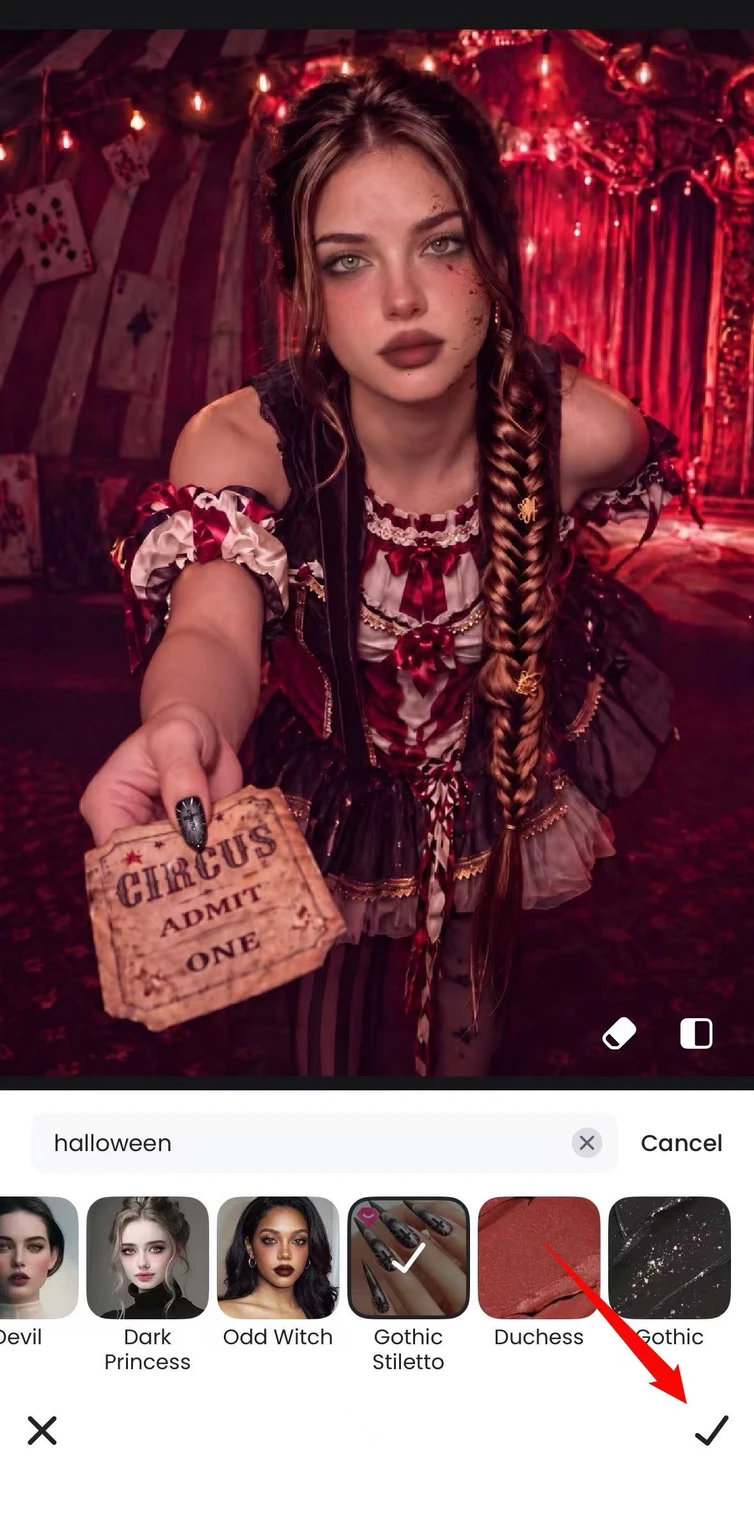
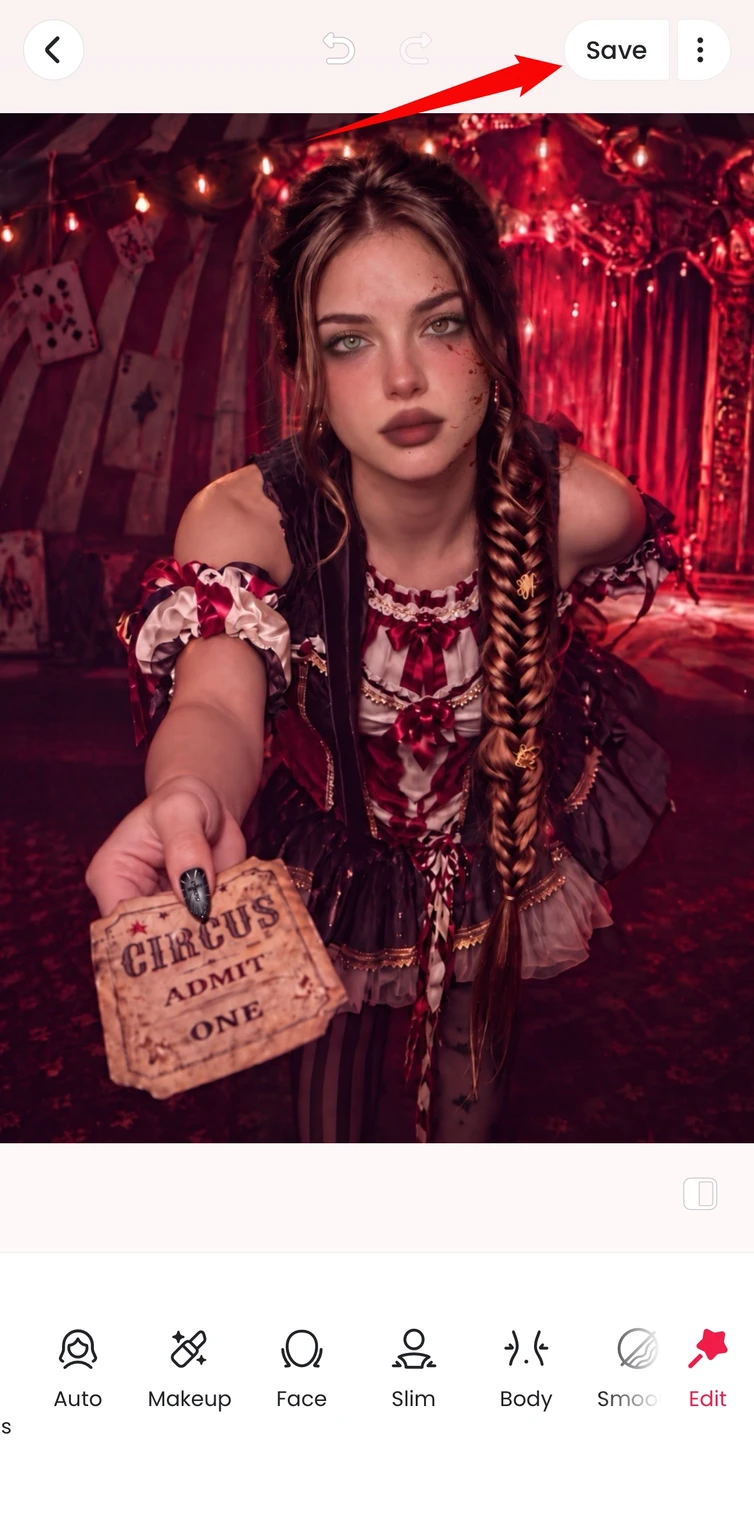
Open the Nails category to preview nail art on the same photo. Browse style groups such as Simple, Solid colors, Autumn, and Insta Vibe, and tap a style — a long dark Gothic Stiletto look, for example, completes a gothic Halloween edit. Confirm each part with the checkmark, then tap Save in the upper-right corner.Once your makeup look is ready, give the rest of your photo a matching Halloween mood. Explore lighting, decorative accents, and photo-booth collages in our Halloween photo editing guide.
For more detail on image adjustments, see how to use Meitu’s image enhancement tools.
Download Meitu for iPhone | Get Meitu for Android
Halloween Looks Worth Trying
This year’s trending Halloween makeup looks map neatly onto a simple flow: splash effect first, makeup next, nails last. Four directions are a useful starting point.
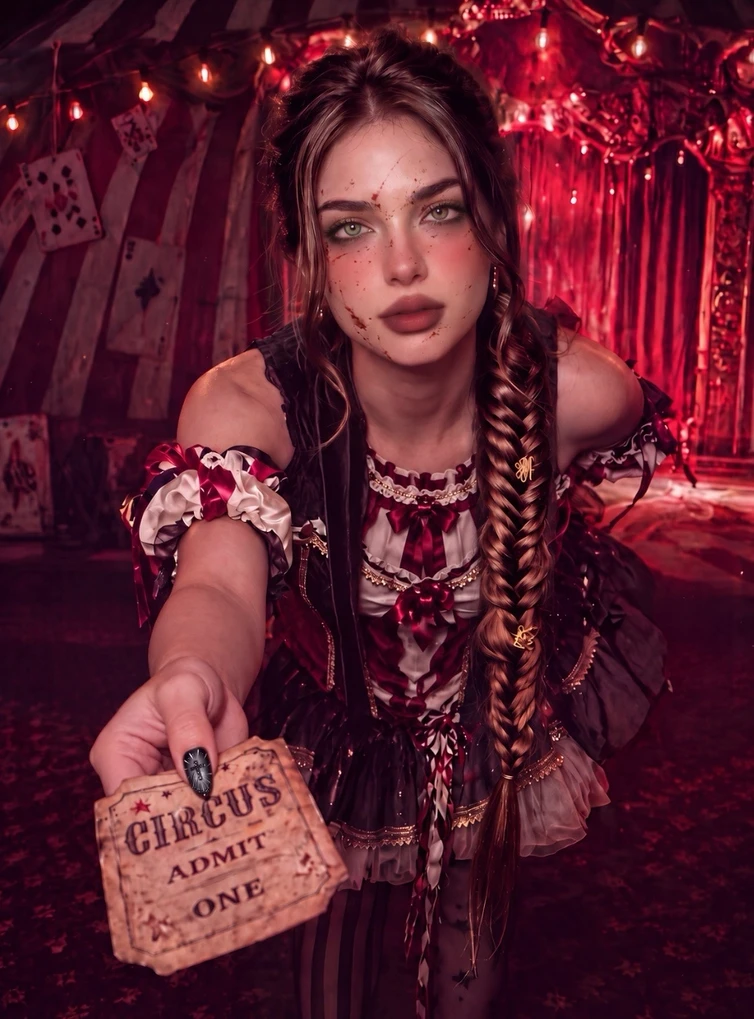
Glamorous vampire. Start with the Splash or Bloodstain look for a hint of horror, then add a deep red or berry shade from Lipstick, smoky shadow from Eyes, and a pale highlight from Contour. Elegant, and easy to recreate in real life.
Odd-eyed witch. The Odd Witch look gives you mismatched eyes and dark glam makeup in one tap. Keep the rest minimal — a neutral lip and light contour — so the eyes stay focused.
Dark princess. Looks such as Devil, Dark Princess, Duchess, and Gothic cover the cool-toned gothic direction. Pair one with a matte dark lip and straight, defined Eyebrows.
Cat with claws. A sharp cat look comes from winged liner and dense lashes in Eyes, soft blush, and a natural lip — finished with long pointed nails from the Nails category.
Available styles vary by app version, and a pink heart icon marks premium assets. Preview everything on your own photo first — the same look can read very differently on different faces and lighting.
How to Keep the Look Believable
The boldest option is not always the best match for your photo. Use these three checks to judge the result.
Check the skin first. Heavy contour and pale highlights can flatten the face, and splash effects should sit lightly on the skin. If the face loses visible texture or the effect looks pasted on, lower the intensity or switch to a lighter style.
Balance the eyes and lips. If both are dramatic, the look can feel overloaded. Keep one as the statement — a deep lipstick with softer eyes, or bold eye makeup with a neutral lip — and let the other play a supporting role.
Check the photo as a whole. Look beyond the face to the lighting, clothing colors, background, and nails. A warm party scene and a cool gothic look may pull against each other. Compare the edit with the original and keep the version where every part belongs in the scene.
FAQs
Can I try Halloween makeup on a photo I have already taken?
Yes. Meitu’s Makeup tools work on an existing photo. Open the image, tap Makeup, and preview themed looks or single products before applying them. No new photo or real products are needed for the try-on.
Where can I find makeup in Meitu?
In the version shown in this guide, Makeup is in the editor’s bottom toolbar, next to Auto, Face, and Edit; in some versions it sits inside Beautify. The categories include Looks, Lipstick, Eyebrows, Eyes, Contour, Blush, Decorations, and Nails. Tool placement and available styles may differ by app version.
How do I find Halloween-specific looks?
Tap the search field in the Makeup panel and type halloween. Themed looks such as Splash, Bloodstain, Odd Witch, Devil, Dark Princess, and Gothic appear with previews; tap one to try it and adjust the intensity before applying.
Can I combine several effects?
Yes. Apply them one at a time — a themed look first, then lipstick, eyes, and contour, and nails last — confirming each with the checkmark. You can return to any part and adjust or replace it while building the look.
Which look should a beginner start with?
A one-tap themed look from the halloween search is the fastest way to see a complete result. From there, switch to single categories when you want to change one part, such as making the lips darker or the eyes smokier.
Does the virtual try-on look exactly like real makeup?
It simulates the colors and shapes of a look on your photo, which makes it useful for choosing shades and directions. Real products differ in texture, coverage, and how they behave under party lighting, so treat the preview as a guide rather than a guarantee.
Is Meitu free to use?
Meitu is free to download and offers in-app purchases. A pink heart or diamond icon marks premium assets. Review any price or membership information shown in the app before applying an asset or saving your edit.
Preview Your Halloween Look Before the Big Night
Choose a bare-face portrait with an expression you want to keep. Tap Makeup, search halloween for a themed base, build the look part by part, finish with nails, and check the skin, the balance between eyes and lips, and the scene before saving. When the preview feels right, you will know exactly what to recreate on the night.