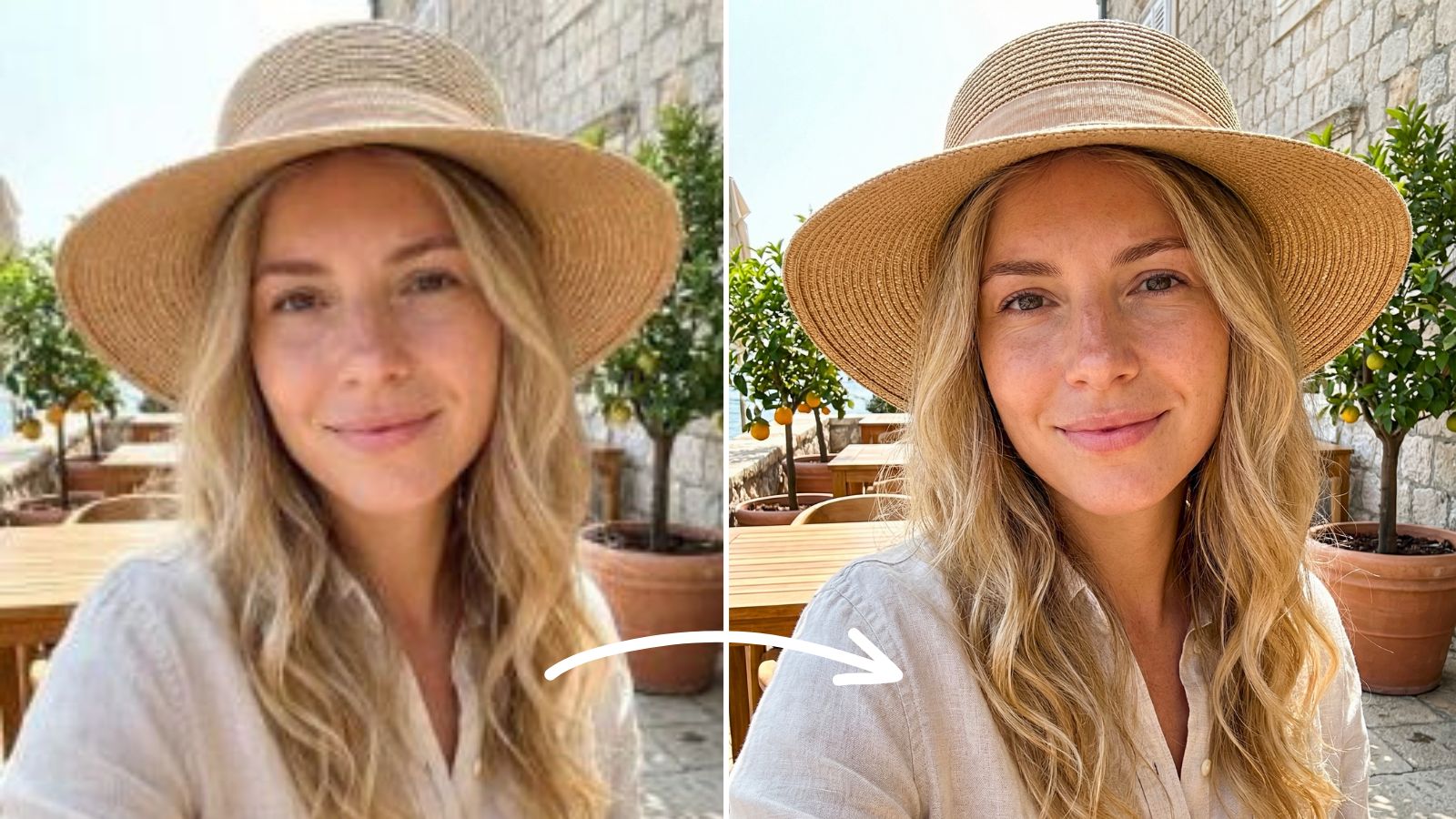
How to Make an ID Photo with Meitu
By Meitu Featured Editing Team · Updated October 24, 2026
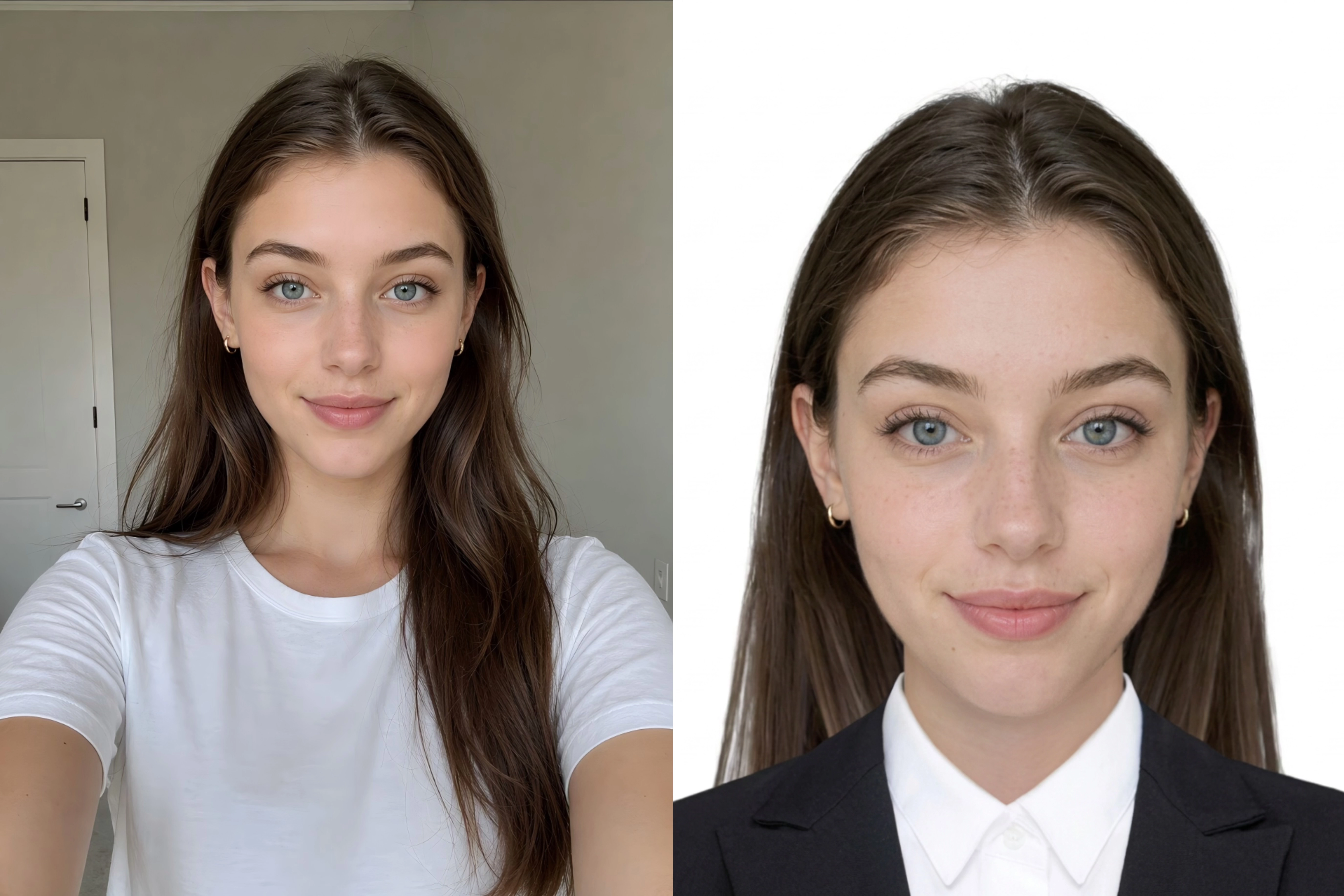
To make an ID photo with Meitu, open ID Photos, choose a photo type, and take or upload a portrait. Check the size and background, make only the edits your intended use allows, then review the result and tap Digital Copy to pay and save. A preset helps with the format; the organization receiving your photo decides whether it is acceptable.
This guide walks through the process in five steps, including optional portrait tools and clothing changes. The examples show how the editor works, so you can decide which adjustments belong in your own photo.
Table of Contents
- Choose the Right ID Photo for Your Needs
- Before You Start
- How to Make an ID Photo with Meitu
- Check Your ID Photo Before Using It
- FAQs
Choose the Right ID Photo for Your Needs
Start with the instructions from the school, employer, or other organization requesting the image. A campus ID upload may ask for a particular crop and file size, while another use may specify a background color. Choose the format for that request rather than assuming one version will work everywhere.
Meitu includes document presets and general photo sizes. If you are preparing a passport or visa application, check the issuing authority’s current requirements first. Optional retouching and AI clothing changes are for uses that permit them, and are not a way to make an official document photo compliant.
Before You Start
Choose a recent photo with even light, a clear face, and enough space around your head and shoulders. Keep the original file. If the image is blurry or part of your head is outside the frame, take another photo before starting.
Have the requested dimensions, background, and upload instructions nearby. The workflow shown includes payment when saving through Digital Copy; review the charge in the app before confirming. Tool placement and available options may vary by version.
How to Make an ID Photo with Meitu
Step 1: Open ID Photos and choose a type
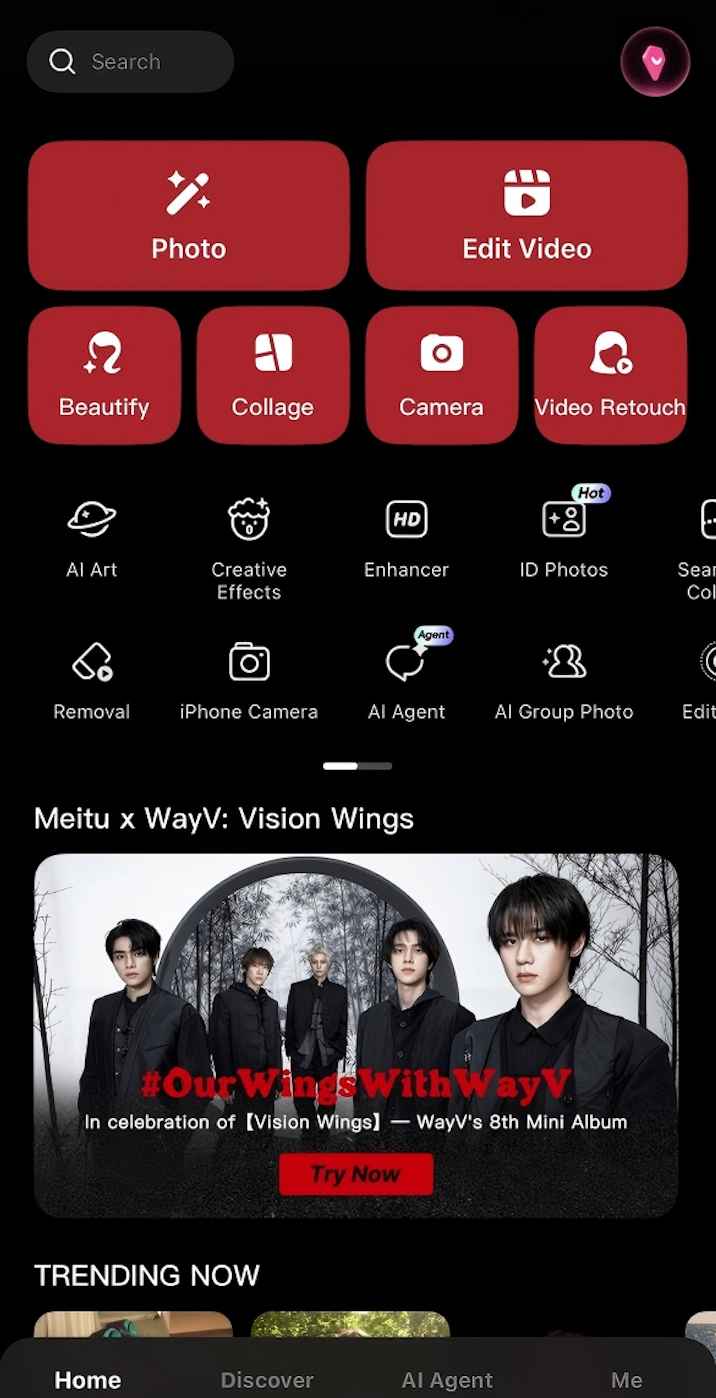
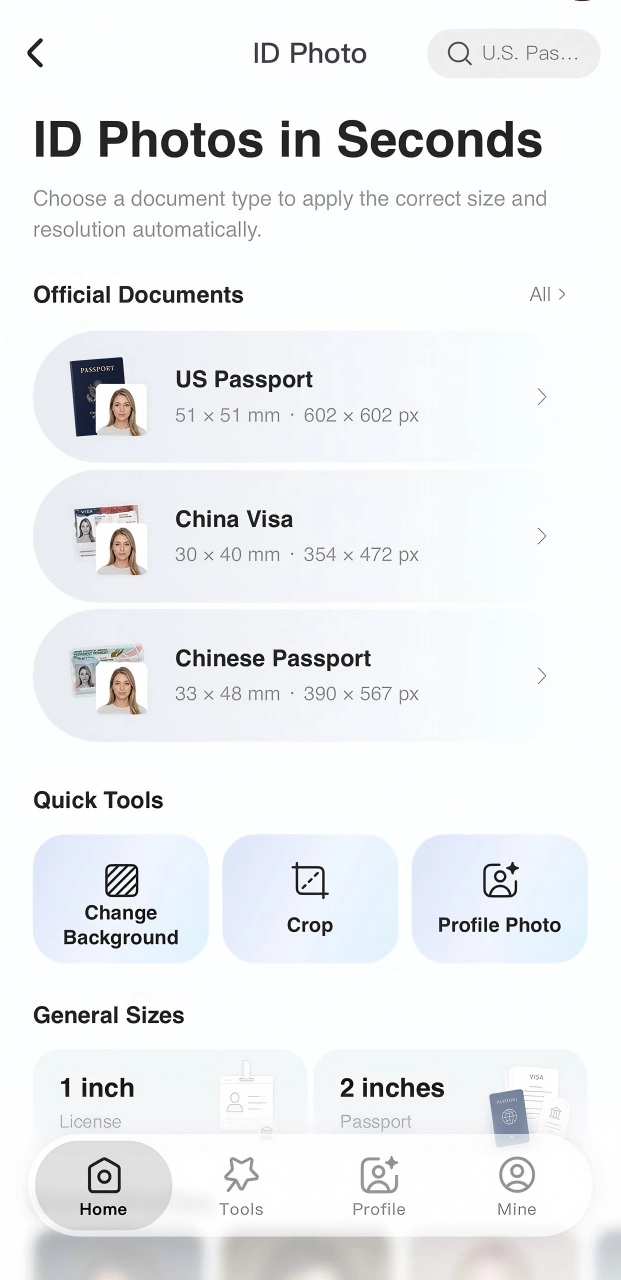
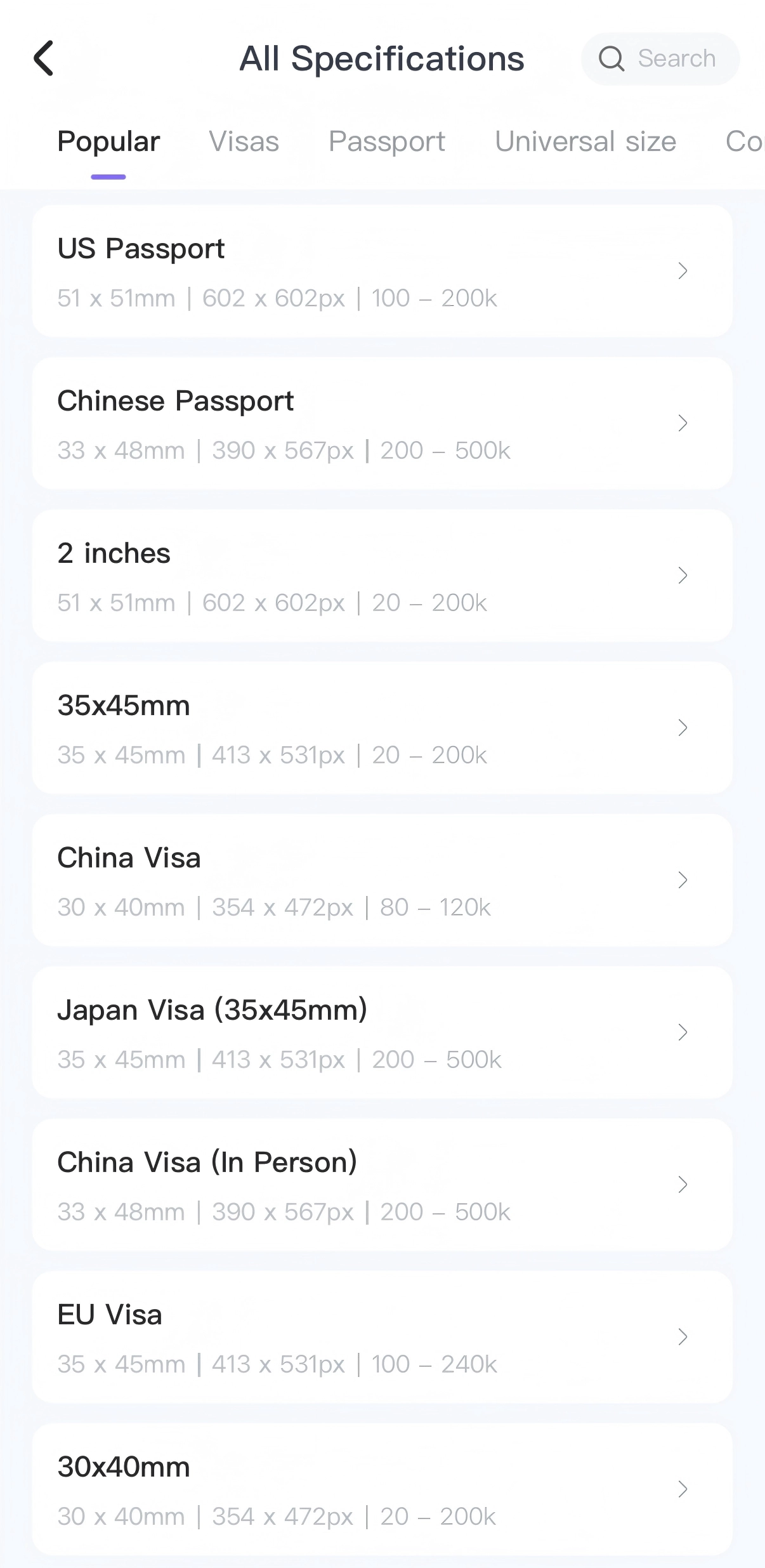
Open Meitu and tap ID Photos on the home screen. Browse the document presets or general sizes. Open All Specifications to see more options, then choose the one that matches your intended use.
Read the dimensions beneath the preset name. The example screens include a US Passport preset to show the interface; selecting it does not certify the edited result for a passport application.
Step 2: Take or upload a clear portrait
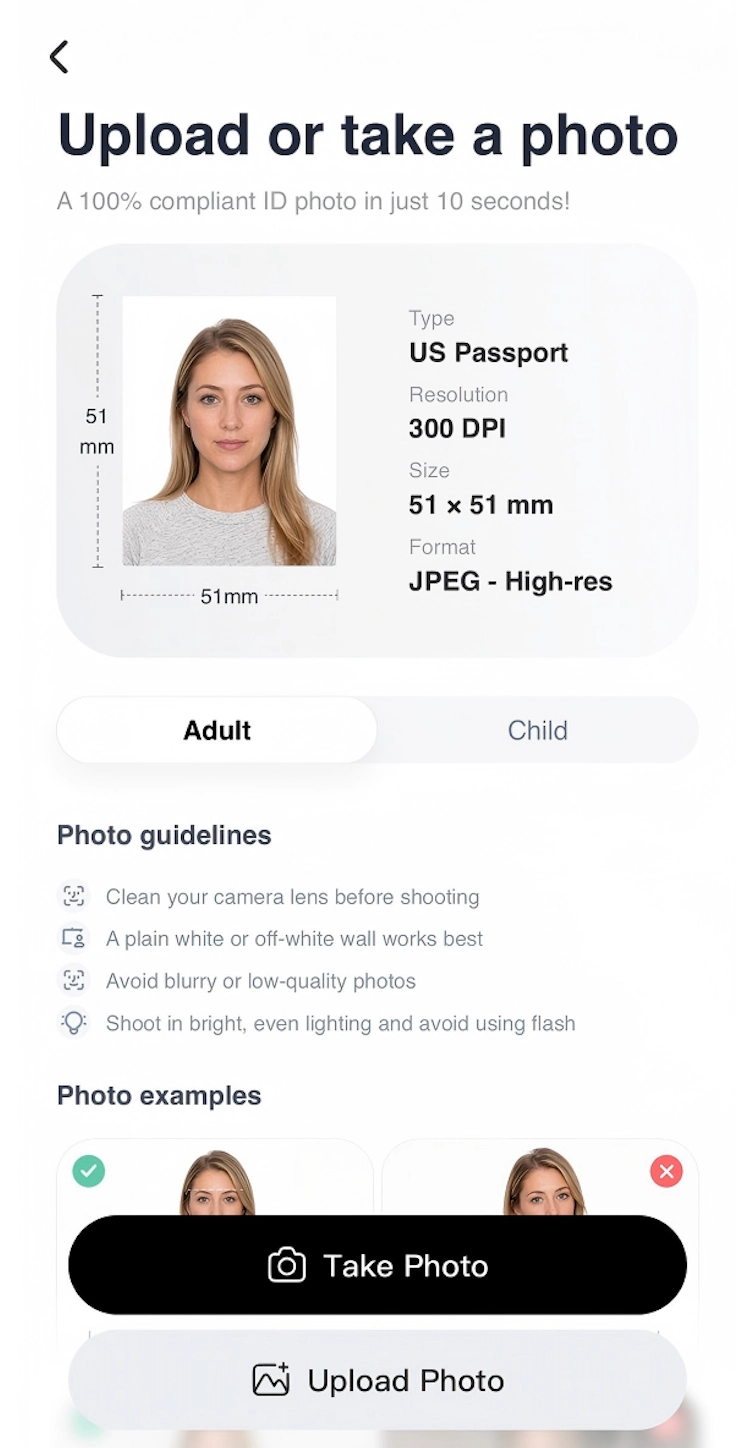
On the next screen, read the photo guidance and choose Take Photo or Upload Photo. Follow the prompts to capture an image or select one from your photo library. Wait for Meitu to create the preview.
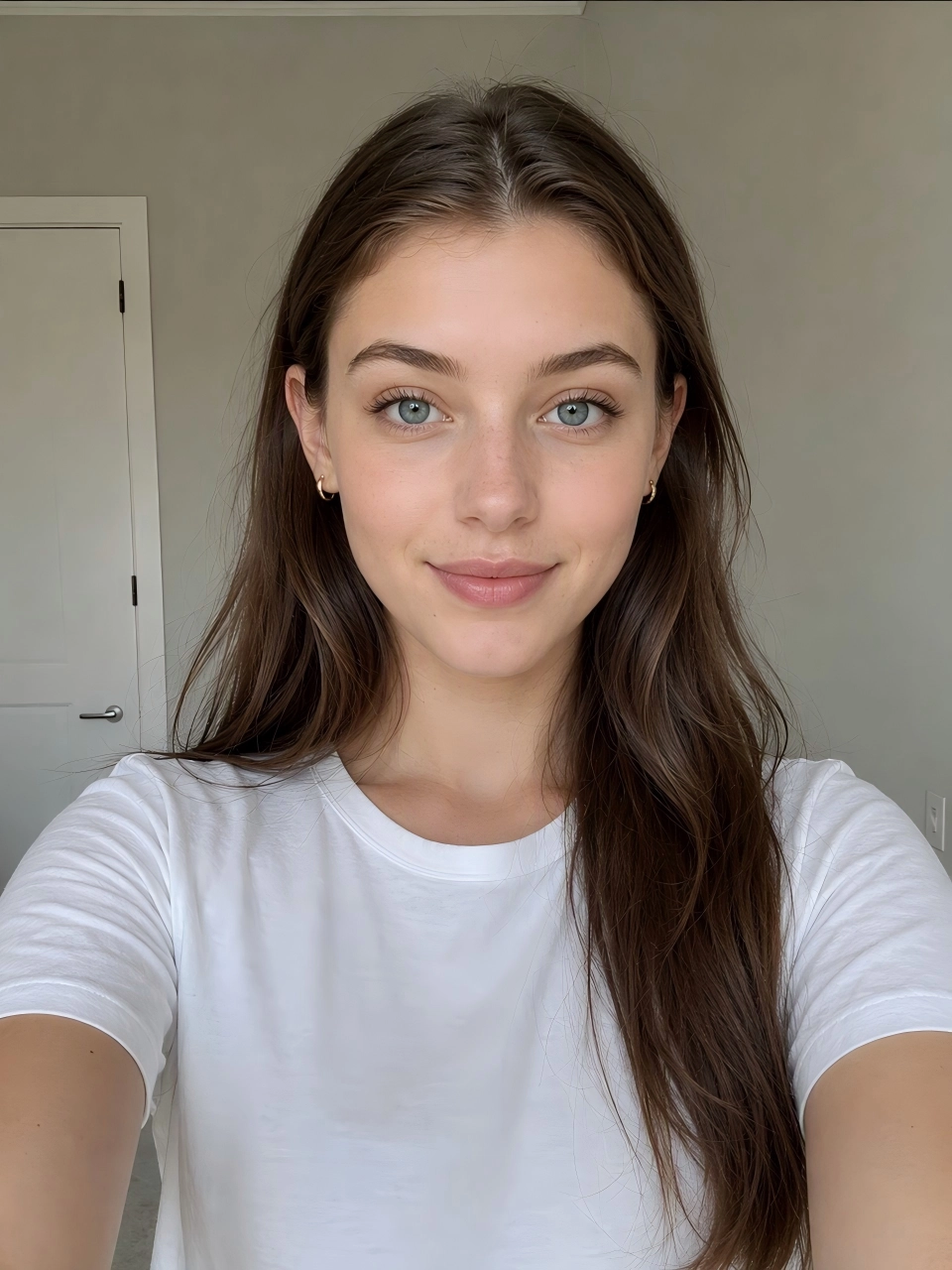
Check the face and framing before continuing. The source photo should give the crop room to work without cutting into your hair or shoulders. For a use with strict photo rules, start with an image that already meets its lighting, expression, and clothing requirements.
Step 3: Review the size and background
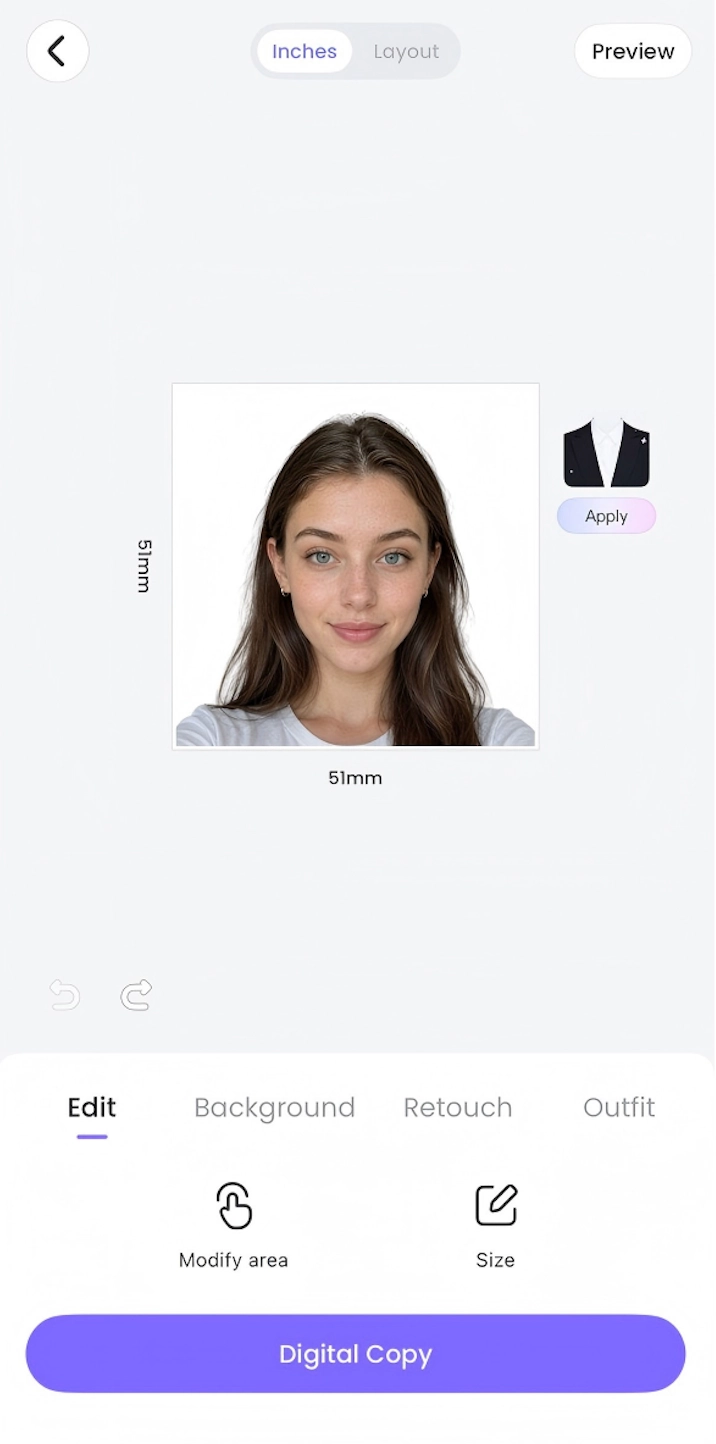
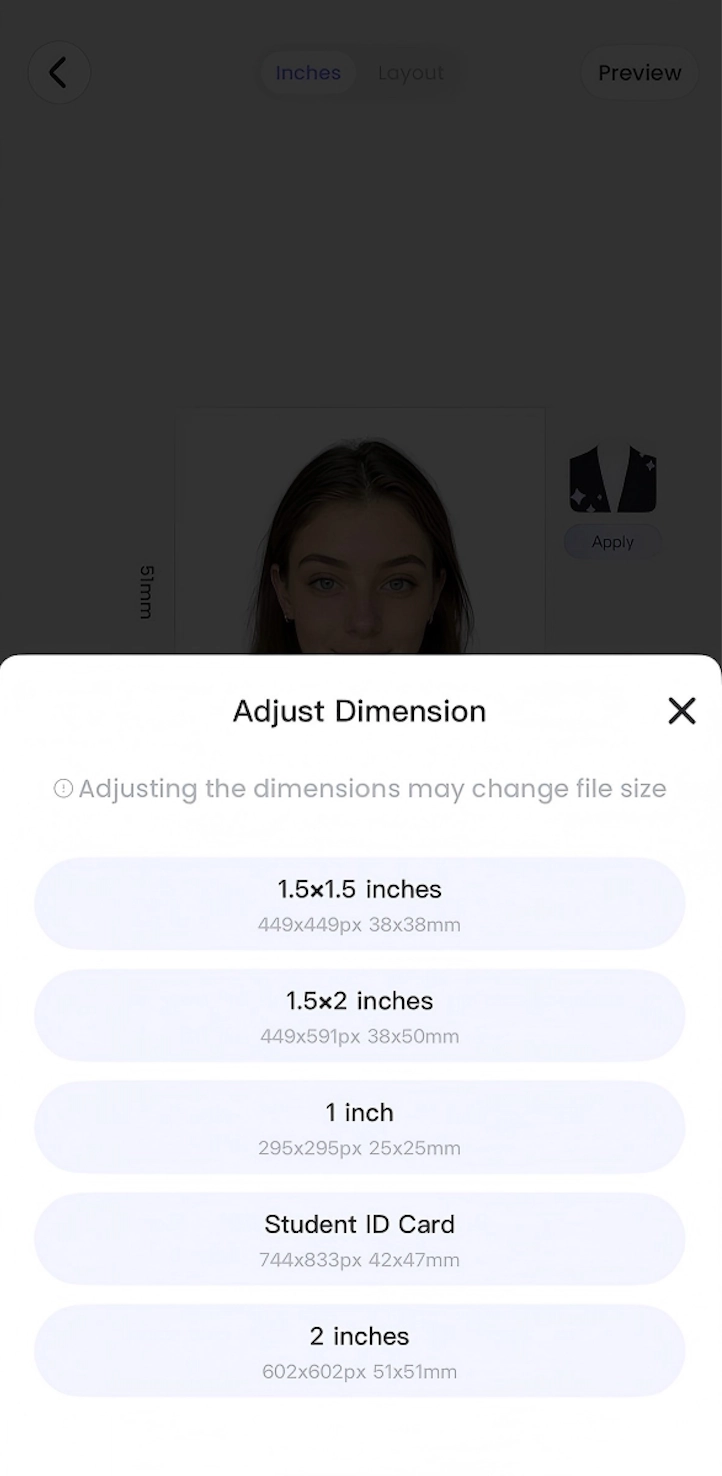
Tap Edit, then Size. In Adjust Dimension, select the measurement you need and review the crop. Keep your head centered and check the space above your hair rather than looking at width and height alone.
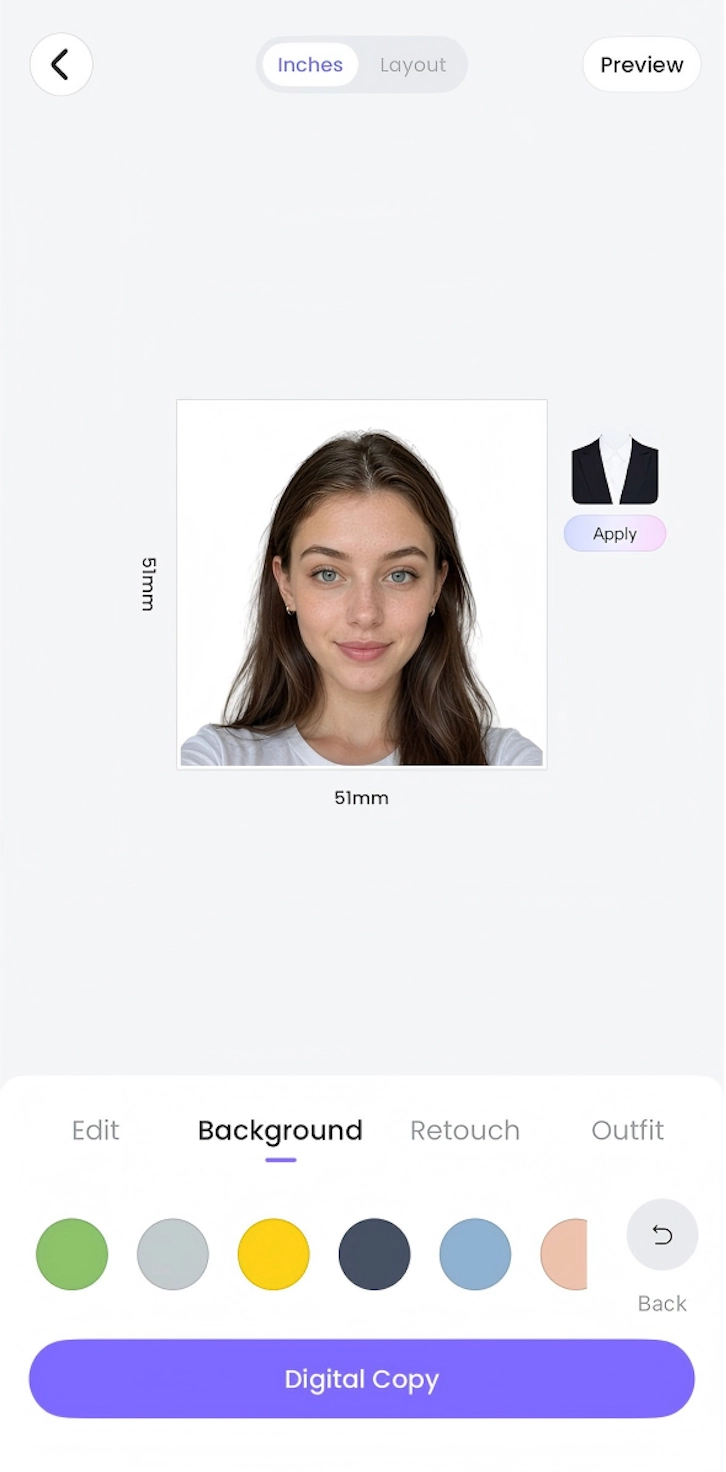
Open Background to choose an available color when your intended use allows digital background changes. Compare the hair and shoulder edges with the original. If the receiving organization requires an unaltered image, use the required real background when taking the photo.
Step 4: Make optional portrait and outfit adjustments
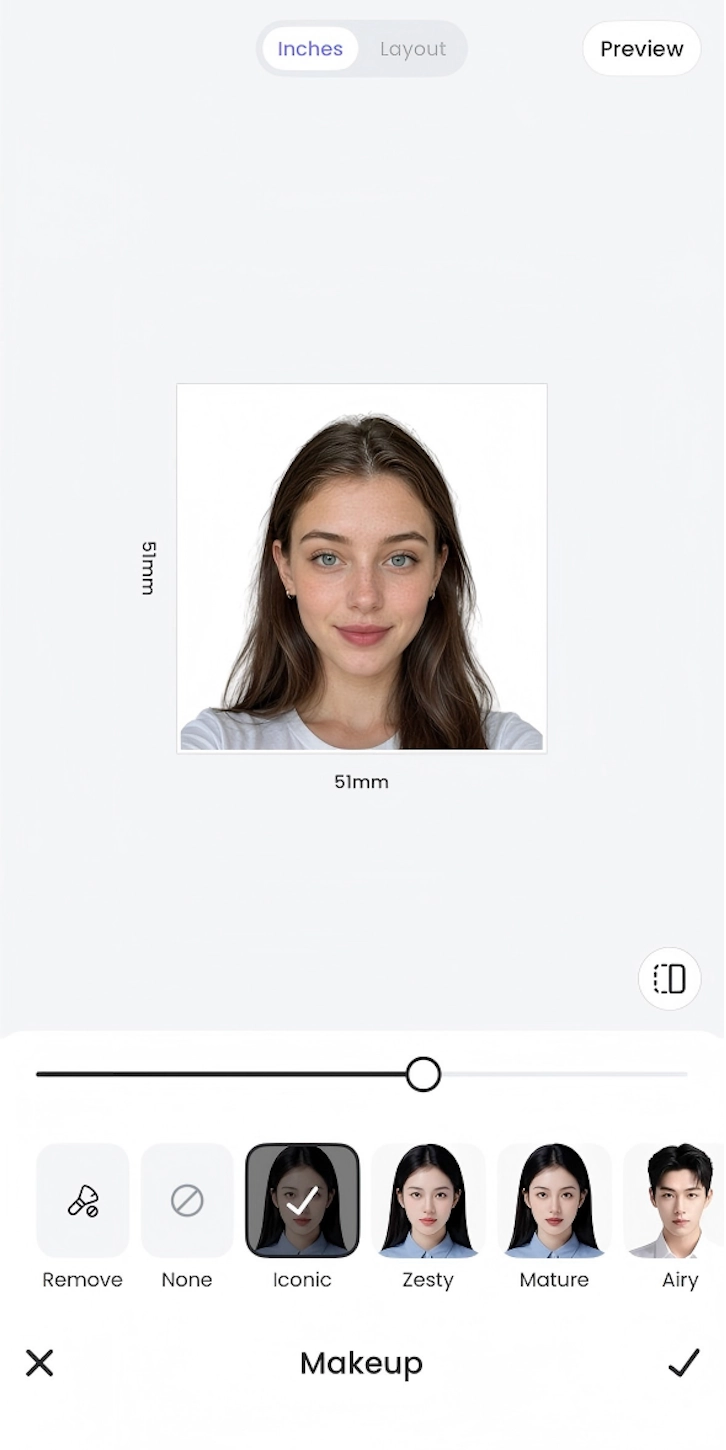
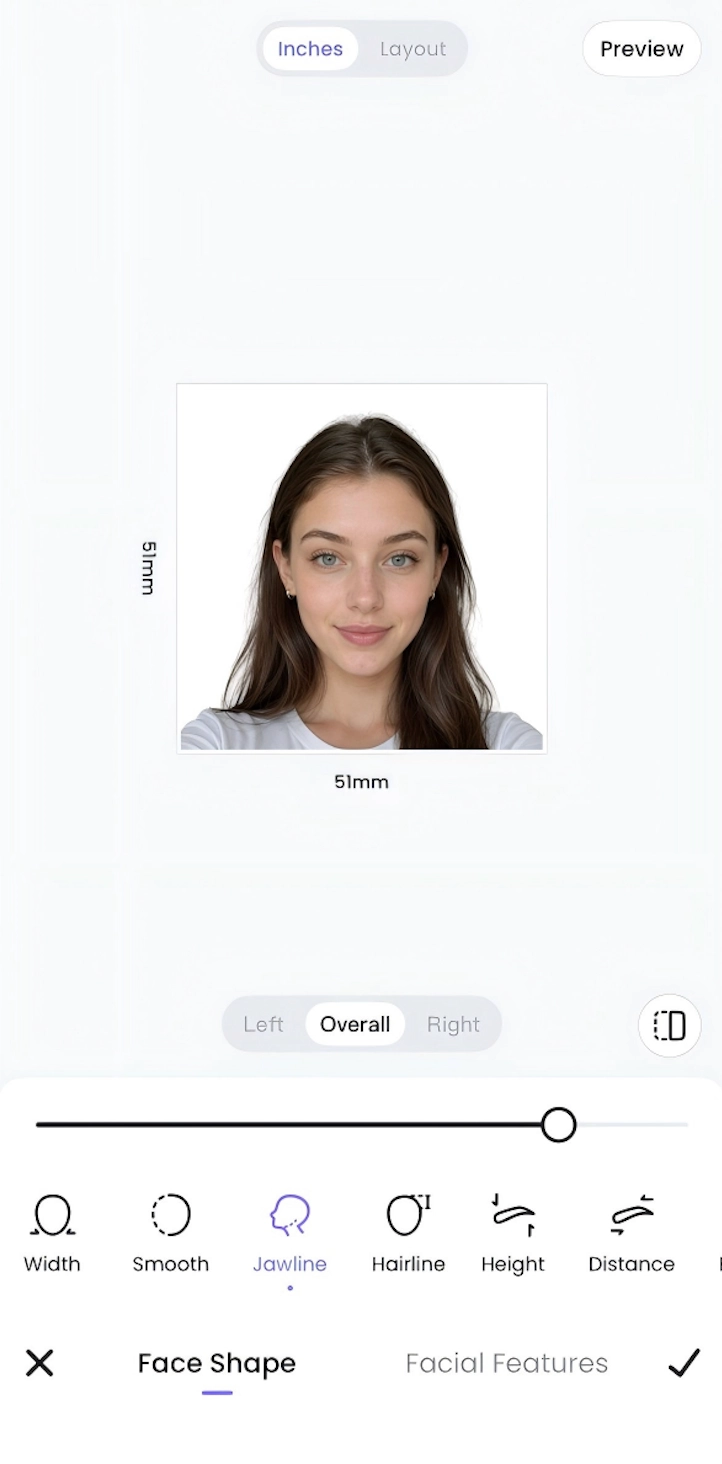
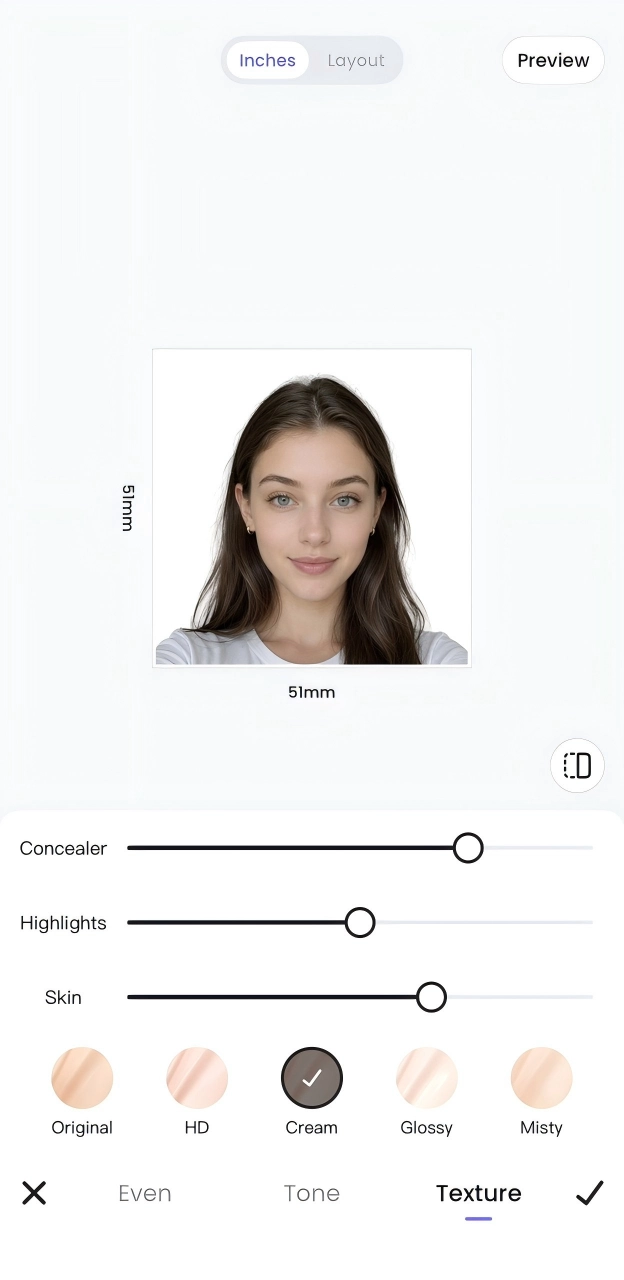
For uses that permit appearance edits, open Retouch and explore the available controls. The examples show Makeup, Face Shape, and skin Texture. Adjust one setting at a time and compare the result with the original before confirming.
Keep recognizable facial features and natural skin detail. These adjustments are optional; leave them unused when they are unnecessary or when your photo requirements do not permit them.
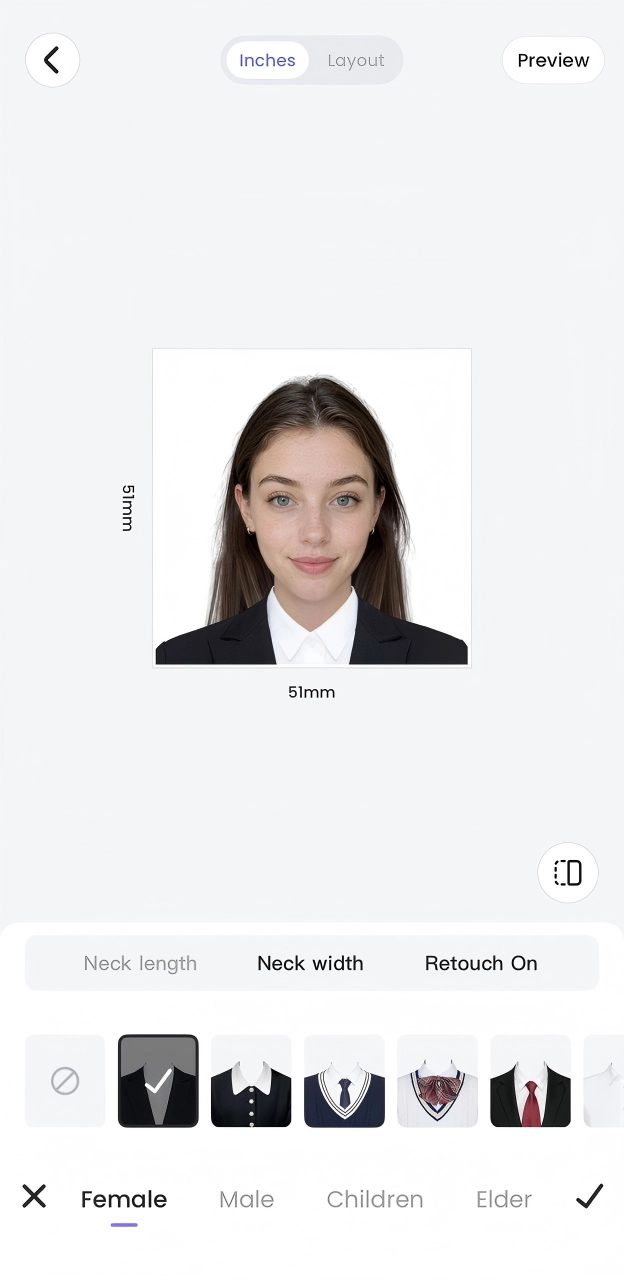
Tap Outfit to preview AI clothing options, including styles for women, men, and children. Check the neckline, shoulders, and clothing edges before confirming. Use an AI outfit only for a portrait or another purpose that accepts this kind of editing.
For a separate professional profile photo project, see How to Turn a Selfie into a Professional LinkedIn Headshot with Meitu.
Step 5: Review and save your digital copy
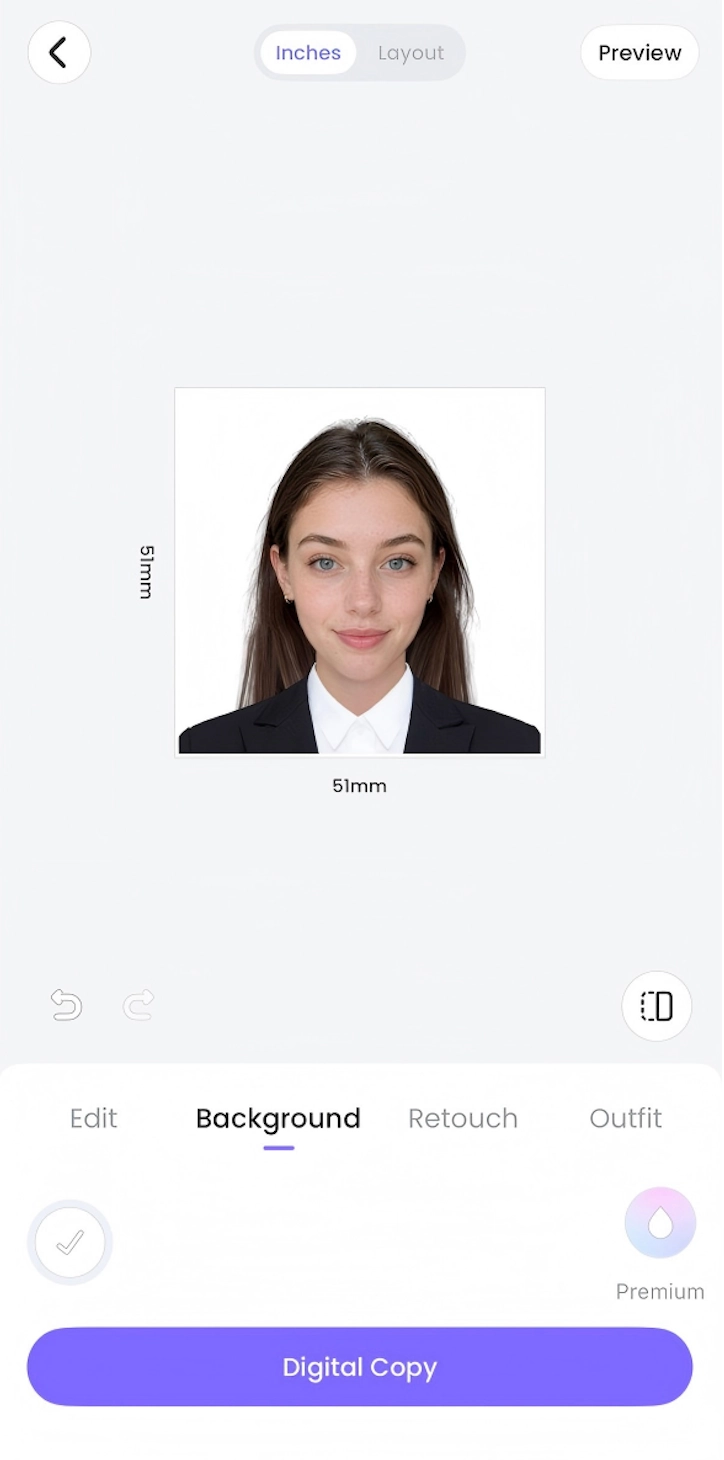
Use Preview to check the finished photo. If you need an arranged sheet, review the available Layout options. Confirm the photo and layout, then tap Digital Copy. Review the payment information and follow the prompts to save.
Open the saved file in your photo library. Check that it looks as expected and meets the recipient’s requested file format, dimensions, and size. Keep the exported photo rather than submitting a screenshot of the editing screen.
Download Meitu for iPhone | Download Meitu for Android
Check Your ID Photo Before
Using It
- Confirm the dimensions and background against the exact request.
- Check that the crop keeps your face clear and your full head visible.
- Review any portrait or outfit edits against the recipient’s rules.
- Open the exported file and check the upload requirements before submitting.
FAQs
What types of ID photos can I make with Meitu?
Meitu provides document presets and general sizes for different uses, including passport, visa, and student ID formats. Browse the available specifications and compare them with the instructions for your particular application.
Does Meitu support photo sizes for different countries?
Yes. The specification list includes country-specific options such as US Passport, Chinese Passport, and Japan Visa. Check the displayed measurements and the latest requirements for the exact document and submission method you plan to use.
Can I change the background color of my ID photo?
Yes. Open Background to choose from the available colors, including common choices such as white, off-white, gray, and blue. Use the required color only when digital background replacement is permitted.
Can I use an edited photo for a passport or visa application?
A preset does not guarantee acceptance. U.S. passport guidance requires an unchanged photo, U.S. visa guidance prohibits digital changes to your appearance, and UK digital passport guidance requires an image unaltered by software. Follow the relevant official instructions; the retouched and AI-outfit examples here are not submission examples.
Can I change the clothing in my ID photo?
Yes. Outfit lets you preview AI clothing styles. Check the result around the neck and shoulders, and use it only where AI edits are allowed. A formal-looking outfit alone does not make a photo suitable for an official application.
Is saving an ID photo with Meitu free?
In the workflow shown, Digital Copy is a paid saving step. Check the current charge and terms displayed in your app before confirming the purchase.
Make an ID Photo for Your Next Application
Start with a clear portrait, choose the format you need, and review each adjustment for its intended use. Save the version that meets the request and keep the original for future reference.
Download Meitu for iPhone | Download Meitu for Android
Find more photo editing walkthroughs in Meitu Academy.