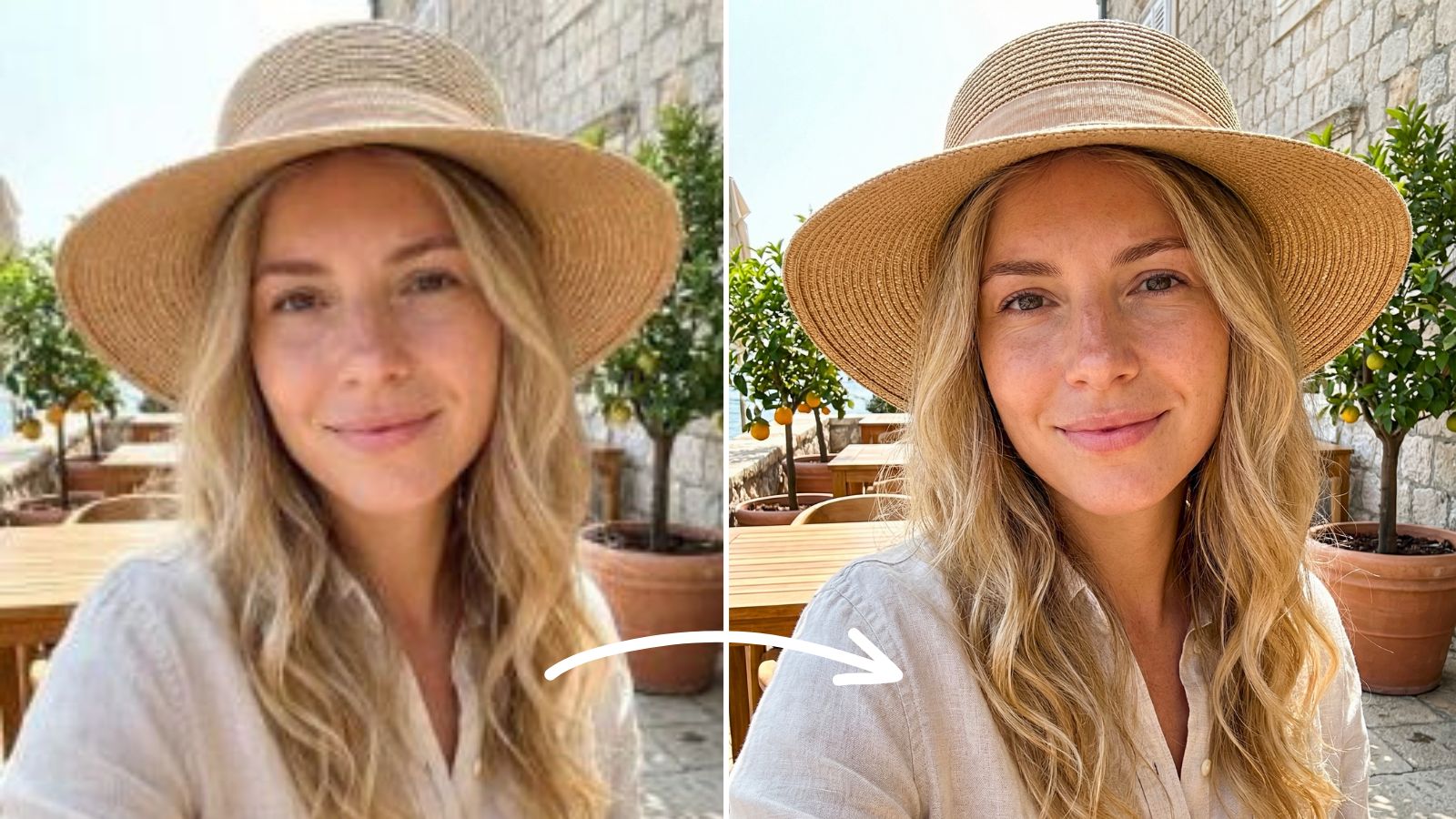
How to Turn a Selfie into a Professional LinkedIn Headshot with Meitu
By Meitu Featured Editing Team · Updated September 21, 2026
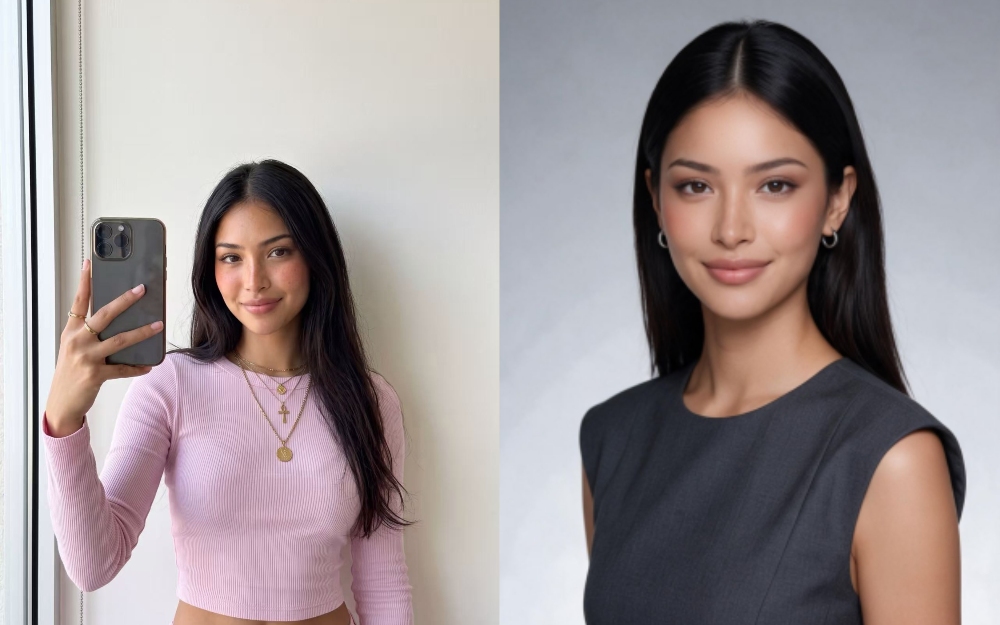
You can turn a clear, well-lit selfie into a professional LinkedIn headshot with Meitu by adjusting the lighting, making subtle adjustments with Face Retouch, and using AI Cutout if you need to simplify the background. Keep your facial features and skin tone true to the original, then save a square image and check the crop on LinkedIn. AI Portraits is an optional way to explore a different portrait style; a recognizable photo of you is the goal.
Table of Contents
A practical headshot for your next career move
Choose clothing you would feel comfortable wearing to an interview in your field. A simple shirt, knit top, or blazer can work. You don’t need a suit or a corporate office to make your photo suitable for LinkedIn.
Before you start
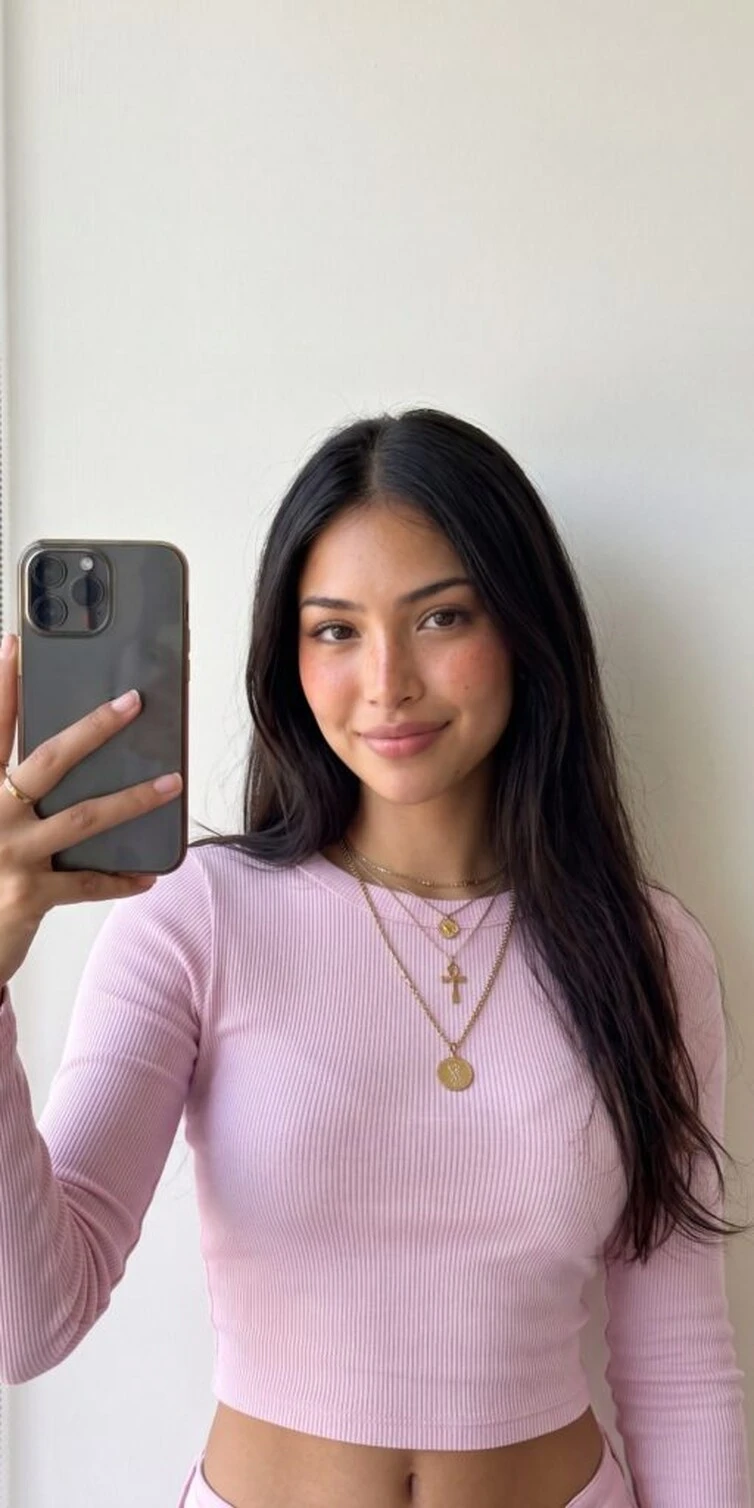
Use a recent solo photo in which your eyes are sharp and your face is clearly visible. Start with the original camera file when possible; screenshots and copies downloaded from social apps may have lost detail. A heavily blurred image or an extreme camera angle is a good reason to retake the photo.
Meitu’s portrait editing tools are available in its mobile app for iOS and Android. The app is free to download and offers in-app purchases. Check the tools, AI styles, and export options available in your version before you start.
How to create your LinkedIn headshot in six steps
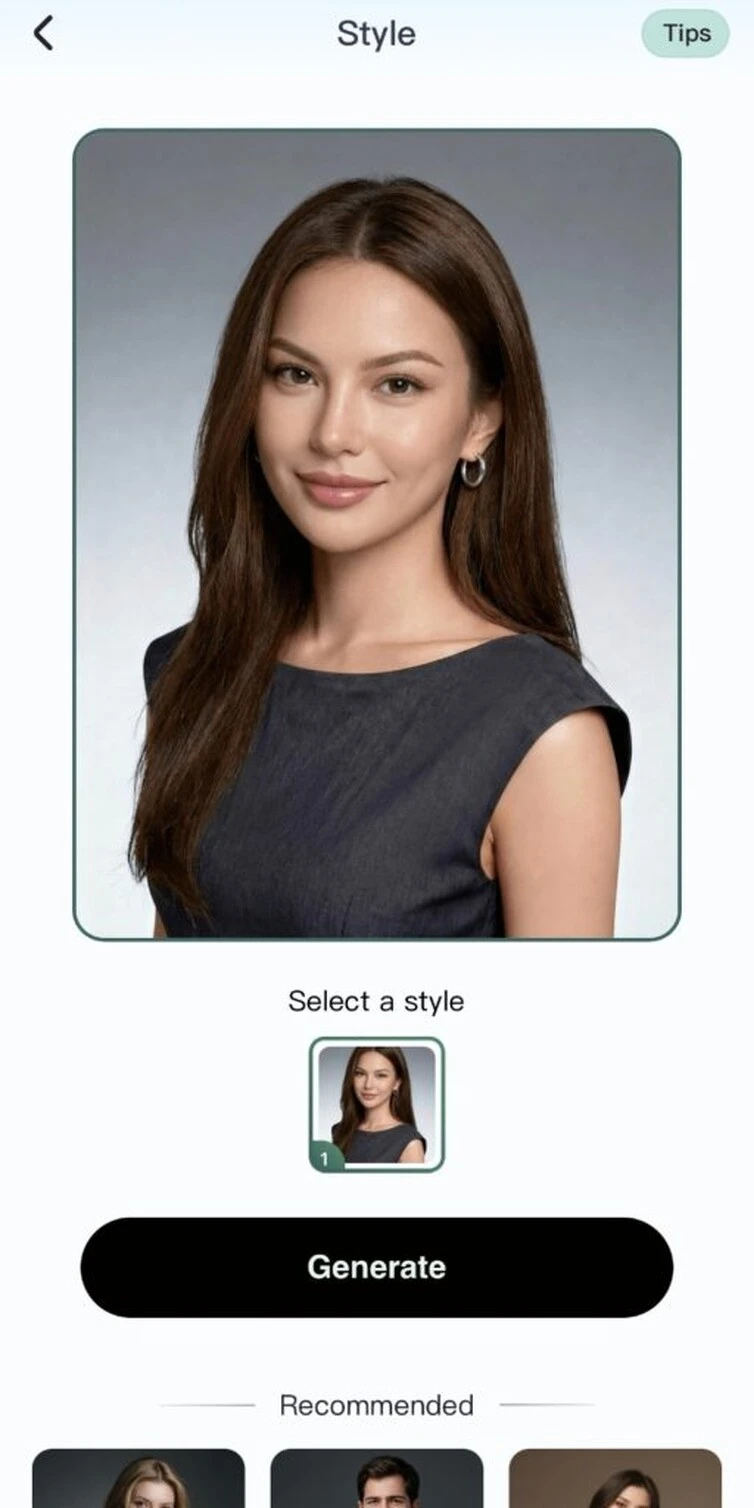
Step 1: Choose a style
In AI Portraits, choose the portrait style you want to use.
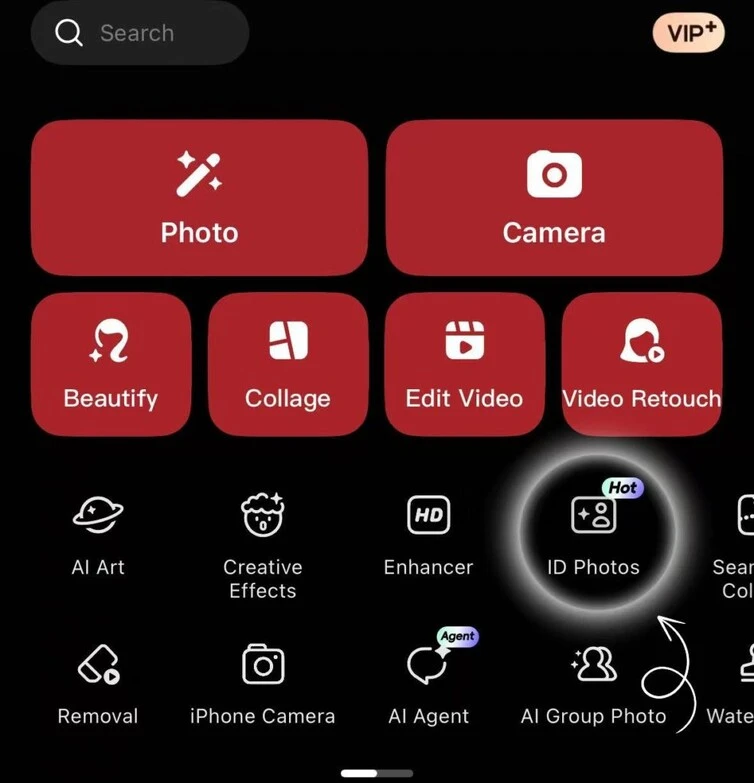
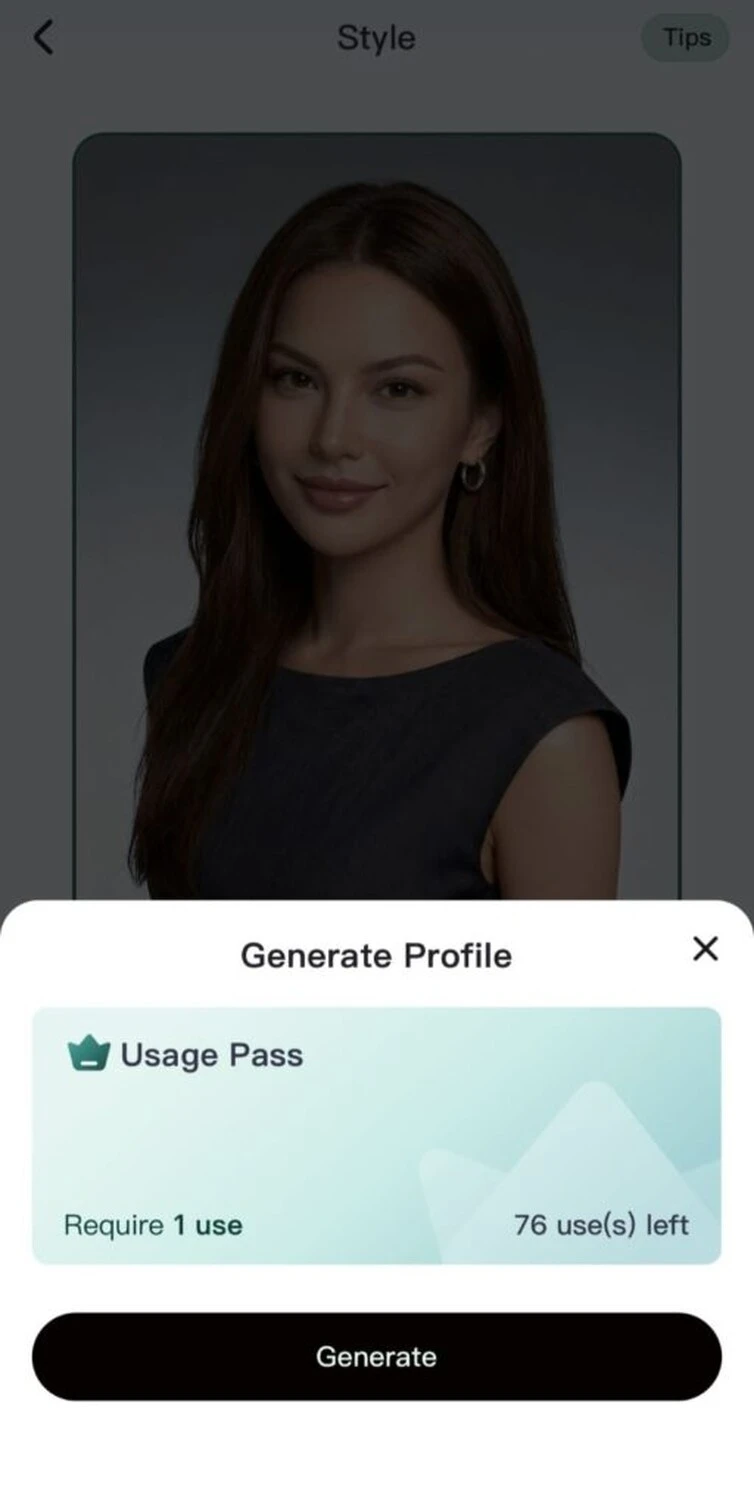
Step 2: Tap the Generate button
Tap Generate to continue with the selected style.
Step 3: Choose a suitable photo from your album
The photo picker will open. Select a clear photo that works well for the chosen style.
Step 4: Start automatic generation
Confirm your photo and let Meitu generate the portraits automatically.
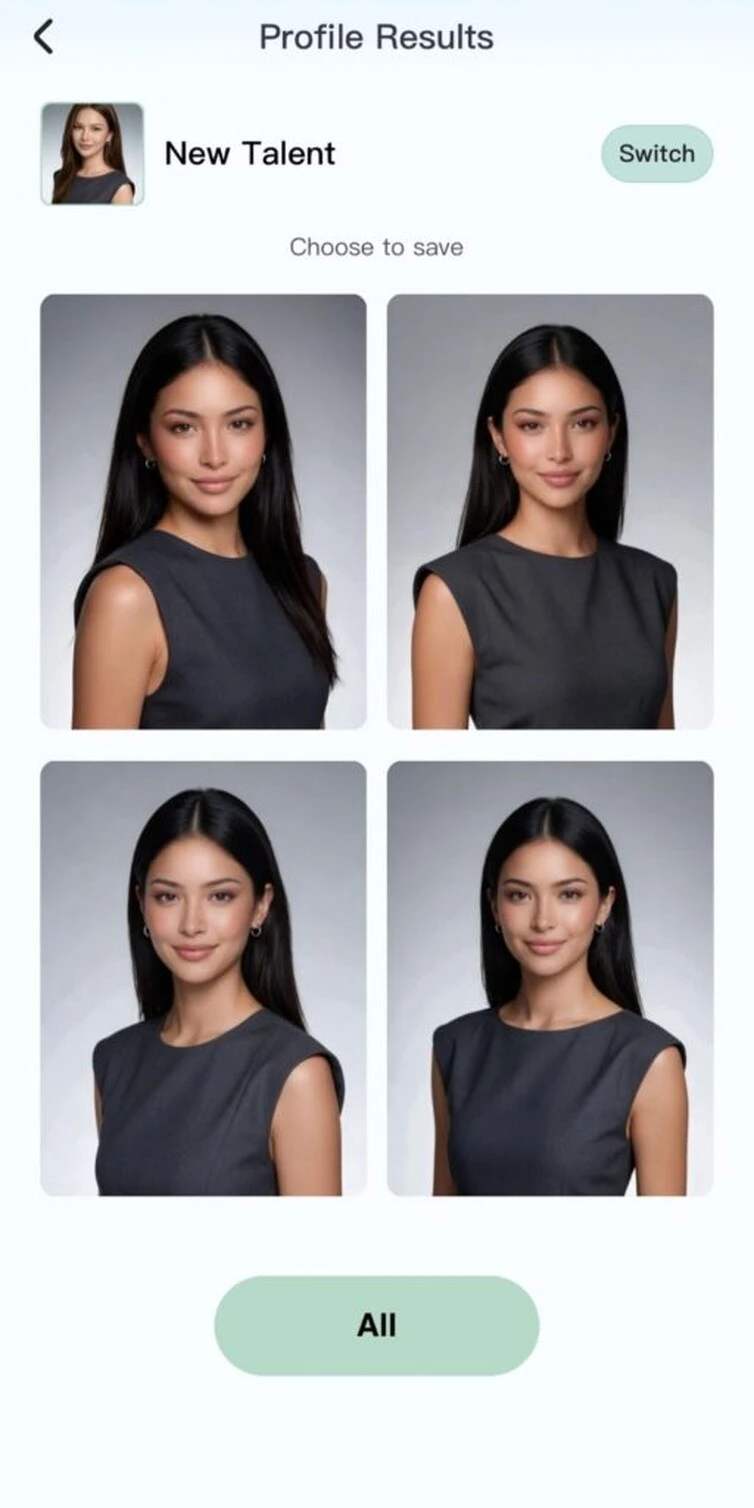
Step 5: Review the four generated results
The results page shows four generated images. Review all four before choosing one.
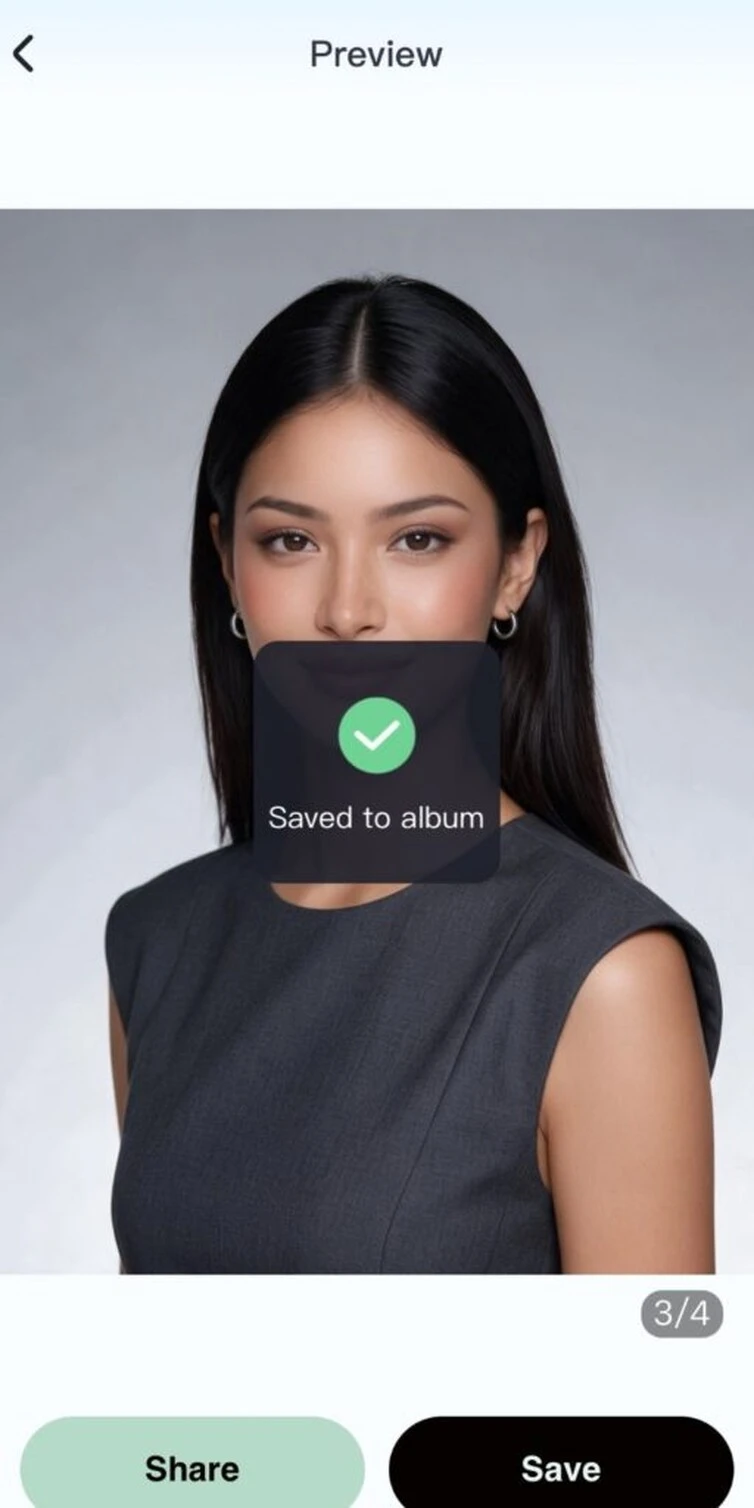
Step 6: Choose your favorite photo and tap Save
Open the result you like, then tap Save to save it to your photo album.
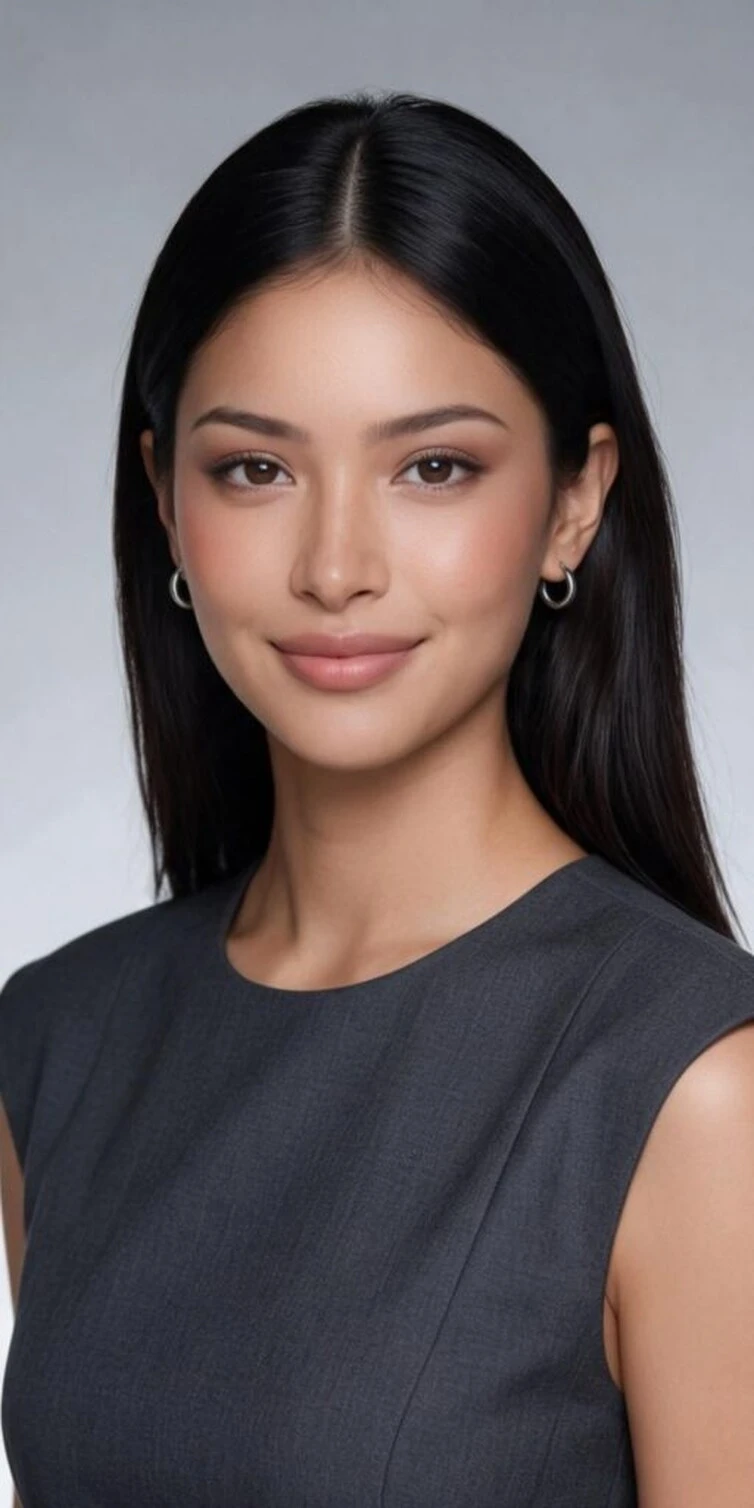
For more detail on image adjustments, see how to use Meitu’s image enhancement tools.
Create a headshot you feel comfortable using
Choose one clear photo, make only the edits it needs, and check the final crop on your profile. A recent, recognizable image is a useful introduction before your next conversation.
Download Meitu for iPhone | Get Meitu for Android
FAQS
Can I create a LinkedIn headshot on my phone?
Yes. You can use a photo from your phone’s photo library in Meitu’s ID Photos feature. Open the Profile tab, choose a style, and follow the six steps above to generate and save a portrait.
Can I use a selfie as my LinkedIn profile photo?
Yes. Choose a recent, well-lit selfie taken near eye level, with only you in the frame and your face unobstructed. Check that the finished image looks natural and remains recognizable at the small size displayed on your LinkedIn profile.
Is it free to make a LinkedIn headshot with Meitu?
Meitu is free to download and offers in-app purchases. Some portrait styles or generation options may require payment or a Usage Pass. Review the price or usage requirement shown in the app before confirming generation.
Can I use an AI-generated headshot on LinkedIn?
LinkedIn’s profile-photo guidelines require your photo to reflect your likeness. If you use an AI-generated headshot, choose a result that preserves your recognizable features and accurately represents how you look today.
What size and format should my LinkedIn headshot be?
According to LinkedIn’s upload specifications, use a JPG or PNG file no larger than 8 MB, with dimensions from 400 x 400 to 7680 x 4320 pixels. A square 800 x 800-pixel image is a practical choice. Preview the circular crop on LinkedIn before saving your profile photo.
What background should I use for a LinkedIn headshot?
Choose a simple portrait background, such as a plain wall or a muted solid color, that keeps attention on your face. White is optional. Make sure your hair and shoulders stand out clearly and that the edges around them look natural.
How do I keep my headshot from looking overedited?
Compare the generated portrait with your original photo. Check for overly smooth skin, altered facial proportions, unnatural coloring, and errors around hair or glasses. If none of the generated results preserve your likeness, use your original photo with only subtle edits.