How to Fix Blurry Photos with Meitu
By Meitu Featured Editing Team | Updated October 23, 2026
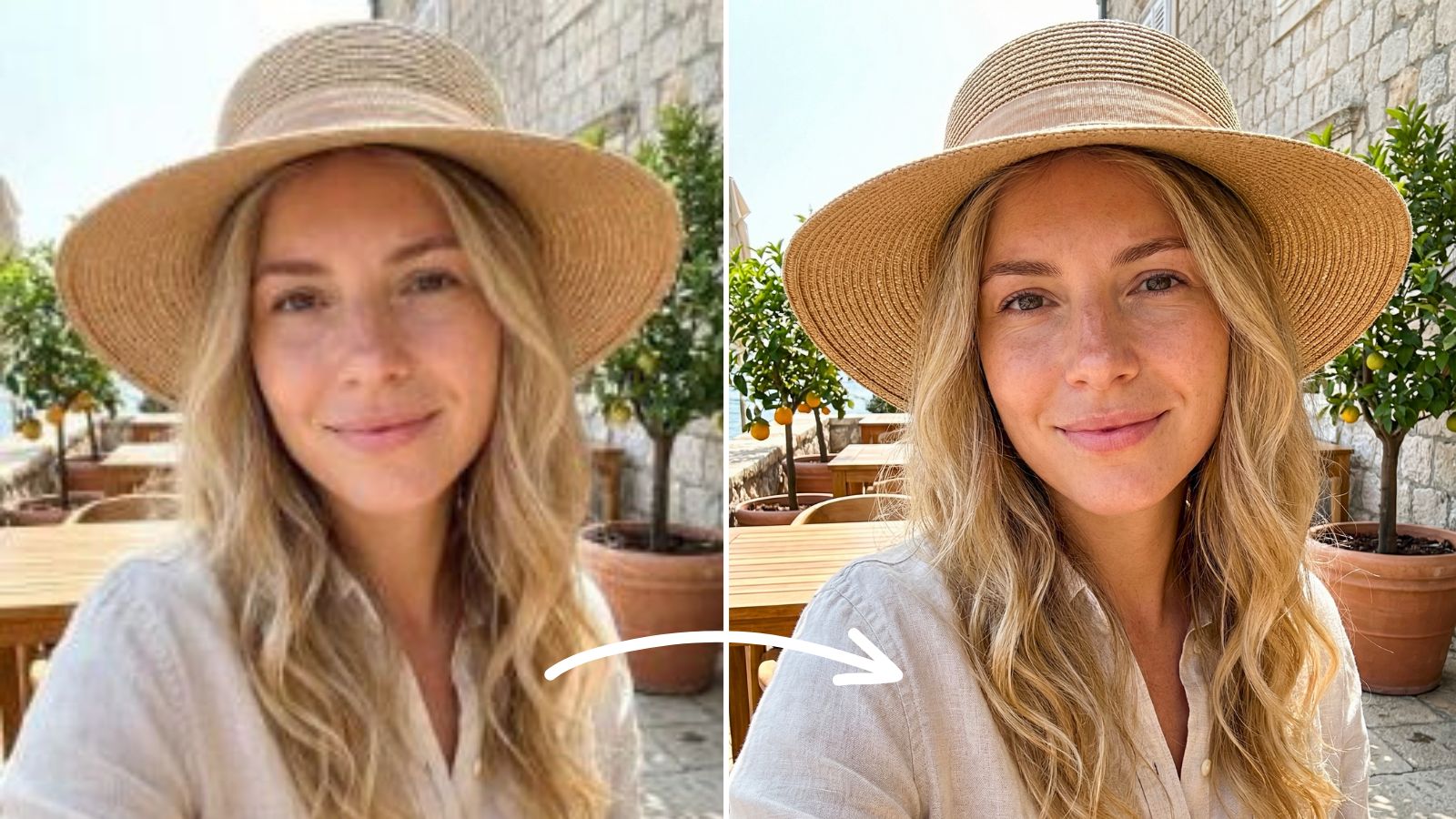
Before-and-after examples from Meitu Academy. Results depend on the original photo.
To improve a blurry photo with Meitu, open Enhancer, choose a restoration mode and upload your image. Compare the result with the original, adjust the strength where available, then tap Save. Start with the best file you have and check that faces, textures and small details still look natural.
A soft selfie, an older family photo or a picture saved from a chat can be worth another look. This guide walks you through photo enhancement on your phone, from choosing a mode to checking the exported image.
Table of Contents
- Before you start and open Enhancer
- Choose a restoration mode
- Upload, compare and adjust
- Save and check the result
- FAQs
Before you start
Choose the clearest version of the photo you can find. If a friend sent it in a chat, ask for the original file before editing a compressed copy. Keep that file so you can compare it with the enhanced version later.
Step 1. Open Enhancer
Open Meitu and tap Enhancer, the HD icon on the home screen below. Earlier Meitu tutorials label this entry Image Quality; the restoration screen is called Quality Restoration. Follow the labels shown in your version.
Give the tool a useful starting point
A photo with visible facial features or recognizable edges gives you details to compare. If a face is only a tiny blur, keep your expectations modest and check the result closely.
Choose your goal
For a portrait, focus on clear eyes and believable skin. For a travel photo, inspect building edges and textured areas. Decide what needs improvement before judging the whole image.
Check access before you commit
Some options carry a premium badge. Review the access or payment message in your app before using a paid option.
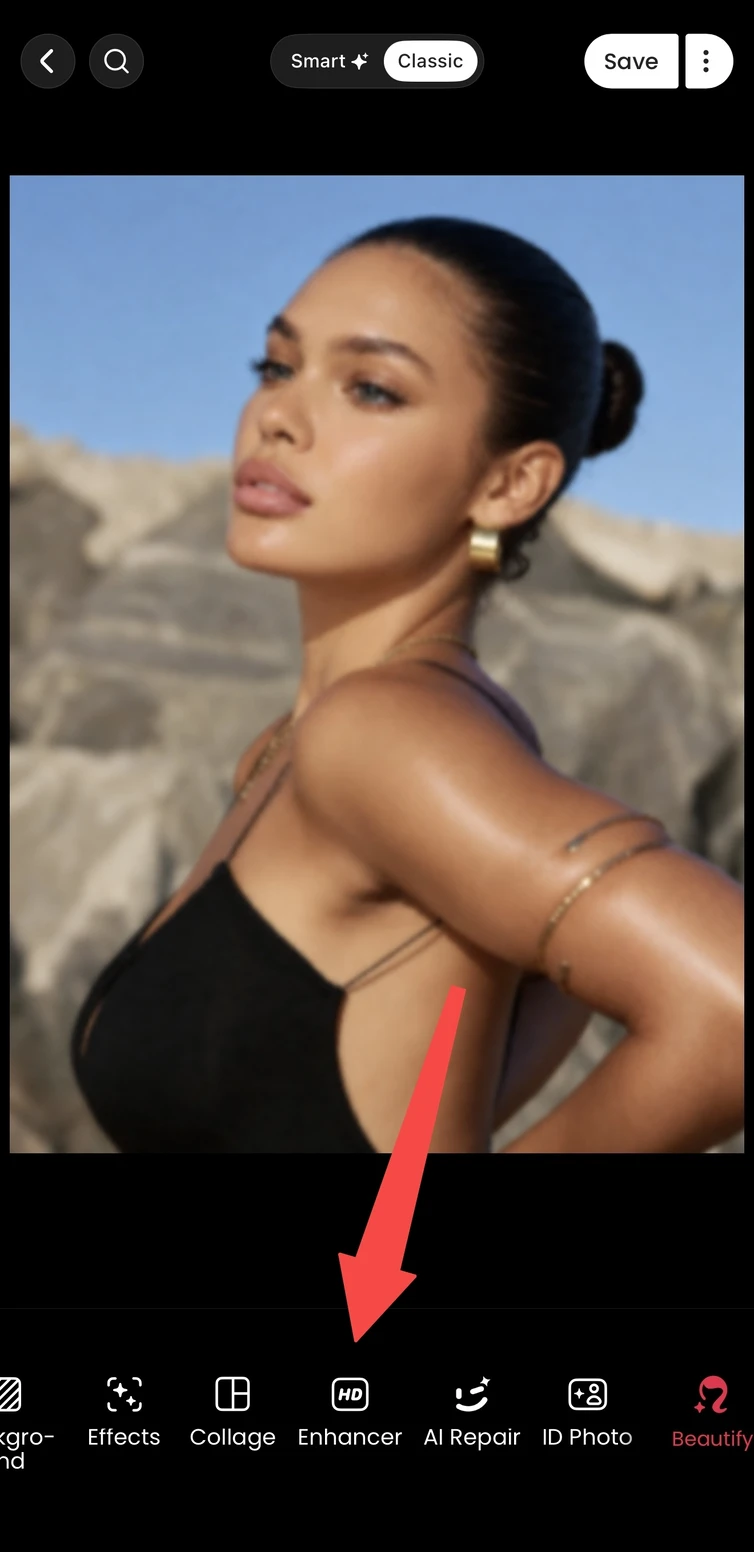
Home screen: Enhancer is the HD icon in the first row of smaller tools.
Step 2. Pick a mode for your photo
On Quality Restoration, choose a mode under General. Use the photo subject and the amount of blur to decide where to start.
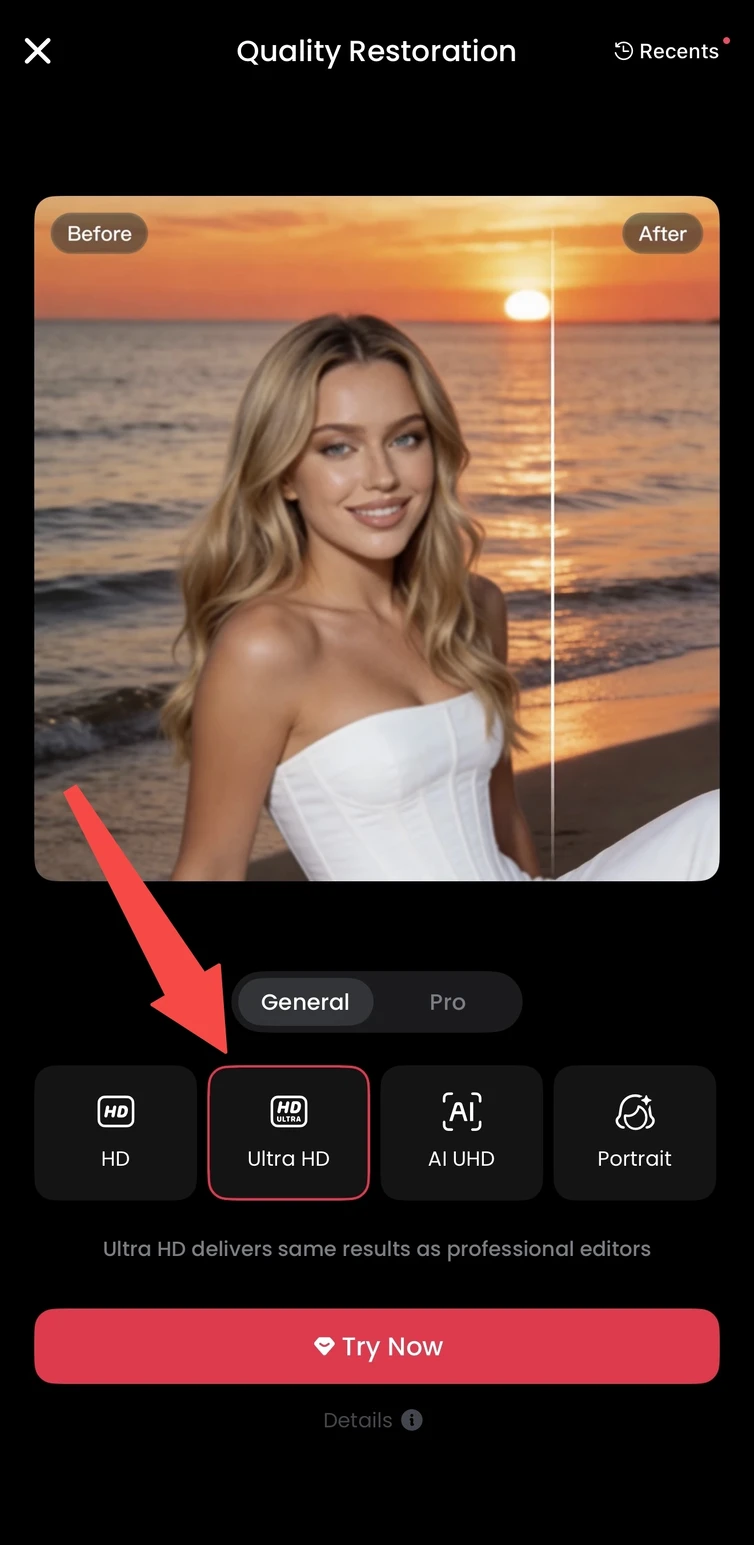
Meitu’s published tutorial shows the Image Quality entry and General mode options.
| MODE | WHEN TO TRY IT |
| HD | Everyday photos that need a light clarity boost. |
| Ultra HD | Scenes with fine details, such as buildings or landscapes. |
| AI UHD | Low-resolution images that need stronger enhancement. |
| Portrait | Photos where faces and skin detail are the main focus. |
Compare the available options. A stronger mode is useful only if the result looks better. Keep the version that preserves the person or scene most convincingly.
Step 3. Upload your photo
Tap Try Now, select your photo and follow the prompts to begin processing. Wait for the result before moving on to the comparison.
Step 4. Compare and adjust the strength
Use Before & After to compare the same area of the image. Where an Intensity slider is available, adjust it while watching the details. Compare both the full picture and a closer view before deciding what to keep.
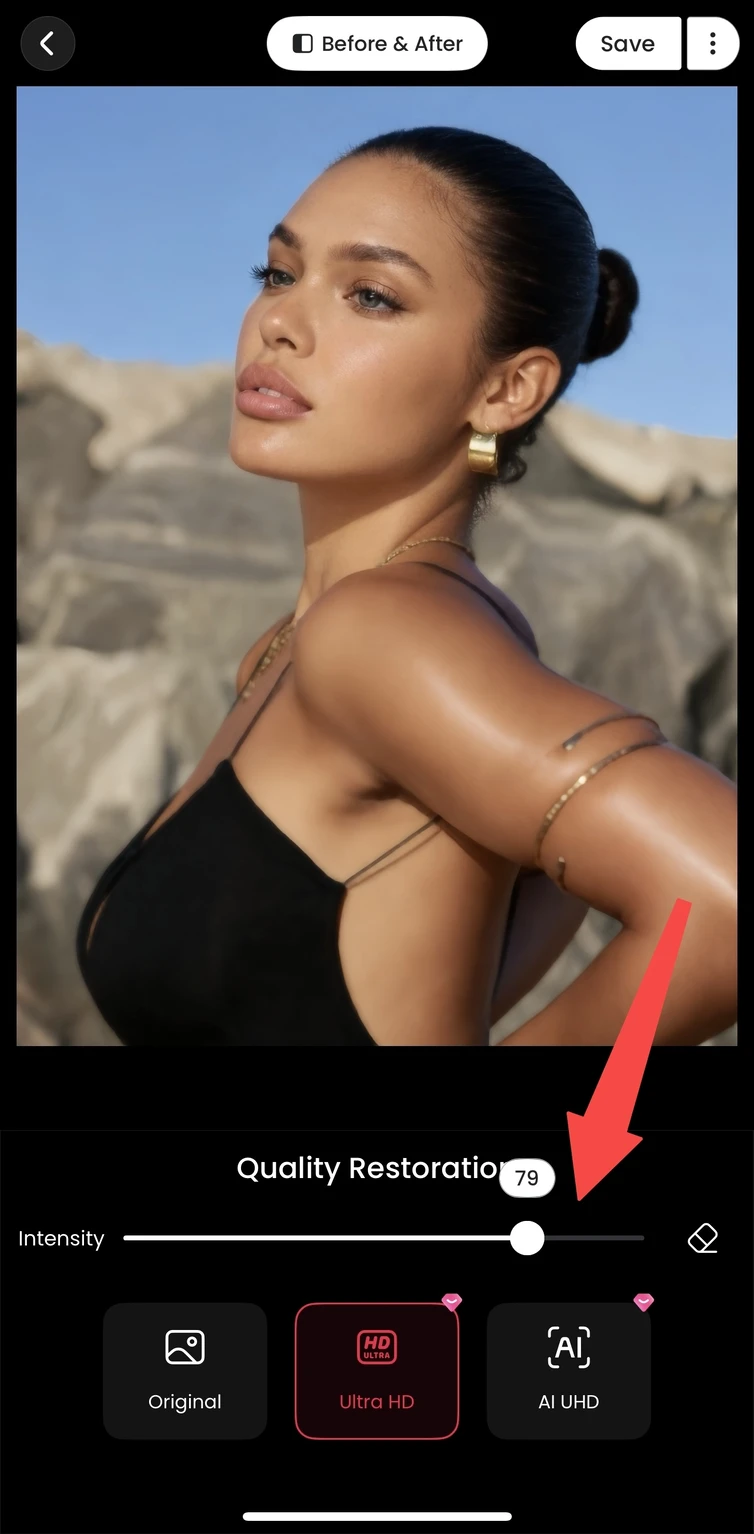
The result screen shows Before & After, Intensity and Save. The next screen confirms that the photo was saved.
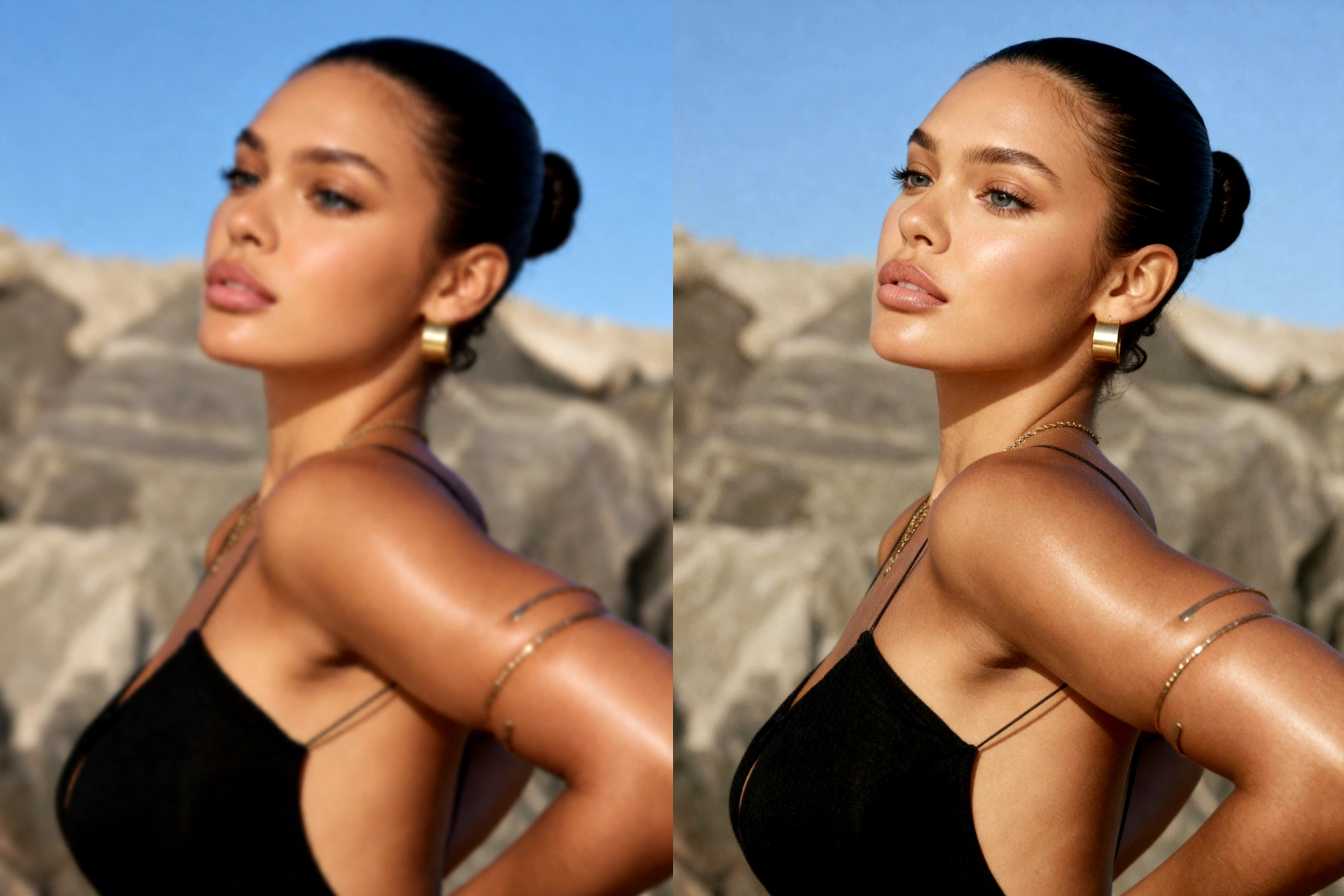
Look for a natural result. Check eyes, eyelashes, hair, fabric and outlines. Reduce the strength if skin looks waxy, edges develop bright halos or details appear unlike the original.
Step 5. Save and check the result
Tap Save when you are satisfied. After export, open the saved image in your photo library and compare it with the original. Keep both versions until you have checked the result at the size you plan to use.
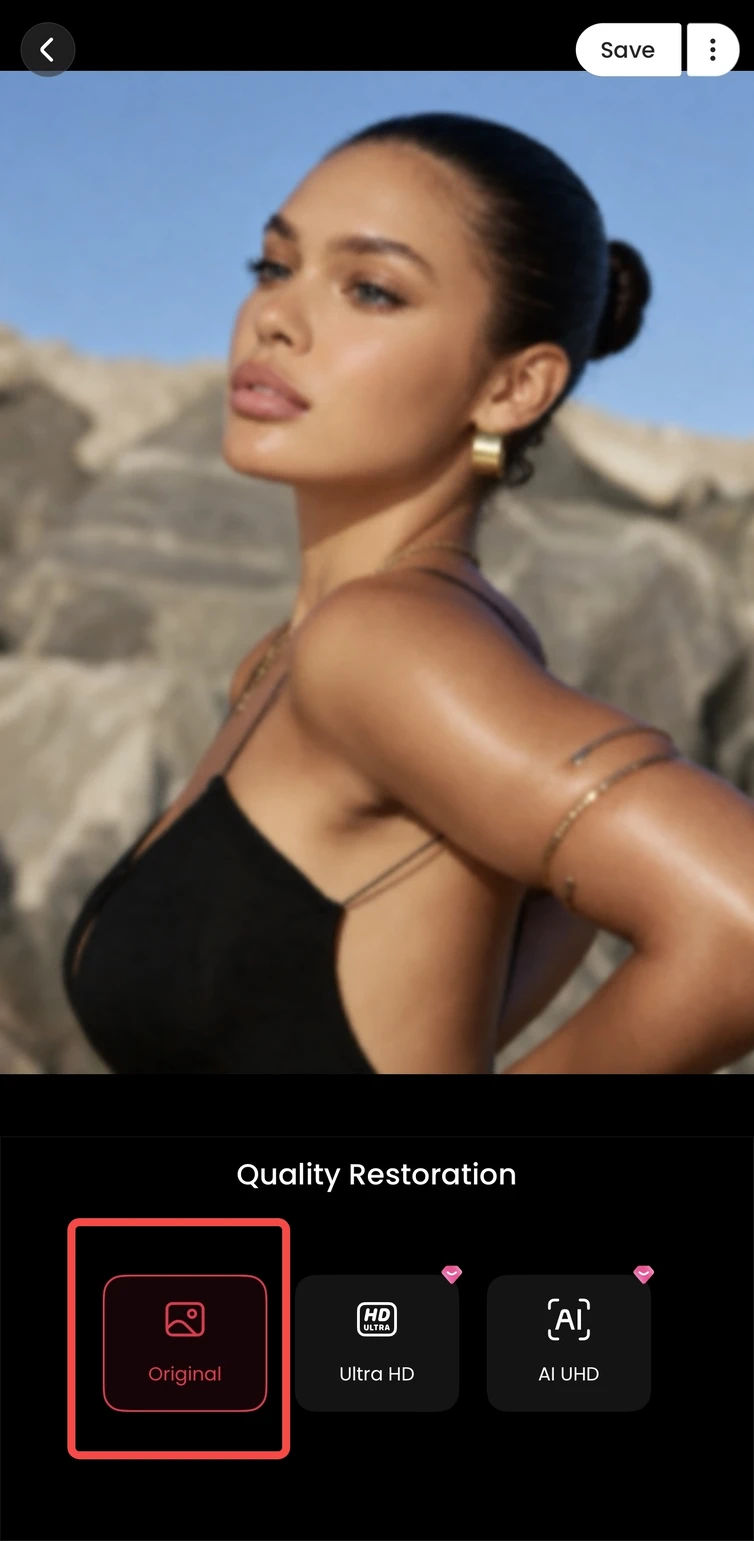
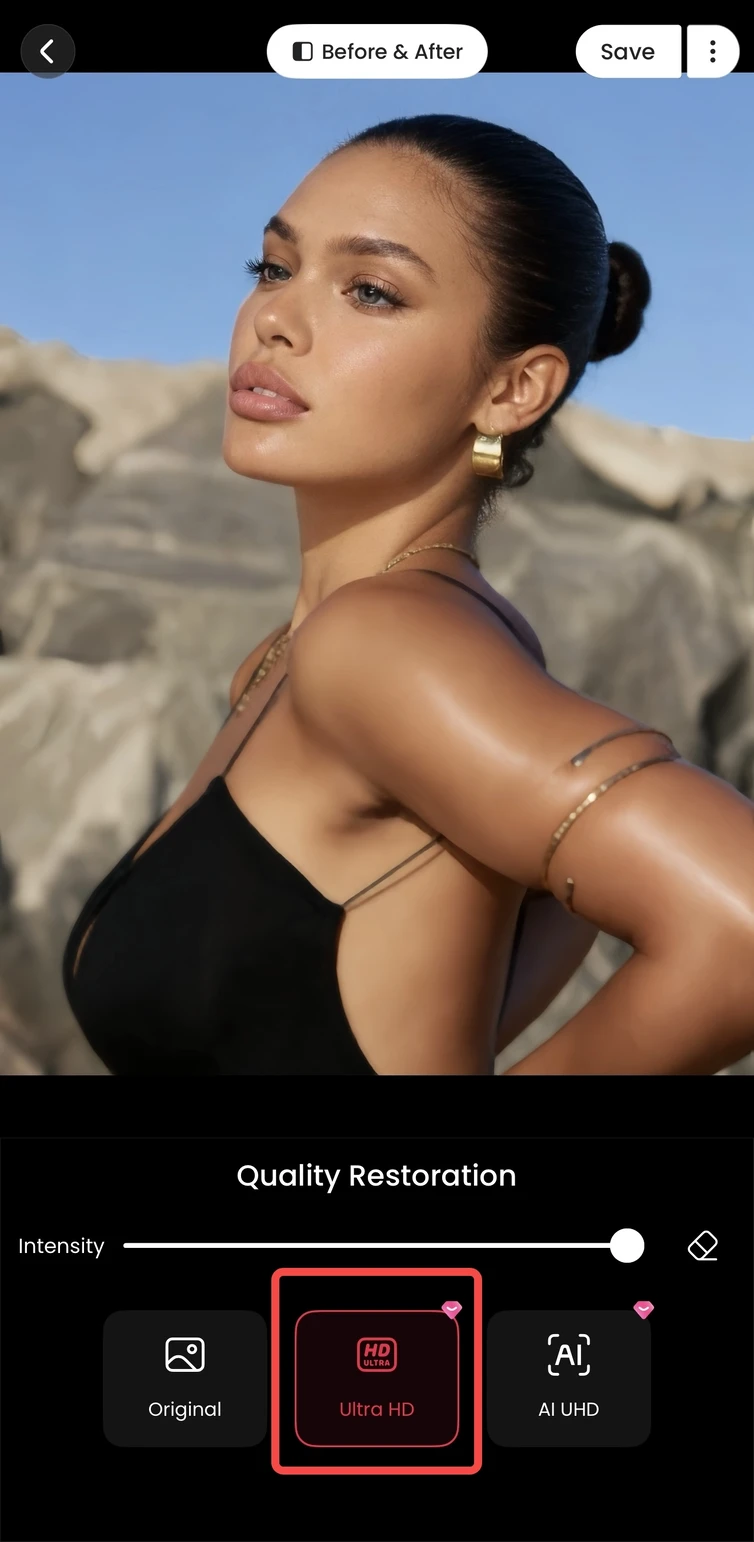
Portrait comparison published in Meitu Academy’s image enhancer guide. The enhanced screen includes the Intensity slider and Save control.
Check the file you will actually share
Portraits: make sure the eyes, mouth and face shape still look like the original person. Scenes: inspect straight edges and repeating textures for odd patterns.
Small details: compare any writing, logos or numbers with the original. Sharing: use the exported photo itself rather than a screenshot of the editing screen.
FAQs
Can Meitu make a blurry photo clearer?
Meitu’s Photo Enhancer is designed to improve clarity and reduce the appearance of blur. Try it on a soft selfie or a low-quality image, then compare the result. Improvement depends on how much useful detail remains in the original.
Can I use it to restore old photos?
Yes, older portraits are a useful case to try. Start with a clear scan or a well-lit photo of the print. Keep the original and review facial details carefully; making a picture clearer does not establish exactly what every missing detail looked like.
Which restoration mode should I choose?
Start with HD for an everyday image or Portrait when faces are the priority. Try Ultra HD or AI UHD when more detail is needed, then compare the results. Choose the version that looks most natural at your intended viewing size.
Why does my enhanced photo look too sharp or unnatural?
The selected mode or strength may be too strong for that image. Reduce Intensity if available, compare another mode, or return to a better source file. Look for smooth-looking skin, bright outlines and invented-looking textures rather than judging sharpness alone.
Can enhancement recover every missing detail?
No. AI enhancement can estimate detail, but it cannot guarantee an exact reconstruction of information absent from the source. Keep the original, and verify text, numbers and recognizable facial features instead of treating a sharper-looking result as proof of accuracy.
Is Meitu’s photo enhancement free?
Meitu offers in-app purchases, and some restoration options have a premium badge. Check the current access, price and terms shown in your app. The availability of a free download does not mean every enhancement mode is free.
Give a favorite photo another look
Start with the original, compare a suitable mode and save the version that looks clear and natural.
Download Meitu for iPhone | Download Meitu for Android
Explore more step-by-step photo editing tutorials in Meitu Academy.